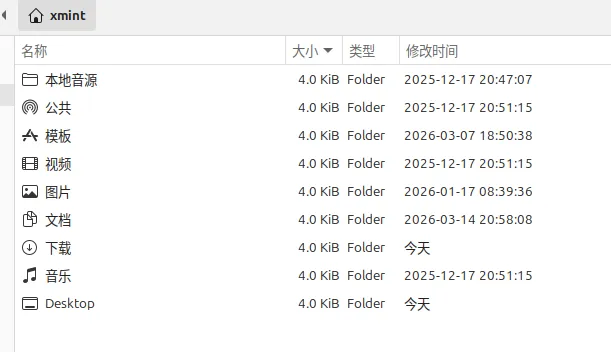
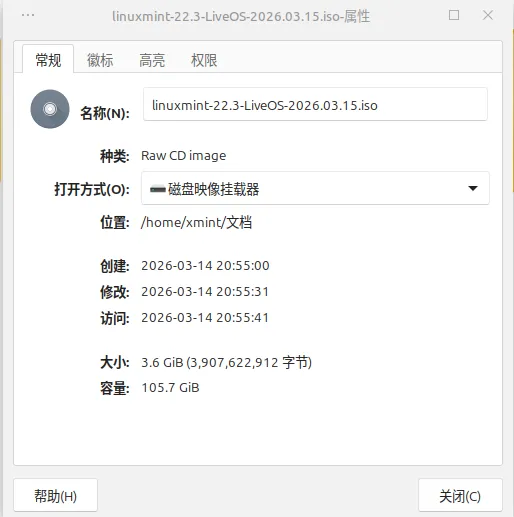
使用linuxmint测试程序的时候,修改写文件后看不到是当天具体几点几分修改的,很不方便,因为系统默认的修改时间是:年月日,虽然安装好系统后,在图形化界面手动也可以修改,但为了便于后面定制系统的时候直接设置好,装好的系统后就不折腾了。
因此我整理了 Linux Mint 22.3 系统中,让文件管理器(Thunar/Nemo)和命令行 ls 命令显示文件修改时间精确到「年 - 月 - 日 时:分: 秒」的完整方案,解决了 XFCE 版 Thunar 配置不生效的核心问题。
一、XFCE 版(Thunar 文件管理器)
1. 一键命令配置(核心方案)
直接在终端复制执行以下完整脚本,无需手动操作图形界面:
#!/bin/bash# 备份旧配置(可选,防止出错)cp -r ~/.config/Thunar ~/.config/Thunar.bak 2>/dev/null# 1. 写入自定义日期格式配置(精确到秒)xfconf-query --channel thunar --property /thunar/preferences/date-format --create --type string --set "custom"xfconf-query --channel thunar --property /thunar/preferences/date-format-custom --create --type string --set "%Y年%m月%d日 %H:%M:%S"# 2. 刷新 XFCE 面板配置(触发 Thunar 重载)xfce4-panel -r# 3. 彻底重启 Thunar 确保配置加载pkill -9 thunar 2>/dev/nullnohup thunar >/dev/null 2>&1 &# 4. 验证配置结果echo -e "\n✅ Thunar 日期格式配置完成:"xfconf-query --channel thunar --property /thunar/preferences/date-formatxfconf-query --channel thunar --property /thunar/preferences/date-format-custom
2. 效果验证
执行命令后,打开 Thunar 文件管理器,「修改时间」列直接显示 2026年03月22日 13:45:22 格式;
若需改为 2026-03-22 13:45:22 数字分隔格式,将脚本中 %Y年%m月%d日 %H:%M:%S 替换为 %Y-%m-%d %H:%M:%S 即可。
二、Cinnamon 版(Nemo 文件管理器)
1. 一键命令配置
#!/bin/bash# 1. 设置 Nemo 自定义时间格式gsettings set org.nemo.list-column-provider modified-date-format "'custom'"gsettings set org.nemo.list-column-provider modified-date-custom "'%Y年%m月%d日 %H:%M:%S'"# 2. 重启 Nemo 生效pkill -9 nemo 2>/dev/nullnohup nemo >/dev/null 2>&1 &# 3. 验证配置echo -e "\n✅ Nemo 日期格式配置完成:"gsettings get org.nemo.list-column-provider modified-date-formatgsettings get org.nemo.list-column-provider modified-date-custom
三、全局命令行(ls 命令)显示完整时间
让终端 ls -l 命令也显示精确到秒的时间,执行以下命令:# 写入环境变量(永久生效)echo "export TIME_STYLE='+%Y年%m月%d日 %H:%M:%S'" >> ~/.bashrc# 立即生效source ~/.bashrc# 验证效果ls -l
四、常见问题解决
1. 执行命令后 Thunar 仍不生效
原因:Mint 22.3 中 Thunar 的 D-Bus 接口变更,直接写配置无法自动加载;
解决:执行上述一键脚本后,手动打开一次 Thunar 即可(无需额外操作)。
2. 提示「属性不存在」
原因:首次配置时属性未创建;
解决:脚本中已包含 --create 选项,自动创建属性,无需手动处理。
3. 重启 Thunar 提示「未找到进程」
说明:仅表示 Thunar 未在后台运行,属于正常现象,不影响配置生效。
五、格式说明
格式符 含义 示例
%Y 4 位年份 2026
%m 2 位月份 03
%d 2 位日期 22
%H 24 小时制小时 13
%M 分钟 45
%S 秒 22
总结
XFCE 版核心:通过 xfconf-query 写入配置 + xfce4-panel -r 刷新 + 重启 Thunar,无需手动点图形界面;
Cinnamon 版核心:用 gsettings 直接配置 Nemo 时间格式;
命令行全局生效:修改 TIME_STYLE 环境变量,让 ls 显示完整时间;
所有方案均适配 Linux Mint 22.3 版本,复制即可使用,无需复杂调试。