THM:Linux shell
- 2026-09-21 11:26:07
linux shell introduction
基础知识
As regular users of operating systems, we all extensively use the Graphical User Interface (GUI) to carry out most operations. It takes a few clicks on different options, and your task is done. However, you can perform almost every task by writing commands in the CLI of your operating system rather than using the GUI. The shells give you some great features for the commands you write in your CLI. This way of interacting with the OS is more efficient and resource-friendly.
作为操作系统的一般用户,我们通常会大量使用图形用户界面(GUI)来完成大多数操作。只需点击几下不同选项,任务便完成了。然而,你几乎可以使用命令行界面(CLI)中的命令来执行几乎所有任务,而无需依赖 GUI。终端 shell 为你在 CLI 中输入的命令提供了许多强大功能,这种方式与操作系统的交互更加高效且资源占用更少。
Suppose you are in a restaurant and have two options for your food. The first option is to order food from the menu, and the waiter will serve it. The second option is to cook your desired dish yourself in the kitchen. In terms of a Linux system, the kitchen here is the OS, and using the GUI of the OS is just like ordering the food from the menu, and the waiter will serve it for you. However, using the CLI means you would have to go to the kitchen (OS) and cook your desired food. In this example, Shell would help you cook your desired dish by giving you some recipe suggestions. Using CLI to perform operations in a Linux system gives you more power and control while carrying out the tasks.
假设你正在一家餐厅,有两选:第一种是点菜单上的菜,由服务员为你上菜,第二种是自己在厨房里烹饪自己喜欢的菜肴。从Linux系统的角度来看,厨房就是操作系统,使用操作系统的图形界面(GUI)就相当于点菜单,由服务员为你端上饭菜。而使用命令行界面(CLI)则意味着你需要亲自进入“厨房”(即操作系统),自己动手烹饪。在这个例子中,Shell会通过提供一些食谱建议来帮助你制作想要的菜肴。在Linux系统中使用CLI执行操作,能让你在完成任务时拥有更大的权力和控制力。
You may have seen hacking scenes in movies that show cool terminals with many commands getting executed. This is because most Linux users prefer to perform operations by writing commands on the CLI using shells instead of using the GUI. This room will teach us how to interact with a Linux shell. We will also explore different shells available in Linux and write some shell scripts in the end.你可能在电影中见过一些黑客场景,画面中显示着带有大量命令的酷炫终端。这是因为大多数 Linux 用户更倾向于通过 shell 在命令行界面(CLI)输入命令来执行操作,而不是使用图形用户界面(GUI)。本课程将教我们如何与 Linux shell 交互,同时我们会探索 Linux 中可用的不同 shell,并最终编写一些 shell 脚本。
Learning Objectives 学习目标
- Learn interaction with Linux shell学习与 Linux shell 交互
- Use basic shell commands 使用基本的shell命令
- Explore the types of Linux shells available探索可用的 Linux 脚本 shell 类型
- Write some shell scripts 编写一些shell脚本Room Prerequisites 房间前提条件
- Linux Fundamentals module Linux 基础模块
答题

how to interact with a shell
基础知识
We have prepared a machine for this room. First, let’s start the Lab Machine by pressing the Start Lab Machine button given below. The machine will start in split-screen view.我们已为这个房间准备了一台机器。首先,按下下方的“启动实验机”按钮,即可开始运行。机器将以分屏视图启动。
In case the VM is not visible, use the blue Show Split View button at the top of the page. The machine will open in GUI for you. You can also connect with the machine via Attackbox or your own VPN-connected machine using the SSH credentials below:如果虚拟机不可见,请使用页面顶部的蓝色“显示分屏视图”按钮。系统将为您以图形界面打开该机器。您也可以通过以下SSH凭据,使用Attackbox或已连接VPN的本地设备来连接该机器:
| Username 用户名 | |
| Password 密码 | |
| IP |
Once the machine opens in the split-screen view, you will have the shell prompt ready to accept commands.一旦机器在分屏视图中打开,您就可以看到外壳提示符,随时接收命令。
LinuxShell壳
1

user@tryhackme:~$
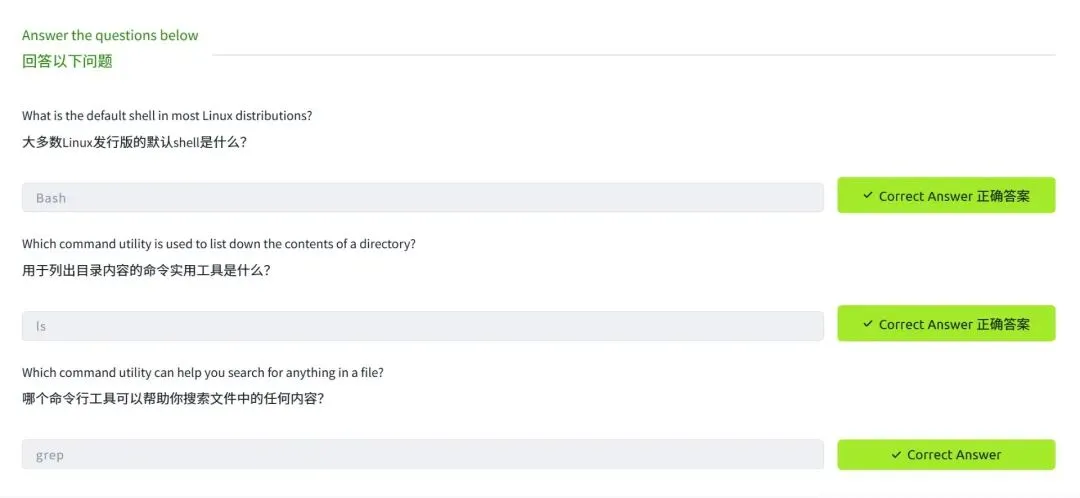
Most Linux distributions use Bash (Bourne Again Shell) as their default shell. However, the default shell displayed when you open the terminal depends on your Linux distribution.大多数Linux发行版都使用Bash(Bourne Again Shell)作为默认shell。然而,打开终端时显示的默认shell取决于你使用的Linux发行版。
Note: In the upcoming task, we will discuss different types of shells.注意:在接下来的任务中,我们将讨论不同类型的贝壳。
You would have already explored the basic Linux commands in the Linux Fundamentals module mentioned in this room’s prerequisites. Let’s briefly discuss some of the most important ones we use in the shell.你已经在本房间前提条件中提到的“Linux基础”模块里学习过基本的Linux命令了。下面我们简要讨论一下在shell中使用的一些最重要命令。
When interacting with a shell, you must be in the directory where you want to perform operations. By default, when you open a shell in most of the Linux distributions, you will be in your home directory. To see your current working directory, you can execute pwd, which stands for Print Working Directory, as shown in the terminal below:在使用 shell 时,必须处于想要执行操作的目录中。默认情况下,在大多数 Linux 发行版中打开 shell 后,你将位于自己的主目录。要查看当前工作目录,可以执行 pwd 命令,即“打印工作目录”,如下图所示:
Check Current Working Directory检查当前工作目录
1 2
user@tryhackme:~$ pwd
/home/user In the results of the above command, you can see that your current working directory is /home/ubuntu在上述命令的结果中,可以看到你的当前工作目录是 /home/ubuntu
However, you can change your directory as well. To do that, you can use cd (short for Change Directory), as shown in the terminal below:不过,你也可以更改目录。为此,可以使用 cd(即“Change Directory”的缩写),如下图所示:
Change Directory更改目录
1 2
user@tryhackme:~$ cd Desktop
user@tryhackme:~MmscuocsgX_8_rfg2_INLINE While using the GUI of an OS, you can see the contents of a directory on the screen. However, while using the shell, to see the contents of a directory, you must enter the following command:在使用操作系统图形界面时,可以在屏幕上查看目录的内容。然而,在使用命令行时,要查看目录内容,必须输入以下命令:
List Directory Contents目录内容列表
1 2
user@tryhackme:~$ ls
Desktop Documents Downloads Music Pictures Public Templates Videos If you want to read the contents of a file, you can type the following command in your shell:如果你想读取文件内容,可以在 shell 中输入以下命令:
Displaying File Contents显示文件内容
1 2 3
user@tryhackme:~$ cat filename.txt
this is a sample file
this is the second line of the file The grep command is a very popular command among Linux users. This powerful command can search for any word or pattern inside a file. Suppose you want to search for specific entries in a huge file. You can use the grep command along with the pattern of those entries, which will extract them for you. It also helps you to search for a specific keyword in a big file.grep 命令是 Linux 用户中非常常用的命令。这个强大的命令可以搜索文件中的任意单词或模式。假设你想在大型文件中查找特定条目,可以使用 grep 命令并结合该条目的模式,它会自动提取出这些内容。此外,它还能帮助你在大文件中搜索特定关键词。
The following terminal shows us how to use the grep command to search for the word “THM” inside a big text file. The output displays the specific line of that text file containing this word.以下终端示例展示了如何使用 grep 命令在大型文本文件中搜索“THM”一词。输出将显示包含该词语的特定行内容。
Searching a Word In File在文件中搜索单词
1 2
user@tryhackme:~$ grep THM dictionary.txt
The flag is THM 答题
types of linux shells(linux 壳的类型)
基础知识
Like the Command Prompt and PowerShell in Windows OS, Linux has different types of shells available, each with its own features and characteristics.与Windows操作系统中的命令提示符和PowerShell类似,Linux也提供了多种类型的shell,每种都有其独特的功能和特性。
Multiple shells are installed in different Linux distributions. To see which shell you are using, type the following command:多个shell安装在不同的Linux发行版中。要查看您正在使用的shell,请输入以下命令:
Current Shell当前外壳
1 2
user@tryhackme:~MmscuocsgX_9_fek7_INLINESHELL
/bin/bash You can also list down the available shells in your Linux OS. The file contains all the installed shells on a /etc/shellsLinux system. You can list down the available shells in your Linux OS by typing in the terminal:cat /etc/shells你也可以列出 Linux 系统中可用的 shell。该文件包含了 /etc/shells 目录下所有已安装的 shell。你可以通过在终端输入以下命令来列出 Linux 系统中的可用 shell:cat /etc/shells
Available Shells可用壳体
1 2 3 4 5 6 7 8 9 10 11 12 13
user@tryhackme:~$ cat /etc/shells
# /etc/shells: valid login shells
/bin/sh
/bin/bash
/usr/bin/bash
/bin/rbash
/usr/bin/rbash
/bin/dash
/usr/bin/dash
/usr/bin/tmux
/usr/bin/screen
/bin/zsh
/usr/bin/zsh To switch between these shells, you can type the shell name that is present on your OS, and it will open for you, as can be seen below:要切换这些 shell,您可以输入您操作系统中显示的 shell 名称,它就会为您打开,如下所示:
Switch Shell切换外壳
1 2
user@tryhackme:~$ zsh
tryhackme% If you want to permanently change your default shell, you can use the command: . This will make this shell as the default shell for your terminal.chsh -s /usr/bin/zsh如果你想永久更改默认的 shell,可以使用以下命令:. 这将使该 shell 成为终端的默认 shell。chsh -s /usr/bin/zsh
There are many types of Linux shells. We will discuss a few of them and their features.Linux 的 shell 有多种类型。我们将讨论其中几种及其特点。
Bourne Again Shell 伯恩再版壳
Bourne Again Shell (Bash) is the default shell for most Linux distributions. When you open the terminal, bash is present for you to enter commands. Before bash, some shells like sh, ksh, and csh had different capabilities. Bash came as an enhanced replacement for these shells, borrowing capabilities from all of them. This means that it has many of the features of these old shells and some of its unique abilities. Some of the key features provided by bash are listed below:Bourne Again Shell(Bash)是大多数Linux发行版的默认shell。当你打开终端时,bash会自动提供输入命令的功能。在bash出现之前,诸如sh、ksh和csh等shell具有不同的功能特性。Bash作为这些旧shell的增强替代版本,吸收了它们的多种功能。这意味着它不仅具备这些旧shell的许多功能,还拥有其独特的特性。以下是bash提供的部分关键功能:
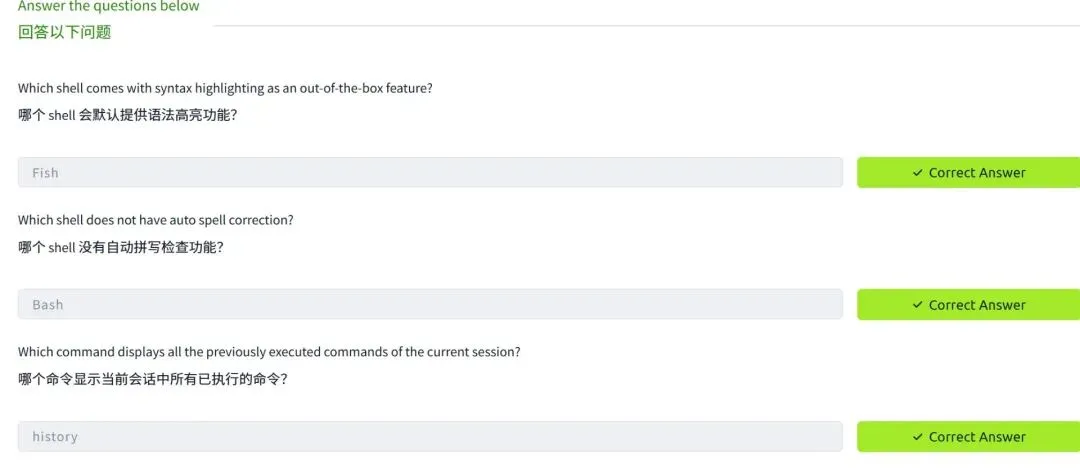
Bash is a widely used shell with scripting capabilities.Bash 是一种广泛使用的 shell,具有脚本编写功能。 It offers a tab completion feature, which means if you are in the middle of completing a command, you can press the tab key on your keyboard. It will automatically complete the command based on a possible match or give you multiple suggestions for completing it.它提供自动补全功能,这意味着当你正在输入命令时,可以按下键盘上的 Tab 键。系统会根据可能的匹配结果自动完成命令,或为你提供多个完成建议。 Bash keeps a history file and logs all of your commands. You can use the up and down arrow keys to use the previous commands without typing them again. You can also type to display all your previous commands. historyBash 会保存历史文件,并记录你所有的命令。你可以使用上下箭头键来调用之前的命令,而无需重新输入。你也可以直接输入以显示所有之前的命令历史。
Friendly Interactive Shell友好交互式外壳
Friendly Interactive Shell (Fish) is also not default in most Linux distributions. As its name suggests, it focuses more on user-friendliness than other shells. Some of the key features provided by fish are listed below:友好的交互式 Shell(Fish)在大多数 Linux 发行版中也不是默认安装的。顾名思义,它比其他 Shell 更注重用户友好性。以下是 Fish 提供的一些主要功能:
It offers a very simple syntax, which is feasible for beginner users.它提供了非常简单的语法,适合初学者使用。 Unlike bash, it has auto spell correction for the commands you write.与 bash 不同,它会对您输入的命令进行自动拼写纠正。 You can customize the command prompt with some cool themes using fish.你可以使用 fish 自定义命令提示符,搭配一些酷炫的主题。 The syntax highlighting feature of fish colors different parts of a command based on their roles, which can improve the readability of commands. It also helps us to spot errors with their unique colors.fish 的语法高亮功能会根据命令中各部分的用途,用不同的颜色来区分它们,从而提高命令的可读性。同时,它还能通过独特的颜色帮助我们发现错误。 Fish also provides scripting, tab completion, and command history functionality like the shells mentioned in this task.Fish 还提供脚本、制表符补全和命令历史功能,与本任务中提到的 shell 相同。
Z Shell
Z Shell (Zsh) is not installed by default in most Linux distributions. It is considered a modern shell that combines the functionalities of some previous shells. Some of the key features provided by zsh are listed below:大多数Linux发行版默认未安装Z Shell(Zsh)。它被认为是一种现代shell,集成了部分旧版shell的功能。以下是zsh提供的一些主要特性:
Zsh provides advanced tab completion and is also capable of writing scripts.Zsh 提供了高级的制表符补全功能,同时也支持编写脚本。 Just like fish, it also provides auto spell correction for the commands.就像鱼类一样,它也为命令提供了自动拼写纠正功能。 It offers extensive customization that may make it slower than other shells.它提供了广泛的自定义功能,可能会使其比其他外壳运行稍慢。 It also provides tab completion, command history functionality, and several other features.它还提供制表符补全、命令历史功能以及其他多种特性。
Selecting the best Linux shell depends on your usage and its features. The shells discussed in this task are some of the many different shells available in Linux. You can compare the features of these different shells and choose the best one based on your tasks.选择最佳的 Linux 命令行界面取决于你的使用需求和功能要求。本文档中讨论的命令行界面是 Linux 中众多不同 shell 的一部分。你可以比较这些不同 shell 的功能,并根据自己的任务需求选择最合适的那一款。
答题
shell scripting and components(壳脚本和组件)
基础知识
A shell script is nothing but a set of commands. Suppose a repetitive task requires you to enter multiple commands using a shell. Instead of entering them one after one on every repetition of that task, which may take more of your time, you can combine them into a script. To execute all those commands, you will only execute the script, and all the commands will be executed. All the shells mentioned in the previous tasks have scripting capabilities. Scripting helps us to automate tasks. Before learning how to write a script, we need to know that even though Linux shells have scripting capabilities, this does not mean that you can only make a script using a shell. Scripting can be done in various programming languages as well. However, the scope of this room is to cover scripting using a shell.shell 脚本本质上是一组命令的集合。假设某个重复性任务需要你在 shell 中输入多个命令,如果每次执行该任务时都逐一输入,不仅耗时,还容易出错。此时,你可以将这些命令组合成一个脚本。只需运行这个脚本,所有命令就会自动执行。前面提到的所有 shell 都具备脚本功能。脚本化有助于我们实现任务自动化。在学习如何编写脚本之前,我们需要了解:尽管 Linux shell 具备脚本功能,但这并不意味着只能使用 shell 来编写脚本。脚本也可以用多种编程语言实现。不过,本课程的重点是介绍如何使用 shell 进行脚本编写。
The first step is to open the terminal and select a shell. Let’s go with the bash shell, the default, and widely used shell in most distributions.第一步是打开终端并选择一个shell。我们使用bash shell,这是大多数发行版中默认且广泛使用的shell。
Unlike the other commands we type in the shell, we first need to create a file using any text editor for the script. The file must be named with an extension , the default extension for bash scripts. The following terminal shows the script file creation:.sh与我们在shell中输入的其他命令不同,首先需要使用任何文本编辑器创建一个脚本文件。该文件必须以扩展名结尾,这是bash脚本的默认扩展名。以下终端显示了脚本文件的创建过程:.sh
Create Script File创建脚本文件
1

user@tryhackme:~$ nano first_script.sh
Every script should start from shebang. Shebang is a combination of some characters that are added at the beginning of a script, starting with followed by the name of the interpreter to use while executing the script. As we are writing our script in bash, let’s define it as the interpreter in the shebang.#!每个脚本都应以 shebang 开头。Shebang 是一组字符的组合,添加在脚本开头,以 #! 开头,后跟用于执行脚本的解释器名称。由于我们正在使用 bash 编写脚本,因此将解释器定义为 shebang 中的内容。#!
first_script.sh
1

#!/bin/bash
We are all set to write our first script now. There are some fundamental building blocks of a script that together make an efficient script. Let’s learn and utilize these script constructs to write one script ourselves.现在我们已经准备好编写第一个脚本了。一个高效的脚本由一些基本的构建模块组成,让我们来学习并运用这些脚本结构,自己动手写一个脚本。
Variables 变量
A variable stores a value inside it. Suppose you need to use some complex values, like a URL, a file path, etc., several times in your script. Instead of memorizing and writing them repeatedly, you can store them in a variable and use the variable name wherever you need it.变量用于存储值。假设在脚本中需要多次使用一些复杂的值,例如网址、文件路径等。与其反复记忆和书写这些内容,不如将它们存储在变量中,并在需要时直接使用变量名。
The script below displays a string on the screen: "Hey, what’s your name?” This is done by command. The second line of the script contains the code . is used to take input from the user, and is the variable in which the input would be stored. The last line uses to display the welcome line for the user, along with its name stored in the variable.echo``read name``read``name``echo以下脚本会在屏幕上显示一条字符串:“Hey, what’s your name?” 这是通过命令实现的。脚本的第二行包含代码,用于从用户获取输入,而变量则用于存储该输入内容。最后一行使用echo命令,向用户显示欢迎信息,并显示存储在变量中的名字。 read namereadnameecho
1 2 3 4 5
# Defining the Interpreter
#!/bin/bash
echo "Hey, what’s your name?"
read name
echo "Welcome, $name" Now, save the script by pressing . Confirm by pressing and then .
To execute the script, we first need to make sure that the script has execution permissions. To give these permissions to the script, we can type the following command in our terminal:要执行脚本,我们首先需要确保该脚本具有可执行权限。为了给脚本赋予这些权限,可以在终端中输入以下命令:现在,按 。 保存脚本,然后按 和 。CTRL+X``Y``ENTER
Execution Permission to Script执行脚本权限
1

user@tryhackme:~$ chmod +x first_script.sh
Now that the script has execution permissions use before the script name to execute it. We use before the script to run rather than typing the script name directly because tells the shell to execute the file that is present in the current directory. If you don’t define before the script name, the shell will search the script in the PATH environment variable (that contains all the directories except the current one), and it will not find the defined script in any of those directories and generate an error. The below terminal shows the script in which we utilized the variables:./``./``./``./现在脚本已具备可执行权限,我们可以在脚本名前使用“before”来执行它。我们选择在脚本名前运行,而不是直接输入脚本名称,因为这样告诉shell执行当前目录中存在的文件。如果未在脚本名前定义“before”,shell会搜索PATH环境变量中的脚本(该变量包含除当前目录外的所有目录),但无法在这些目录中找到已定义的脚本,从而产生错误。下面的终端显示了我们使用的脚本:././././
Script Execution脚本执行
1 2 3 4
user@ubuntu:~$ ./first_script.sh
Hey, What's your name?
John
Welcome, John Loops 循环
Loop, as the name suggests, is something that is repeating. For example, you have a list of many friends, and you want to send them the same message. Instead of sending them individually, you can make a loop in your script, give your friend list to the loop and the message, and it will send that message to all your friends.循环,顾名思义,就是重复执行某项操作。例如,你有一份朋友名单,想要向他们发送相同的信息。你可以用脚本中的循环来代替逐一发送,将朋友名单和消息传给循环,它就会自动将信息发送给所有朋友。
For a general explanation of loops, let’s write a loop that will display all numbers starting from 1 to 10 on the screen. First, create a new file named , then enter the code below. Save your file by pressing, then confirm with and then .loop_script.shCRTL+X``y``ENTER为了对循环进行一般性说明,我们来编写一个循环,用于在屏幕上显示从1到10的所有数字。首先,创建一个名为 loop_script.sh 的新文件,然后输入以下代码。保存文件时按 Ctrl+X,再按 y 确认,最后按 Enter 保存。
1 2 3 4 5 6
# Defining the Interpreter
#!/bin/bash
for i in {1..10};
do
echo $i
done The first line has the variable that will iterate from 1 to 10 and execute the below code every time. indicates the start of the loop code, and indicates the end. In between them, the code we want to execute in the loop is to be written. The for loop will take each number in the brackets and assign it to the variable in each iteration. The will display this variable’s value every iteration.`idodoneiecho $i`第一行包含一个变量,该变量将从1循环到10,并在每次循环时执行以下代码。表示循环代码的开始,表示结束。它们之间的内容是我们希望在循环中执行的代码。for循环会取括号内的每个数字,并在每次迭代时将其赋值给变量。每次迭代都会显示该变量的值。idodoneiecho $i
Now, let’s execute the script after giving it the execution permission.现在,让我们在赋予脚本执行权限后运行它。
Script Execution脚本执行
1 2 3 4
user@tryhackme:~$ ./loop_script.sh
1
2
3 The output of the above terminal is cut to numbers only for demonstration. However, when executed according to the script’s logic, it would display the numbers from .3``1 to 10上述终端的输出仅用于演示,截取为数字。但按照脚本逻辑执行时,会显示从0.31到10的数字。
Conditional Statements 条件语句
Conditional statements are an essential part of scripting. They help you execute a specific code only when a condition is satisfied; otherwise, you can execute another code. Suppose you want to make a script that shows the user a secret. However, you want it to be shown to only some users, only to the high-authority user. You will create a conditional statement that will first ask the user their name, and if that name matches the high authority user’s name, it will display the secret. 条件语句是脚本编写中的重要组成部分。它们可以帮助你在满足特定条件时执行某段代码,否则则执行另一段代码。假设你想编写一个脚本来向用户显示一个秘密,但只想让某些用户看到,尤其是高权限用户。你可以创建一个条件语句,首先询问用户的姓名,如果该姓名与高权限用户的姓名匹配,则显示秘密内容。
First, create a new file named , then enter the code below. Save your file by pressing , then confirm with and then .conditional_script.sh``CRTL+X``y``ENTER首先,创建一个名为 的新文件,然后输入以下代码。按 保存文件,再按 确认,然后按 。conditional_script.shCRTL+XyENTER
1 2 3 4 5 6 7 8 9
# Defining the Interpreter
#!/bin/bash
echo "Please enter your name first:"
read name
if [ "$name" = "Stewart" ]; then
echo "Welcome Stewart! Here is the secret: THM_Script"
else
echo "Sorry! You are not authorized to access the secret."
fi The above script takes the user’s name as input and stores it into a variable (studied in the Variables section). The conditional statement starts with if and compares the value of that variable with the string Stewart; if it’s a match, it will display the secret to the user, or else it will not. The fi is used to end the condition.上述脚本会接收用户的姓名作为输入,并将其存储到一个变量中(详见“变量”部分)。条件语句以 if 开始,将该变量的值与字符串 Stewart 进行比较,如果匹配,则向用户显示秘密,否则则不显示。fi 用于结束条件判断。
Following is the terminal showing the script execution when the user name matches the authorized one defined in the script:以下是当用户名与脚本中定义的授权用户名匹配时,终端显示的脚本执行情况:
conditional_script.sh
1 2 3 4
user@tryhackme:~$ ./conditional_script.sh
Please enter your name first:
Stewart
Welcome, Stewart! Here is the secret: THM_Script However, the following terminal shows the script execution when the user name does not match the authorized one defined in the script:然而,当用户名与脚本中定义的授权用户名不匹配时,以下终端会显示脚本执行情况:
conditional_script.sh
1 2 3 4
user@tryhackme:~$ ./conditional_script.sh
Please enter your name first:
Alex
Sorry! You are not authorized to access the secret. Comments 评论
Sometimes, the code can be very lengthy. In this scenario, the code might confuse you when you look at it after some time or share it with somebody. An easy way to resolve this problem is to use comments in different parts of the code. A comment is a sentence that we write in our code just for the sake of our understanding. It is written with a # sign followed by a space and the sentence you need to write. For example, let’s rewrite the script we discussed in the conditional statements section and add comments to it. Open the with , then add the comments starting with a # sign. Save your file by pressing , then confirm with and then .conditional_script.sh``nano``CRTL+X``y``ENTER有时,代码可能会非常冗长。在这种情况下,当你过一段时间后查看或与他人分享时,代码可能会让你感到困惑。解决这个问题的一个简单方法是在代码的不同部分添加注释。注释是我们在代码中为便于理解而写的一句话,通常以 # 符号开头,后面跟一个空格和需要写的句子。例如,让我们重新编写之前在条件语句部分讨论的脚本,并为其添加注释。打开 with 文件,然后以 # 符号开头添加注释。按 保存文件,再按 确认。conditional_script.shnanoCRTL+XyENTER
1 2 3 4 5 6 7 8 9 10 11 12 13 14 15 16 17 18 19
# Defining the Interpreter
#!/bin/bash
# Asking the user to enter a value.
echo "Please enter your name first:"
# Storing the user input value in a variable.
read name
# Checking if the name the user entered is equal to our required name.
if [ "$name" = "Stewart" ]; then
# If it equals the required name, the following line will be displayed.
echo "Welcome Stewart! Here is the secret: THM_Script"
# Defining the sentence to be displayed if the condition fails.
else
echo "Sorry! You are not authorized to access the secret."
fi See how easy a script looks with comments. Comments don’t affect the working of any script. A good script always has some comments. The example shown above contains a comment for each line. This is just a better explanation of its concept. However, the best way to include comments is to define them in the major and complex areas of the script.看看添加注释后脚本看起来有多简单。注释不会影响脚本的运行。一个好的脚本通常都会包含一些注释。上面示例中的每一行都包含了注释,这仅是对其概念的更清晰说明。然而,最好的注释方式是在脚本的主要和复杂部分进行定义。
Note: Other types of variables, loops, and conditional statements can also be used to achieve different tasks. Moreover, multiple lines of comments can also be added within a single comment. However, it is not the scope of this room.注意:其他类型的变量、循环和条件语句也可用于实现不同的任务。此外,还可以在单个注释中添加多行注释。但这些内容不在本课程的讨论范围之内。
答题
The locker scrpit(保险柜脚本)
基础知识
In the previous task, we studied variables, loops, and conditional statements in shell scripting. Let’s use that knowledge to create a shell script that utilizes all these components.在上一任务中,我们学习了shell脚本中的变量、循环和条件语句。现在,让我们利用这些知识创建一个综合运用上述所有组件的shell脚本。
Requirement 要求
A user has a locker in a bank. To secure the locker, we have to have a script in place that verifies the user before opening it. When executed, the script should ask the user for their name, company name, and PIN. If the user enters the following details, they should be allowed to enter, or else they should be denied access.用户在银行里有一间保险柜。为了确保保险柜的安全,我们需要设置一个脚本,在打开前验证用户身份。当脚本执行时,应要求用户提供姓名、公司名称和PIN码。如果用户输入了以下信息,则允许其进入,否则将被拒绝访问。
Username: John 用户名:John Company name: Tryhackme 公司名称:Tryhackme PIN: 7385 PIN:7385
Script
1 2 3 4 5 6 7 8 9 10 11 12 13 14 15 16 17 18 19 20 21 22 23 24 25 26 27 28 29
# Defining the Interpreter
#!/bin/bash
# Defining the variables
username=""
companyname=""
pin=""
# Defining the loop
for i in {1..3}; do
# Defining the conditional statements
if [ "$i" -eq 1 ]; then
echo "Enter your Username:"
read username
elif [ "$i" -eq 2 ]; then
echo "Enter your Company name:"
read companyname
else
echo "Enter your PIN:"
read pin
fi
done
# Checking if the user entered the correct details
if [ "companyname" = "Tryhackme" ] && [ "$pin" = "7385" ]; then
echo "Authentication Successful. You can now access your locker, John."
else
echo "Authentication Denied!!"
fi Script Execution 脚本执行
Executing the Locker Script执行锁屏脚本
1 2 3 4 5 6 7 8
user@tryhackme:~$ ./locker_script.sh
Enter your Username:
John
Enter your Company name:
Tryhackme
Enter your PIN:
1349
Authentication Denied!! 答题

实践练习
基础知识
We have placed a script on the default user directory of the attached Ubuntu machine. This script searches for a specific keyword in all the files (with .log extension) in a specific directory./home/user我们已在附带的Ubuntu机器的默认用户目录中放置了一个脚本。该脚本会搜索特定目录(/home/user)下所有扩展名为。log的文件中的特定关键词。
Note: Some changes are required inside the script file before you execute it. When you open the machine according to the instructions in task #2, you will be able to gain the session as a normal user. However, we recommend you to become the root user in order to search for the flag in all the files of the given directory. To become one, you only need to type the following command and enter the password of the user (The credentials are included in Task 2):注意:在执行脚本文件之前,需要对其中进行一些修改。按照任务2中的说明启动机器后,您将能够以普通用户身份获取会话。但我们建议您以root用户身份登录,以便在指定目录下的所有文件中搜索标志。要切换为root用户,只需输入以下命令并输入用户的密码即可(凭据包含在任务2中):
Become Root User成为根用户
1 2 3
user@tryhackme:~$ sudo su
[sudo] password for user:
root@tryhackme:/home/user# You can make the changes in the script file by keeping in view the following details:您可以通过参考以下细节来修改脚本文件:
- Flag: thm-flag01-script 旗帜:thm-flag01-script
- Directory: /var/log 目录:/var/log
Hint: Look for empty double quotes inside the script file and fill them. Make sure not to leave any space between them." "提示:在脚本文件中查找空的双引号并将其填充。确保两者之间没有空格。" "
答题
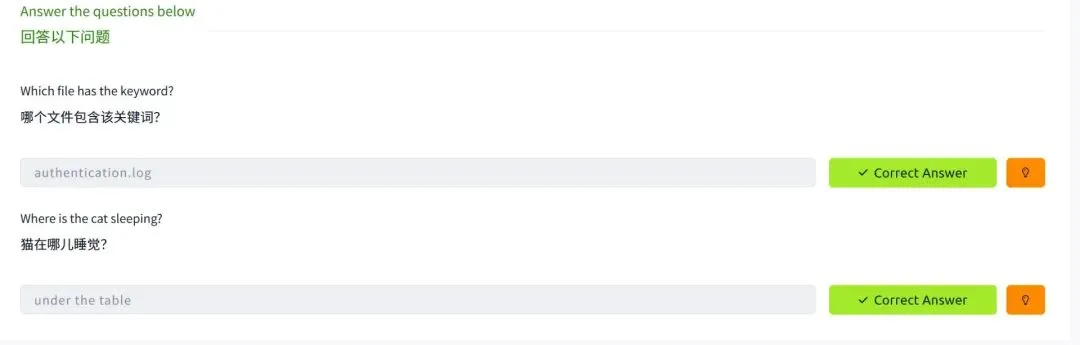
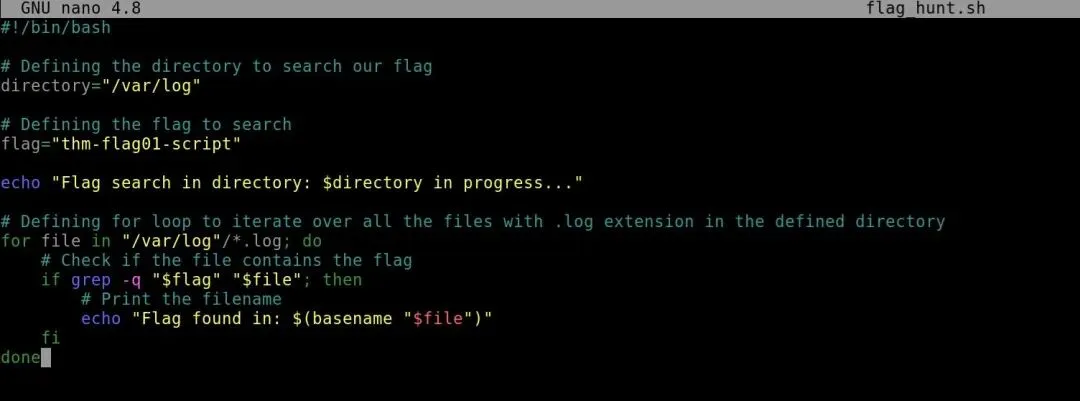
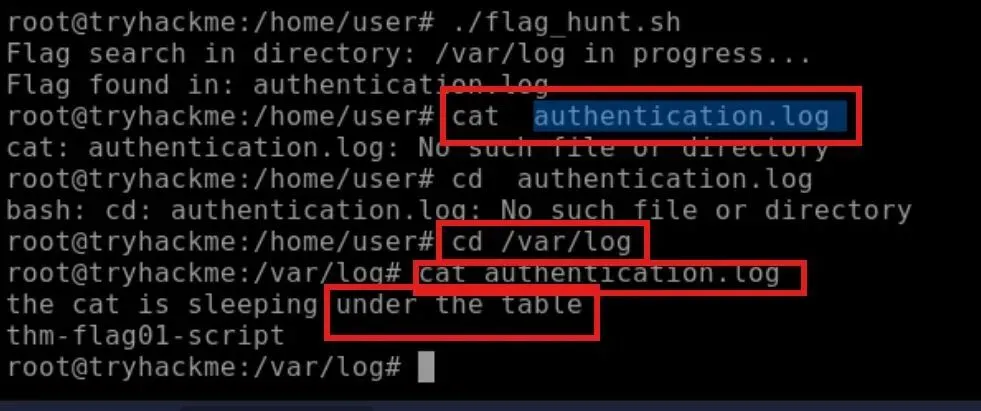
./flag_hunt.sh使用脚本寻找flag
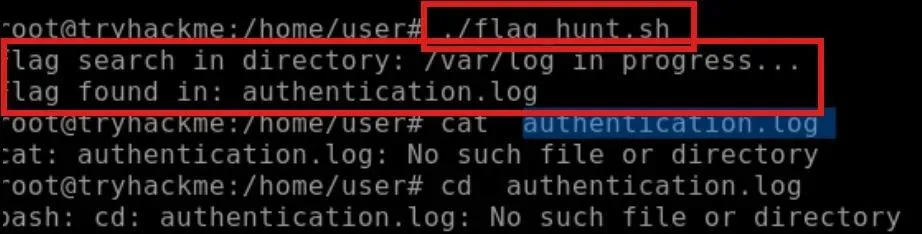
我们尝试cat,发现cat不下来,思考过后想到了是路径问题
文件在/var/log,所以我们先进入对应目录
cd /var/log
cat authentication.log