python-docx是一款纯Python实现的第三方库,专门用于创建和修改Microsoft Word的.docx格式文档。该库无需依赖 Microsoft Word软件即可运行,具备优秀的跨平台特性,可在Windows、Mac、Linux等系统上使用。需要注意的是,python-docx仅兼容.docx 格式(对应 Word 2007 及以上版本),不支持旧版的.doc 格式文件。.docx是基于XML的开放压缩格式,而.doc是二进制私有格式,前者体积更小、兼容性更优。
python-docx官方代码仓库见:python-docx[1],详细文档见:python-docx docs[2]。截至本文撰写时,python-docx的稳定版本为1.2.0,python-docx安装命令如下:
pip install python-docx
1 使用说明
unsetunset1.1 快速入门unsetunset
Python-docx中的Word文档内存对象模型采用树状结构分层映射文档元素,使得程序能够精准控制文档的内容、格式与布局。该树状结构示意如下:
Document(文档)├── Sections(节)├── Paragraphs(段落)│ ├── Runs(文本片段)│ └── InlineShapes(内联形状,如图片)├── Tables(表格)│ ├── Rows(行)│ │ └── Cells(单元格)│ │ └── Paragraphs(单元格内的段落)└── Core Properties(文档属性)
各个对象简介如下:
| | | |
|---|
Document | | | |
Sections | | Document.sections | |
Paragraph | | Document.paragraphs | 文档的基本单元由一个或多个Run组成,并拥有统一的段落格式 |
Run | | Paragraph.runs | 格式控制的最小单位,可以对Run单独设置字体、大小等字符级格式 |
Table | | Document.tables | 代表文档中的一个表格,由行(Table.rows)、列(Table.columns)和单元格(Table.cell)组成 |
Cell | | Table.cell(row,col) | 每个Cell本身可以包含多个Paragraph,就像一个微缩文档 |
InlineShape | | Paragraph.add_picture() | 代表文档中与文本在同一层的图形对象,最常用的是图片 |
Styles | | Document.styles | 管理文档中定义的所有样式(如“标题1”、“正文”等) |

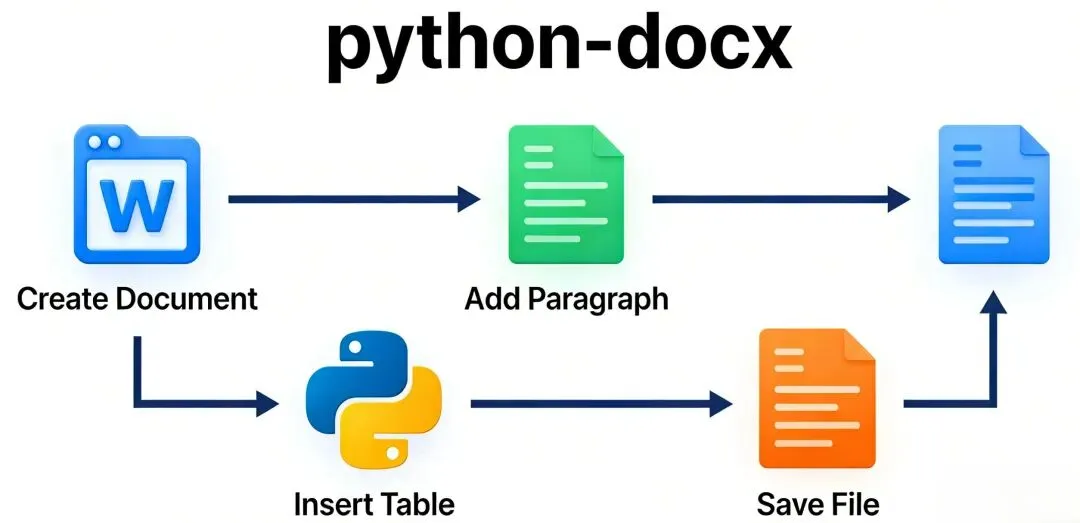
以下代码示例描述了如何通过python-docx库快速实现文档的创建,完成段落、标题、表格、图片等内容添加及字符段落样式设置,并保存为docx文件:
# 1. 初始化文档from docx import Documentfrom docx.shared import Inches, Cm# 新建空白文档,不添加参数,默认新建doc = Document() # 2. 添加段落# 默认都会把内容追加到文档的末尾doc.add_paragraph("这是文档正文段落") # 直接添加段落para = doc.add_paragraph("主段落") # 该方法返回新段落的引用对象para.insert_paragraph_before("插入在主段落上方的段落") # 主段落的引用之前插入段落para = doc.add_paragraph("插入在主段落下方的段落") # 主段落的引用之后插入段落# 3. 添加标题(级别1-9,0为文档标题)doc.add_heading("文档总标题", level=0) # 一份报告的封面标题doc.add_heading("第一章 概述", level=1) # 一级标题doc.add_heading("1.1 核心功能", level=2) # 二级标题# 4. 分页符doc.add_page_break() # 强制后续内容另起一页# 5. 添加表格(固定行+动态行+样式)# 5.1 固定表格(2行2列)table1 = doc.add_table(rows=2, cols=2)table1.cell(0, 0).text = "姓名"table1.cell(0, 1).text = "年龄"table1.cell(1, 0).text = "张三"table1.cell(1, 1).text = "25"# 5.2 动态表格(表头+数据行)table2 = doc.add_table(rows=1, cols=3)# 将鼠标悬停在Word表格样式库中的表格样式缩略图上,即可找到表格样式名称table2.style = "Light Shading Accent 1"# 应用预设样式headers = ["数量", "产品编号", "描述"]for i, header in enumerate(headers): table2.rows[0].cells[i].text = header# 批量添加数据items = [(7, "1024", "毛绒小猫"), (3, "2042", "菲比精灵"), (1, "1288", "豪华项圈")]for item in items: row = table2.add_row().cells row[0].text = str(item[0]) row[1].text = item[1] row[2].text = item[2]# 6. 添加图片(本地文件+尺寸调整)doc.add_picture("test.png", width=Inches(1.5)) # 1.5英寸宽(自动等比缩放)doc.add_picture("test2.jpg", width=Cm(5),height=Cm(1)) # 同时指定宽高# 7. 段落样式(项目符号/编号)doc.add_paragraph("项目符号列表项1", style="ListBullet")doc.add_paragraph("项目符号列表项2", style="ListBullet")doc.add_paragraph("编号列表项1", style="ListNumber")# 8. 字符格式(粗体/斜体)para = doc.add_paragraph()para.add_run("普通文本 ").bold = Falsepara.add_run("粗体文本").bold = Truepara.add_run(" 普通文本 ").italic = Falsepara.add_run("斜体文本").italic = True# 9. 字符样式(预设样式)para2 = doc.add_paragraph("普通文本,")para2.add_run("带强调的文本", style="Emphasis") # 应用"强调"样式# 10. 保存文档doc.save("test_output.docx")
后续内容将对python-docx的各个核心对象进行具体介绍。
unsetunset1.2 Python-docx的核心对象unsetunset
1.2.1 Document对象
Python-docx本质上是一个文档修改工具。即使创建新文档,其原理也是基于一个预设的空白模板进行修改。因此,文档的格式(如样式、页眉、页脚)与正文内容是分离存储的,即使清空模板文字也不会删除格式设定。以下示例展示了如何创建文档或打开已有文档:
from docx import Documentfrom io import BytesIO, StringIO # 用于类文件对象操作"""演示python-docx操作文档的核心功能"""# ===================== 1. 创建新文档并保存 =====================print("1. 创建新文档并保存...")# 基于默认模板创建空文档new_doc = Document()new_doc.add_heading('python-docx 文档操作示例', level=1)new_doc.add_paragraph('这是通过python-docx创建的新文档')# 保存新文档到本地new_doc.save('新建文档.docx')print("✅ 新文档已保存为:新建文档.docx")# ===================== 2. 打开现有文档并修改保存 =====================print("\n2. 打开现有文档并修改...")# 打开刚才创建的文档existing_doc = Document('新建文档.docx')# 向文档追加内容existing_doc.add_paragraph('这是打开现有文档后追加的内容')# 另存为新文件(避免覆盖原文件)existing_doc.save('修改后的文档.docx')print("✅ 修改后的文档已保存为:修改后的文档.docx")# ===================== 3. 通过类文件对象(BytesIO)读写文档 =====================print("\n3. 通过类文件对象操作文档...")# 3.1 读取:将本地文档读取到BytesIO流中with open('修改后的文档.docx', 'rb') as f: # 必须用rb(二进制读),跨平台兼容 doc_stream = BytesIO(f.read()) # 用BytesIO而非StringIO# 从流中打开文档stream_doc = Document(doc_stream)# 追加内容stream_doc.add_paragraph('这是通过类文件对象添加的内容')# 3.2 保存:将文档保存到BytesIO流中(不落地到本地文件)output_stream = BytesIO()stream_doc.save(output_stream)# 可选:将流中的内容写入本地文件,验证结果with open('类文件对象生成的文档.docx', 'wb') as f: f.write(output_stream.getvalue())print("✅ 类文件对象操作的文档已保存为:类文件对象生成的文档.docx")# 关闭流doc_stream.close()output_stream.close()
1.2.2 Table对象
Word软件中的表格功能相当复杂,这导致在使用python-docx操作表格时,往往难以提前明确表格的具体内容和结构,增加了处理的难度。本节将从简单表格到复杂表格来介绍如何使用python-docx操作表格。
规整表格
规整表格也就是一个行列数固定、无合并或省略单元格的标准表格,这是最基础的表格形式。关系型数据库表和pandas数据表都是规整表格的典型示例:
+---+---+---+| a | b | c |+---+---+---+| d | e | f |+---+---+---+| g | h | i |+---+---+---+
通过控制表格行列数即可创建规整表格:
from docx import Documentfrom docx.shared import Inches# 创建新文档doc = Document()# 添加3行2列的规整表格table = doc.add_table(rows=3, cols=2)table.style = 'Table Grid'# 显示表格边框,便于查看# 填充单元格内容(a-i 对应示例中的规整表格)cell_texts = ['a', 'b', 'c', 'd', 'e', 'f']idx = 0for row in table.rows:for cell in row.cells: cell.text = cell_texts[idx] idx += 1# 保存文档doc.save('规整表格示例.docx')# 读取并验证规整表格的行列数(每行单元格数相同)print("规整表格每行的单元格数:")for i, row in enumerate(table.rows): print(f"第{i+1}行:{len(row.cells)}个单元格")
合并单元格
将多个连续的横向或纵向单元格合并为一个单元格,是实际使用中非常常见的方式:
+---+---+---+ +---+---+---+| a | b | | | b | c |+---+---+---+ + a +---+---+| c | d | e | | | d | e |+---+---+---+ +---+---+---+| f | g | h | | f | g | h |+---+---+---+ +---+---+---+
实现方式为先创建规整表格,再通过cell.merge()实现单元格的横向或纵向合并:
from docx import Documentdoc = Document()table = doc.add_table(rows=2, cols=3)table.style = 'Table Grid'# 示例1:横向合并(第一行第一个单元格合并右侧单元格)cell_1_1 = table.cell(0, 0) # 第1行第1列(索引从0开始)cell_1_2 = table.cell(0, 1)cell_1_1.merge(cell_1_2)cell_1_1.text = '合并单元格(横向)'# 示例2:纵向合并(第三列前两个单元格合并)cell_1_3 = table.cell(0, 2)cell_2_3 = table.cell(1, 2)cell_1_3.merge(cell_2_3)cell_1_3.text = '合并单元格(纵向)'# 填充其他单元格table.cell(1, 0).text = 'd'table.cell(1, 1).text = 'e'# 查看合并后每行的单元格数# 注意以下内容返回的是原始表格结构print("合并单元格后每行的单元格数:")for i, row in enumerate(table.rows): print(f"第{i+1}行:{len(row.cells)}个单元格")doc.save('合并单元格示例.docx')
递归表格
表格处理的另一个复杂点是其递归特性,Word中的表格单元格本身可以包含一个或多个表格。可以通过_Cell.tables或_Cell.iter_inner_content()检测嵌套表格:
_Cell.tables:直接返回单元格内包含的所有表格。_Cell.iter_inner_content():按文档顺序返回单元格内的所有内容(包括段落和表格),保持表格与段落的相对位置不变。
示例代码如下:
from docx import Documentfrom docx.shared import Inchesfrom docx.table import Tablefrom docx.text.paragraph import Paragraphdefgenerate_nested_table_doc():"""生成带嵌套表格的示例Word文档(示例数据)"""# 1. 创建新文档 doc = Document()# 2. 创建外层表格(2行2列) outer_table = doc.add_table(rows=2, cols=2) outer_table.style = 'Table Grid'# 显示表格边框# 3. 填充外层表格的普通单元格 cell_1_1 = outer_table.cell(0, 0) cell_1_1.text = "下方单元格包含嵌套表格" cell_1_2 = outer_table.cell(0, 1) cell_1_2.text = "普通单元格(无嵌套)"# 4. 关键:在 (1,0) 单元格中嵌套一个子表格 cell_2_1 = outer_table.cell(1, 0)# 先给嵌套表格前加一个段落(模拟真实文档的混合内容) para = cell_2_1.add_paragraph("嵌套表格前的段落内容:")# 在单元格内创建嵌套表格(3行1列) inner_table = cell_2_1.add_table(rows=3, cols=1) inner_table.style = 'Table Grid'# 填充嵌套表格 inner_table.cell(0, 0).text = "嵌套表格-行1" inner_table.cell(1, 0).text = "嵌套表格-行2" inner_table.cell(2, 0).text = "嵌套表格-行3"# 嵌套表格后再加一个段落 cell_2_1.add_paragraph("嵌套表格后的段落内容")# 5. 填充外层表格最后一个单元格 cell_2_2 = outer_table.cell(1, 1) cell_2_2.text = "普通单元格(无嵌套)"# 6. 保存文档(生成示例数据) doc.save("嵌套表格.docx") print("=" * 50) print("✅ 嵌套表格.docx") print("=" * 50)deftraverse_table(table, level=0):""" 递归遍历表格,处理嵌套表格 :param table: 要遍历的表格对象 :param level: 表格嵌套层级(外层为0,内层+1) """ indent = " " * level # 缩进,方便区分层级 print(f"\n{indent}=== 遍历【层级{level}】表格 ===")# 遍历表格的每一行for row_idx, row in enumerate(table.rows):# 遍历行中的每一个单元格for col_idx, cell in enumerate(row.cells): print(f"\n{indent}单元格 ({row_idx+1}, {col_idx+1}):")# --------------------------# 方法1:_Cell.tables - 直接获取单元格内的所有表格# -------------------------- inner_tables = cell.tablesif inner_tables: print(f"{indent} 📌 检测到 {len(inner_tables)} 个嵌套表格:")# 递归遍历每个嵌套表格for inner_table in inner_tables: traverse_table(inner_table, level + 1)else: print(f"{indent} 📌 无嵌套表格")# --------------------------# 方法2:_Cell.iter_inner_content() - 按顺序获取单元格内所有内容(段落+表格)# -------------------------- print(f"{indent} 📌 单元格内完整内容(按顺序):")for content in cell.iter_inner_content():if isinstance(content, Paragraph):# 处理段落内容(过滤空段落) text = content.text.strip()if text: print(f"{indent} [段落]:{text}")elif isinstance(content, Table):# 遇到表格时的提示(避免重复遍历,仅演示位置) print(f"{indent} [表格]:嵌套表格(层级{level+1})")defparse_nested_tables():"""解析生成的嵌套表格文档,演示核心方法"""# 1. 打开示例文档 doc = Document("嵌套表格.docx")# 2. 遍历文档中的所有外层表格 print("\n开始解析嵌套表格:") print("-" * 50)for table in doc.tables: traverse_table(table)# 主程序入口if __name__ == "__main__":# 生成带嵌套表格的示例文档 generate_nested_table_doc()# 第二步:解析嵌套表格,演示_Cell.tables和iter_inner_content的使用 parse_nested_tables() print("\n" + "=" * 50) print("✅ 嵌套表格解析完成!") print("=" * 50)
1.2.3 文本处理
在Word文档中,内容的组织逻辑分为两个主要层级:块级对象和行内对象。
- 块级对象(如段落、表格)是占据整行的大模块,其宽度由页面边距、分栏或单元格边界决定,文本会在其左右边界内自动换行。
- 行内对象则存在于这些大模块内部,如加粗的词语或句子,最常见的表现形式是文本片段(runs)。一个段落就是由一个或多个文本片段组成的。
相应地,格式控制也分为两类:
- 块级属性(如缩进、间距、对齐方式)控制模块在页面上的布局位置;
- 行内属性(如字体、加粗、颜色)则控制模块内部文字的具体外观。
下面通过Python-docx的代码示例,展示这两类格式的实际应用:
from docx import Documentfrom docx.shared import Inches, Pt, RGBColorfrom docx.enum.text import ( WD_ALIGN_PARAGRAPH, WD_TAB_ALIGNMENT, WD_TAB_LEADER, WD_UNDERLINE)from docx.enum.dml import MSO_THEME_COLOR# 创建一个新的 Word 文档doc = Document()# ==================== 1. 块级格式设置:段落布局控制 ====================# 1.1 标题段落(居中对齐、段后间距)title_para = doc.add_paragraph("Python-docx 文本格式示例")title_format = title_para.paragraph_format # 块级格式对象title_format.alignment = WD_ALIGN_PARAGRAPH.CENTER # 居中对齐(块级属性)title_format.space_after = Pt(18) # 段后间距(块级属性)# 1.2 正文段落(缩进与行间距)content_para = doc.add_paragraph("这是一个带缩进和自定义行间距的正文段落。")content_format = content_para.paragraph_formatcontent_format.left_indent = Inches(0.5) # 左缩进content_format.first_line_indent = Inches(-0.25) # 悬挂缩进content_format.line_spacing = 1.5# 1.5倍行间距content_format.space_before = Pt(12) # 段前间距# 1.3 带制表位的段落(块级定位)tab_para = doc.add_paragraph("姓名:\t张三\t年龄:\t25")tab_format = tab_para.paragraph_formattab_stops = tab_format.tab_stops# 添加三个制表位(位置、对齐方式、前导符)tab_stops.add_tab_stop(Inches(1.5), WD_TAB_ALIGNMENT.RIGHT, WD_TAB_LEADER.DOTS)tab_stops.add_tab_stop(Inches(2.5), WD_TAB_ALIGNMENT.LEFT, WD_TAB_LEADER.SPACES)tab_stops.add_tab_stop(Inches(3.5), WD_TAB_ALIGNMENT.RIGHT, WD_TAB_LEADER.DOTS)# 1.4 分页控制(块级保持与孤行控制)page_para1 = doc.add_paragraph("这是章节标题(确保与下一段同页)")page_para1.paragraph_format.keep_with_next = True# 与下段同页page_para2 = doc.add_paragraph("这是章节内容,启用了孤行控制,避免段落首行/末行单独显示在一页。" * 20)page_para2.paragraph_format.widow_control = True# 避免孤行# ==================== 2. 行内格式设置:文字外观控制 ====================char_para = doc.add_paragraph("字符格式示例:")# 粗体bold_run = char_para.add_run("粗体文本")bold_run.font.bold = Truechar_para.add_run(" | ")# 斜体italic_run = char_para.add_run("斜体文本")italic_run.font.italic = Truechar_para.add_run(" | ")# 下划线(双下划线)underline_run = char_para.add_run("双下划线文本")underline_run.font.underline = WD_UNDERLINE.DOUBLEchar_para.add_run(" | ")# 不同字号和颜色color_run = char_para.add_run("16号红色文本")color_run.font.size = Pt(16) # 字号color_run.font.color.rgb = RGBColor(255, 0, 0) # 颜色char_para.add_run(" | ")# 上标sup_run = char_para.add_run("上标")sup_run.font.superscript = True# ==================== 3. 保存文档 ====================doc.save("文本格式示例.docx")print("文档已保存为:文本格式示例.docx")
1.2.4 Sections对象
Word引入了节(section)的概念,它指文档中具有相同页面布局(如页边距、纸张方向)的连续部分。通过分节,用户可以在同一份文档中混合使用不同版式,例如同时包含纵向页面和横向页面。此外,每个节还可以独立设置其页眉与页脚的样式。绝大多数Word文档默认仅包含一个节,通常也无需更改页面布局。然而,当确实需要对页面布局进行调整时,理解节的功能与设置方法就变得至关重要。以下示例展示了如何使用python-docx库创建包含多个节、各节拥有不同页面设置的Word文档:
from docx import Documentfrom docx.enum.section import WD_SECTION_STARTfrom docx.enum.section import WD_ORIENTfrom docx.shared import Inches# 1. 创建新文档并查看默认节document = Document()print("初始文档的节数量:", len(document.sections)) # 默认1个节# 获取默认节并修改其基础布局(纵向,常规边距)default_section = document.sections[0]# 设置默认节的边距:左1.5英寸、右1英寸、上下各1英寸default_section.left_margin = Inches(1.5)default_section.right_margin = Inches(1)default_section.top_margin = Inches(1)default_section.bottom_margin = Inches(1)# 2. 给默认节添加内容(纵向页面内容)document.add_heading('第一节:纵向页面内容', level=1)document.add_paragraph('这是默认节的内容,页面为纵向,边距:左1.5英寸、右1英寸。')# 3. 添加新节(奇数页开始,横向布局)# 创建新节,指定分节符类型为奇数页开始new_section = document.add_section(WD_SECTION_START.ODD_PAGE)# 修改新节的页面方向为横向(需同时交换宽高)new_section.orientation = WD_ORIENT.LANDSCAPE# 先交换宽高值,避免页面尺寸异常new_width, new_height = new_section.page_height, new_section.page_widthnew_section.page_width = new_widthnew_section.page_height = new_height# 设置新节的边距:左右各1.25英寸,上下各0.8英寸new_section.left_margin = Inches(1.25)new_section.right_margin = Inches(1.25)new_section.top_margin = Inches(0.8)new_section.bottom_margin = Inches(0.8)# 4. 给新节添加内容(横向页面内容)document.add_heading('第二节:横向页面内容', level=1)document.add_paragraph('这是新节的内容,页面为横向,边距:左右1.25英寸、上下0.8英寸。')# 5. 再添加一个新节(偶数页开始,纵向布局)third_section = document.add_section(WD_SECTION_START.EVEN_PAGE)# 恢复纵向布局third_section.orientation = WD_ORIENT.PORTRAITthird_section.page_width = Inches(8.5)third_section.page_height = Inches(11)# 设置特殊边距(添加装订线)third_section.gutter = Inches(0.2) # 装订线0.2英寸third_section.header_distance = Inches(0.6) # 页眉距离0.6英寸# 6. 给第三个节添加内容document.add_heading('第三节:带装订线的纵向页面', level=1)document.add_paragraph('这一节包含0.2英寸的装订线,页眉距离页面顶部0.6英寸。')# 7. 遍历所有节,打印关键属性print("\n=== 所有节的关键属性 ===")for idx, section in enumerate(document.sections): print(f"\n第{idx+1}节:") print(f" 起始类型:{section.start_type}") print(f" 页面方向:{section.orientation}") print(f" 左右边距:{section.left_margin/914400:.2f}英寸 / {section.right_margin/914400:.2f}英寸") print(f" 装订线:{section.gutter/914400:.2f}英寸")# 保存文档document.save("多节文档示例.docx")print("\n文档已保存为:多节文档示例.docx")
1.2.5 页眉页脚对象
页眉是指显示在每一页上页边距区域的文本,与正文内容相互独立,通常用于展示文档标题、作者、创建日期或页码等上下文信息。同一文档中的页眉在各页面间基本保持一致,仅在部分内容上可能存在细微差异,例如章节标题或页码的变化。页脚在功能和特性上与页眉完全类似,唯一的区别是页脚位于页面底部。页脚与脚注不同,脚注在各页面间并不统一。以下是操作文档页眉页脚的示例代码:
from docx import Document# -------------------------- 1. 初始化文档并创建基础页眉 --------------------------# 创建新文档doc = Document()# 获取文档的第一个节(新建文档默认只有1个节)section1 = doc.sections[0]header1 = section1.header# 检查初始状态:新建文档的页眉默认关联到前一节页眉设置(此处无前置节,故无实际页眉)print(f"初始页眉关联状态: {header1.is_linked_to_previous}") # 输出: True# 为第一节添加简单页眉(仅左侧文本)# 直接编辑页眉的第一个段落(新建页眉默认包含1个空段落)para1 = header1.paragraphs[0]para1.text = "文档主标题 - 第一节页眉"# 自动创建独立页眉定义,关联状态变为Falseprint(f"添加页眉后关联状态: {header1.is_linked_to_previous}") # 输出: False# -------------------------- 2. 添加带分区(左/中/右)的页眉 --------------------------# 先清空第一节原有页眉内容,重新设置分区页眉para1.clear()# 使用制表符\t分隔左、中、右三部分内容para1.text = "左侧:文档名称\t居中:2026年1月\t右侧:页码"# 应用Word默认的"Header"样式(确保制表位生效)para1.style = doc.styles["Header"]# -------------------------- 3. 添加新节并设置独立页眉 --------------------------# 向文档末尾添加新节(section2)section2 = doc.add_section()header2 = section2.header# 初始状态:新节的页眉默认关联到前一节(section1)print(f"第二节初始关联状态: {header2.is_linked_to_previous}") # 输出: True# 验证:此时编辑header2的内容会直接修改section1的页眉(继承特性)# 先取消关联,创建第二节的独立页眉header2.is_linked_to_previous = False# 为第二节添加专属页眉para2 = header2.paragraphs[0]para2.text = "第二节独立页眉 - 仅本节显示"# -------------------------- 4. 添加页脚(与页眉用法完全一致) --------------------------# 为第一节添加页脚(包含页码)footer1 = doc.sections[0].footerfooter1.is_linked_to_previous = False# 取消关联,创建独立页脚footer_para1 = footer1.paragraphs[0]footer_para1.text = "\t第 {PAGE} 页 / 共 {NUMPAGES} 页\t"# 居中显示页码footer_para1.style = doc.styles["Footer"]# 为第二节添加不同的页脚footer2 = doc.sections[1].footerfooter2.is_linked_to_previous = Falsefooter_para2 = footer2.paragraphs[0]footer_para2.text = "第二节页脚 - 联系人:测试账号"# -------------------------- 5. 删除页眉(恢复关联状态) --------------------------# 若需删除第二节的独立页眉,只需将其关联状态设为True(会永久删除内容)# 此处仅演示,注释掉避免影响最终效果# header2.is_linked_to_previous = True# -------------------------- 6. 保存文档 --------------------------doc.save("页眉页脚示例.docx")print("文档已保存为:页眉页脚示例.docx")
unsetunset1.3 非文本内容管理unsetunset
1.3.1 样式管理
在Word中,内置样式会出现在Word界面的样式面板中,但不会自动加入文档中,直到你第一次使用它。这样避免了文件因所有样式定义而臃肿。一旦某样式被使用,其定义就会永久加入文档,即使后来删除应用内容也不会消失。因此,若要用python-docx使样式生效,必须在初始文档中包含其定义,否则样式会静默失效。 以下是一个综合性的示例,它整合了文档中所有核心的样式操作功能,包括样式的访问、应用、创建、删除,以及字符段落格式的定义等:
from docx import Documentfrom docx.enum.style import WD_STYLE_TYPEfrom docx.shared import Pt, Inchesfrom docx.enum.text import WD_UNDERLINE# 1. 创建新文档并访问样式集合doc = Document()styles = doc.stylesprint(f"初始样式数量: {len(styles)}")# 2. 访问并筛选特定类型的样式# 筛选所有段落样式并打印名称print("\n=== 所有段落样式 ===")paragraph_styles = [s for s in styles if s.type == WD_STYLE_TYPE.PARAGRAPH]for style in paragraph_styles[:5]: # 只打印前5个避免输出过长 print(f"- {style.name}")# 3. 应用现有样式到新段落# 方式1: 创建时指定样式名称doc.add_heading("样式操作示例", level=0)heading1_para = doc.add_paragraph("这是应用 Heading 1 样式的段落", style="Heading 1")# 方式2: 先创建段落再赋值样式对象normal_para = doc.add_paragraph()normal_para.text = "这是先创建再应用 Normal 样式的段落"normal_para.style = styles["Normal"]# 4. 创建自定义样式# 4.1 创建段落样式并设置基础样式、字符格式、段落格式citation_style = styles.add_style("Citation", WD_STYLE_TYPE.PARAGRAPH)# 设置基础样式(继承 Normal 样式的格式)citation_style.base_style = styles["Normal"]# 设置字符格式citation_style.font.name = "宋体"citation_style.font.size = Pt(10)citation_style.font.italic = True# 斜体citation_style.font.underline = WD_UNDERLINE.DOT_DASH # 点划线下划线# 设置段落格式(悬挂缩进、段前间距)citation_style.paragraph_format.left_indent = Inches(0.25)citation_style.paragraph_format.first_line_indent = Inches(-0.25)citation_style.paragraph_format.space_before = Pt(6)# 设置后续段落样式citation_style.next_paragraph_style = styles["Normal"]# 应用自定义样式citation_para = doc.add_paragraph("这是自定义 Citation 样式的引用文本", style="Citation")print(f"\n自定义样式应用后名称: {citation_para.style.name}")# 5. 控制样式在 Word 中的显示(快速样式、优先级)body_text_style = styles["Body Text"]body_text_style.hidden = Falsebody_text_style.quick_style = Truebody_text_style.priority = 1# 6. 处理潜在样式(Latent Styles)latent_styles = styles.latent_stylesprint(f"\n潜在样式总数: {len(latent_styles)}")# 为 List Bullet 添加潜在样式定义if"List Bullet"notin latent_styles: latent_list_bullet = latent_styles.add_latent_style("List Bullet") latent_list_bullet.hidden = False latent_list_bullet.priority = 2 latent_list_bullet.quick_style = Trueprint(f"List Bullet 潜在样式优先级: {latent_styles['List Bullet'].priority}")# 7. 删除样式print(f"\n删除前样式数量: {len(styles)}")if"Citation"in styles: styles["Citation"].delete() print(f"删除后样式数量: {len(styles)}")# 8. 保存文档doc.save("样式操作示例.docx")print("\n文档已保存为: 样式操作示例.docx")
1.3.2 批注管理
Word支持在文档中添加批注,这是审阅功能的一部分,通常用于他人在不修改原文的情况下提供反馈。Word文档里操作步骤如下:
批注仅能添加至文档主体,不可插入页眉、页脚或其他批注内。Word文档里脚注和尾注中理论上允许添加批注,但当前python-docx暂不支持该操作。此外高版本Word支持解决批注和回复批注功能,但python-docx暂未实现。以下是包含批注创建、富文本批注、元数据修改及批注遍历的完整示例:
# 导入必要的库from docx import Documentfrom datetime import datetime, timezone"""创建文档并演示批注的完整操作流程:1. 创建基础批注2. 创建富文本格式批注3. 修改批注元数据4. 访问和遍历所有批注"""# 1. 初始化文档对象doc = Document()doc.add_heading("Python-docx 批注演示文档", level=1)# 2. 示例1:创建基础文本批注para1 = doc.add_paragraph("这是第一段测试文本,用于添加基础批注。")# 为整段文本添加基础批注basic_comment = doc.add_comment( runs=para1.runs, # 关联的文本块 text="基础批注:这段文本表述清晰,建议保留。", # 批注纯文本内容 author="张三", # 批注作者 initials="ZS"# 作者缩写)print(f"✅ 基础批注创建完成")# 3. 示例2:创建富文本格式批注(包含粗体、斜体等样式)para2 = doc.add_paragraph("这是第二段测试文本,用于添加富文本批注。")# 创建空内容批注(后续手动添加富文本)rich_comment = doc.add_comment( runs=para2.runs, text="", # 初始为空,后续添加富文本 author="李四", initials="LS")# 向批注中添加富文本内容cmt_para = rich_comment.paragraphs[0] # 获取批注的默认段落cmt_para.add_run("富文本批注:") # 普通文本cmt_para.add_run("重点建议:").bold = True# 粗体文本cmt_para.add_run("这段文本需要补充案例,").italic = True# 斜体文本cmt_para.add_run("建议参考行业标准。") # 普通文本# 4. 示例3:修改批注元数据(作者、缩写)basic_comment.author = "张小三"# 修改作者名basic_comment.initials = "ZXS"# 修改作者缩写print(f"✅ 基础批注元数据已更新:作者={basic_comment.author},缩写={basic_comment.initials}")# 5. 示例4:访问和遍历所有批注print("\n📋 文档中所有批注信息:")for idx, comment in enumerate(doc.comments): print(f"\n批注 {idx+1}:") print(f" 作者:{comment.author}") print(f" 缩写:{comment.initials}")# 提取批注的完整文本(兼容富文本) comment_text = "\n ".join([para.text for para in comment.paragraphs]) print(f" 内容:{comment_text}")# 6. 保存文档doc.save("批注演示文档.docx")print("\n📄 文档已保存为:批注演示文档.docx")
1.3.3 图片对象
Word文档中的内容分为两个图层:文本层和绘图层。文本层按从左到右、自上而下的顺序排列,页满则自动换页。绘图层中的对象称为形状,可自由放置。图片是一种特殊形状,可置于文本层或绘图层。位于文本层的图片称为嵌入式图片,它在排版中被视为一个大型文本字符:行高会自动调整以容纳图片,并支持类似文本的换行效果。若在其前方插入文本,图片会随之向后移动。嵌入式图片通常独占一个段落,但也可与前后文本共存于同一段落中。
当前python-docx库仅支持嵌入式图片。通过Document.add_picture()方法可将图片默认添加至文档末尾的独立段落中,但经过适当设置,也能实现灵活的图文混排效果,示例如下:
from docx import Documentfrom docx.shared import Inches, Ptfrom docx.enum.text import WD_ALIGN_PARAGRAPH# 1. 创建一个新的Word文档doc = Document()# 2. 基础用法:在文档末尾插入图片(单独占一个段落)doc.add_heading('1. 基础插入图片', level=2)# 添加图片,设置宽度为2英寸(高度会按比例自动调整)doc.add_picture('test.png', width=Inches(2))# 3. 进阶用法:图文混排(图片和文本在同一个段落)doc.add_heading('2. 图文混排示例', level=2)# 创建一个新段落mixed_paragraph = doc.add_paragraph()# 添加文本到段落开头mixed_paragraph.add_run('这是图片左侧的文本,')# 在段落中插入图片(非单独段落)img_run = mixed_paragraph.add_run()img_run.add_picture('test.png', width=Inches(1))# 在图片右侧添加文本mixed_paragraph.add_run('这是图片右侧的文本。')# 4. 自定义图片尺寸+段落对齐doc.add_heading('3. 自定义尺寸与对齐', level=2)align_para = doc.add_paragraph()align_para.alignment = WD_ALIGN_PARAGRAPH.CENTER # 段落居中对齐align_run = align_para.add_run()# 同时设置宽度和高度(注意:可能导致图片变形)align_run.add_picture('test.png', width=Inches(1.5), height=Inches(1))align_para.add_run('\n这是居中显示的图片')# 5. 保存文档doc.save('形状图片示例.docx')print("文档已保存为形状图片示例.docx")
unsetunset1.4 综合示例unsetunset
在实际应用中,python-docx主要被用于文档修改和自动化生成,而非从头创建文档。本节将通过一个综合示例,展示如何对一个包含标题、段落、多种表格、多张图片和分页符的多页文档进行针对性修改,并提供相应的文档生成代码。
文档生成
以下代码生成一个示例多页文档,涵盖了日常办公中常见的文档结构:
from docx import Documentfrom docx.shared import Inches, Ptfrom docx.enum.text import WD_ALIGN_PARAGRAPHfrom docx.enum.table import WD_TABLE_ALIGNMENTfrom docx.oxml.ns import qnimport osdefensure_test_images():# 简单生成测试图片(如果没有的话)try:from PIL import Imagefor i in range(1, 3): img_path = f"image{i}.jpg"ifnot os.path.exists(img_path): img = Image.new('RGB', (800, 600), color='lightblue') img.save(img_path) print("测试图片已准备完成")except ImportError: print("请安装pillow库:pip install pillow") exit(1)# 生成Word文档defgenerate_complex_doc():# 创建新文档 doc = Document()# 设置文档默认字体(解决中文显示问题) doc.styles['Normal'].font.name = '微软雅黑' doc.styles['Normal']._element.rPr.rFonts.set(qn('w:eastAsia'), '微软雅黑')# ========== 第一页内容 ==========# 标题 title = doc.add_heading('XX项目调研报告', 0) title.alignment = WD_ALIGN_PARAGRAPH.CENTER # 居中对齐 title_run = title.runs[0] title_run.font.size = Pt(24) title_run.font.bold = True# 副标题/说明 sub_para = doc.add_paragraph('报告生成时间:2026年1月 报告编制人:测试用户') sub_para.alignment = WD_ALIGN_PARAGRAPH.RIGHT sub_para_run = sub_para.runs[0] sub_para_run.font.size = Pt(10)# 正文段落 doc.add_heading('一、项目概述', level=1) overview_para = doc.add_paragraph() overview_para.add_run('本项目针对企业数字化转型需求,重点解决现有业务系统数据孤岛、流程不规范、决策效率低等核心问题。').font.size = Pt(12) overview_para.add_run('\n项目覆盖范围包括:').font.bold = True overview_para.add_run('\n1) 生产管理模块:实现生产流程自动化监控') overview_para.add_run('\n2) 销售管理模块:打通客户数据与订单系统') overview_para.add_run('\n3) 财务管理模块:实现财务数据实时汇总分析')# 第一个表格:项目基础信息表(2行4列) doc.add_heading('1.1 项目基础信息', level=2) table1 = doc.add_table(rows=2, cols=4) table1.alignment = WD_TABLE_ALIGNMENT.CENTER # 表格居中 table1.style = 'Table Grid'# 带边框样式# 填充表格1表头 hdr_cells = table1.rows[0].cells hdr_cells[0].text = '项目编号' hdr_cells[1].text = '项目名称' hdr_cells[2].text = '启动时间' hdr_cells[3].text = '预计工期'# 填充表格1内容 row_cells = table1.rows[1].cells row_cells[0].text = 'XM2026001' row_cells[1].text = '企业数字化转型项目' row_cells[2].text = '2026-01-01' row_cells[3].text = '12个月'# 调整表格1单元格字体for row in table1.rows:for cell in row.cells:for paragraph in cell.paragraphs:for run in paragraph.runs: run.font.size = Pt(10) run.font.name = '微软雅黑' run._element.rPr.rFonts.set(qn('w:eastAsia'), '微软雅黑')# 插入第一张图片 doc.add_heading('1.2 项目架构图', level=2) img1_para = doc.add_paragraph() img1_para.alignment = WD_ALIGN_PARAGRAPH.CENTER img1_run = img1_para.add_run() img1_run.add_picture('image1.jpg', width=Inches(5)) # 图片宽度5英寸 img1_para.add_run('\n图1:项目整体架构图').font.size = Pt(10)# 插入分页符(第一页结束) doc.add_page_break()# ========== 第二页内容 ========== doc.add_heading('二、项目资源配置', level=1) resource_para = doc.add_paragraph('本项目所需资源包括人力资源、硬件资源、软件资源三大类,具体配置如下表所示:')# 第二个表格:资源配置表(5行3列) table2 = doc.add_table(rows=5, cols=3) table2.style = 'Table Grid' table2.alignment = WD_TABLE_ALIGNMENT.CENTER# 填充表格2 table2_data = [ ['资源类型', '规格/数量', '备注'], ['人力资源', '项目经理1人,开发工程师5人,测试工程师2人', '均为全职'], ['服务器', '8核16G云服务器3台', '阿里云ECS'], ['数据库', 'MySQL 8.0 主从架构', '数据实时备份'], ['软件授权', 'Python、Office、开发工具', '企业版授权'] ]for i, row_data in enumerate(table2_data): row_cells = table2.rows[i].cellsfor j, cell_text in enumerate(row_data): row_cells[j].text = cell_text# 设置单元格字体for paragraph in row_cells[j].paragraphs:for run in paragraph.runs: run.font.size = Pt(10) run.font.name = '微软雅黑' run._element.rPr.rFonts.set(qn('w:eastAsia'), '微软雅黑')# 表头加粗if i == 0:for cell in table2.rows[i].cells:for paragraph in cell.paragraphs:for run in paragraph.runs: run.font.bold = True# 插入第二张图片 doc.add_heading('2.1 资源部署示意图', level=2) img2_para = doc.add_paragraph() img2_para.alignment = WD_ALIGN_PARAGRAPH.CENTER img2_run = img2_para.add_run() img2_run.add_picture('image2.jpg', width=Inches(5)) img2_para.add_run('\n图2:资源部署拓扑图').font.size = Pt(10)# 补充段落内容 doc.add_paragraph('资源配置遵循「够用且预留扩展」原则,硬件资源可根据项目进度弹性扩容,人力资源采用「核心+外协」模式保障交付进度。')# 插入分页符(第二页结束) doc.add_page_break()# ========== 第三页内容 ========== doc.add_heading('三、项目风险评估', level=1) risk_para = doc.add_paragraph('通过对技术、人员、成本、进度四个维度的评估,识别出以下核心风险点及应对措施:')# 第三个表格:风险评估表(4行4列) table3 = doc.add_table(rows=4, cols=4) table3.style = 'Table Grid' table3.alignment = WD_TABLE_ALIGNMENT.CENTER table3_data = [ ['风险类型', '风险等级', '影响范围', '应对措施'], ['技术风险', '中', '核心功能模块', '提前进行技术预研,制定备选方案'], ['进度风险', '低', '整体交付', '设置里程碑节点,每周进度复盘'], ['成本风险', '低', '预算管控', '建立成本台账,超支提前预警'] ]for i, row_data in enumerate(table3_data): row_cells = table3.rows[i].cellsfor j, cell_text in enumerate(row_data): row_cells[j].text = cell_textfor paragraph in row_cells[j].paragraphs:for run in paragraph.runs: run.font.size = Pt(10) run.font.name = '微软雅黑' run._element.rPr.rFonts.set(qn('w:eastAsia'), '微软雅黑')if i == 0:for cell in table3.rows[i].cells:for paragraph in cell.paragraphs:for run in paragraph.runs: run.font.bold = True# 结尾段落 doc.add_paragraph('\n综上所述,本项目整体可控,通过科学的资源配置和风险管控措施,能够保障项目按计划交付并达到预期目标。')# 保存文档 doc.save('项目报告.docx') print("项目报告文档已生成")if __name__ == '__main__': ensure_test_images() # 准备测试图片 generate_complex_doc()
文档修改
文档修改代码针对上述生成的文档,实现以下常见修改需求:
示例代码如下:
from docx import Documentfrom docx.shared import Inches, Ptfrom docx.shared import RGBColorfrom docx.enum.table import WD_TABLE_ALIGNMENTfrom docx.enum.text import WD_ALIGN_PARAGRAPHfrom docx.oxml.ns import qnimport os# 修改已生成的Word文档defmodify_complex_doc(file_path):# 打开已生成的文档 doc = Document(file_path) print("已打开待修改的文档")# ========== 1. 修改标题 ==========# 第一个标题是级别0的标题(主标题) main_title = doc.paragraphs[0] main_title.runs[0].text = 'XX企业数字化转型项目终版报告'# 修改主标题文本 main_title.runs[0].font.color.rgb = RGBColor(0, 0, 255) # 标题改为蓝色 main_title.runs[0].font.size = Pt(20) main_title.runs[0].font.name = '微软雅黑' main_title.runs[0]._element.rPr.rFonts.set(qn('w:eastAsia'), '微软雅黑') main_title.alignment = WD_ALIGN_PARAGRAPH.CENTER# ========== 2. 修改段落文本 ==========# 找到"项目概述"下的段落(可通过文本特征定位)for para in doc.paragraphs:if'本项目针对企业数字化转型需求'in para.text:# 清空原有内容,重新写入 para.clear() new_run = para.add_run('本项目针对大型制造企业数字化转型需求,重点解决现有业务系统数据孤岛、流程不规范、决策效率低等核心问题。') new_run.font.size = Pt(12) new_run.font.name = '微软雅黑' new_run._element.rPr.rFonts.set(qn('w:eastAsia'), '微软雅黑')# 追加内容 para.add_run('\n项目升级后新增:') para.add_run('\n4) 供应链管理模块:打通上下游供应商数据')break# ========== 3. 修改表格内容并添加表格名 ==========# 表格1:项目基础信息表(第一个表格) table1 = doc.tables[0]# 修改项目编号 table1.rows[1].cells[0].text = 'XM2026001-FINAL'# 修改预计工期 table1.rows[1].cells[3].text = '10个月'# 给修改后的单元格文字标红for cell in [table1.rows[1].cells[0], table1.rows[1].cells[3]]:for para in cell.paragraphs:for run in para.runs: run.font.color.rgb = RGBColor(255, 0, 0) run.font.size = Pt(11) run.font.name = '微软雅黑' run._element.rPr.rFonts.set(qn('w:eastAsia'), '微软雅黑')# 为表格1添加表格名(表题)# 找到表格1的位置,在表格上方插入表名 table1_elem = table1._element table_caption1 = doc.add_paragraph('表1 项目基础信息表') table_caption1.alignment = WD_ALIGN_PARAGRAPH.CENTER # 居中对齐 table_caption1.paragraph_format.space_before = Pt(0) table_caption1.paragraph_format.space_after = Pt(0)# 设置表名字体格式for run in table_caption1.runs: run.font.size = Pt(11) run.font.name = '微软雅黑' run._element.rPr.rFonts.set(qn('w:eastAsia'), '微软雅黑') run.font.bold = True# 加粗# 将表名插入到表格上方 table1_elem.addprevious(table_caption1._element)# 表格2:资源配置表(第二个表格) table2 = doc.tables[1]# 修改服务器配置 table2.rows[3].cells[1].text = '16核32G云服务器3台(升级配置)'# 设置表格2单元格字体for row in table2.rows:for cell in row.cells:for para in cell.paragraphs:for run in para.runs: run.font.size = Pt(11) run.font.name = '微软雅黑' run._element.rPr.rFonts.set(qn('w:eastAsia'), '微软雅黑')# 为表格2添加表格名(表题) table2_elem = table2._element table_caption2 = doc.add_paragraph('表2 项目资源配置表') table_caption2.alignment = WD_ALIGN_PARAGRAPH.CENTERfor run in table_caption2.runs: run.font.size = Pt(11) run.font.name = '微软雅黑' run._element.rPr.rFonts.set(qn('w:eastAsia'), '微软雅黑') run.font.bold = True table2_elem.addprevious(table_caption2._element)# ========== 4. 替换图片并规范图名 ==========# 先准备一张新的测试图片from PIL import Image new_img_path = 'test.png'ifnot os.path.exists(new_img_path): img = Image.new('RGB', (800, 600), color='lightgreen') img.save(new_img_path)# 找到第一张图片所在的段落(通过图片相关特征) img_para_index = -1for i, para in enumerate(doc.paragraphs):if'图1:项目整体架构图'in para.text or'graphicData'in str(para._element.xml): img_para_index = ibreakif img_para_index != -1:# 清空段落中的图片和文字,重新添加 img_para = doc.paragraphs[img_para_index] img_para.clear()# 重新添加新图片 img_run = img_para.add_run() img_run.add_picture(new_img_path, width=Inches(5))# 添加规范的图名(图题) img_caption = img_para.add_run('\n图1 项目整体架构图(终版)') img_caption.font.size = Pt(10) img_caption.font.name = '微软雅黑' img_caption._element.rPr.rFonts.set(qn('w:eastAsia'), '微软雅黑') img_para.alignment = WD_ALIGN_PARAGRAPH.CENTER# ========== 5. 添加新内容并为新表格加表名 ==========# 在第三页风险评估后添加新的段落和表格# 先找到风险评估标题的位置,在其后添加内容for i, para in enumerate(doc.paragraphs):if'三、项目风险评估'in para.text:# 添加新的子标题 new_sub_heading = doc.add_heading('3.1 风险应对预案', level=2)# 插入到指定位置 doc.paragraphs.insert(i+1, new_sub_heading)# 添加新段落 new_para = doc.add_paragraph('针对高优先级风险,制定专项应对预案,包括应急响应流程、备用资源调配方案等,确保风险发生时可快速处置。') new_para.alignment = WD_ALIGN_PARAGRAPH.JUSTIFYfor run in new_para.runs: run.font.size = Pt(12) run.font.name = '微软雅黑' run._element.rPr.rFonts.set(qn('w:eastAsia'), '微软雅黑') doc.paragraphs.insert(i+2, new_para)# 添加新表格(应急预案表) new_table = doc.add_table(rows=2, cols=2) new_table.style = 'Table Grid' new_table.alignment = WD_TABLE_ALIGNMENT.CENTER# 填充新表格 new_table.rows[0].cells[0].text = '风险类型' new_table.rows[0].cells[1].text = '应急联系人' new_table.rows[1].cells[0].text = '技术风险' new_table.rows[1].cells[1].text = '张工 13800138000'# 设置新表格字体for row in new_table.rows:for cell in row.cells:for para_cell in cell.paragraphs:for run in para_cell.runs: run.font.size = Pt(10) run.font.name = '微软雅黑' run._element.rPr.rFonts.set(qn('w:eastAsia'), '微软雅黑')# 为新表格添加表名 new_table_caption = doc.add_paragraph('表3 风险应急联系人表') new_table_caption.alignment = WD_ALIGN_PARAGRAPH.CENTERfor run in new_table_caption.runs: run.font.size = Pt(11) run.font.name = '微软雅黑' run._element.rPr.rFonts.set(qn('w:eastAsia'), '微软雅黑') run.font.bold = True# 插入新表格名和新表格 doc.element.body.insert(i+3, new_table_caption._element) doc.element.body.insert(i+4, new_table._element)break# ========== 保存修改后的文档 ========== doc.save('项目报告_修改版.docx') print("修改后的文档已保存:项目报告_修改版.docx")if __name__ == '__main__':# 确保原文档存在 file_path = '项目报告.docx'ifnot os.path.exists(file_path): print("请先运行生成代码创建原始文档!")else: modify_complex_doc(file_path)
欢迎关注我的公众号“彭彭加油鸭”,原创技术文章第一时间推送。

 10个月宝宝每天需要喝多少奶粉?

