Python EXE 打包工具(带 GUI 界面)v1.0
- 2026-09-02 19:25:51
Python EXE 打包工具(带 GUI 界面)v1.0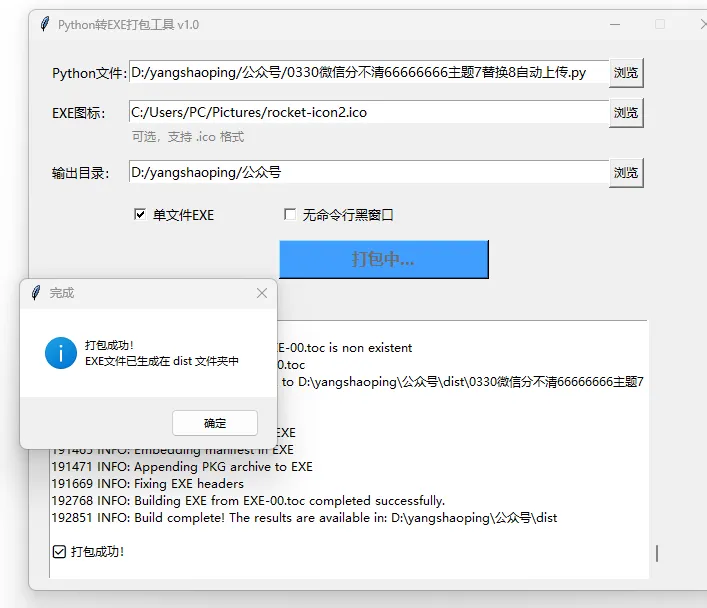
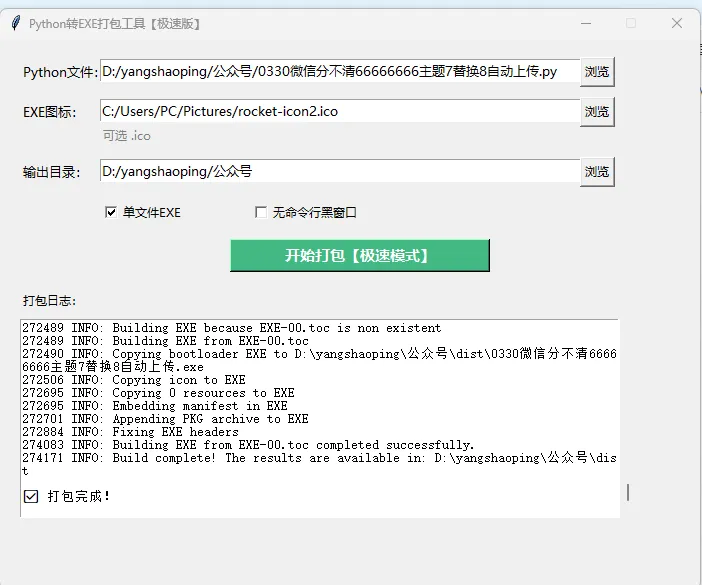
打包工具(带 GUI 界面)v1.0
Python 一键打包EXE工具(带GUI界面)
做一个可视化界面、一键操作的打包工具,基于 PyInstaller 核心库,小白也能直接用!
功能特点
可视化窗口,不用记命令
选择Python文件、选择图标、选择输出目录
支持单文件EXE、无命令行窗口
一键开始打包,实时显示日志
打包完成自动打开输出文件夹
完整代码
import osimport sysimport subprocessfrom tkinter import Tk, Button, Label, Entry, filedialog, messagebox, scrolledtext, StringVar, Checkbutton, BooleanVar# 打包EXE工具主类classExePacker:def__init__(self, root): self.root = root self.root.title("Python转EXE打包工具 v1.0") self.root.geometry("700x550") self.root.resizable(False, False)# 变量定义 self.py_path = StringVar() # py文件路径 self.ico_path = StringVar() # 图标路径 self.out_path = StringVar() # 输出目录 self.one_file = BooleanVar(value=True) # 单文件 self.no_console = BooleanVar(value=True) # 无黑窗口# 创建界面 self.create_widgets()defcreate_widgets(self):# ========== 1. 选择Python文件 ========== Label(self.root, text="Python文件:", font=("微软雅黑", 10)).place(x=20, y=20) Entry(self.root, textvariable=self.py_path, width=60, font=("微软雅黑", 10)).place(x=100, y=20) Button(self.root, text="浏览", command=self.select_py_file, font=("微软雅黑", 9)).place(x=580, y=18)# ========== 2. 选择图标文件 ========== Label(self.root, text="EXE图标:", font=("微软雅黑", 10)).place(x=20, y=60) Entry(self.root, textvariable=self.ico_path, width=60, font=("微软雅黑", 10)).place(x=100, y=60) Button(self.root, text="浏览", command=self.select_ico_file, font=("微软雅黑", 9)).place(x=580, y=58) Label(self.root, text="可选,支持 .ico 格式", fg="gray", font=("微软雅黑", 9)).place(x=100, y=85)# ========== 3. 选择输出目录 ========== Label(self.root, text="输出目录:", font=("微软雅黑", 10)).place(x=20, y=120) Entry(self.root, textvariable=self.out_path, width=60, font=("微软雅黑", 10)).place(x=100, y=120) Button(self.root, text="浏览", command=self.select_out_dir, font=("微软雅黑", 9)).place(x=580, y=118)# ========== 4. 打包选项 ========== Checkbutton(self.root, text="单文件EXE", variable=self.one_file, font=("微软雅黑", 10)).place(x=100, y=160) Checkbutton(self.root, text="无命令行黑窗口", variable=self.no_console, font=("微软雅黑", 10)).place(x=250, y=160)# ========== 5. 打包按钮 ========== self.pack_btn = Button(self.root, text="开始打包", command=self.start_pack, font=("微软雅黑", 12, "bold"), bg="#409EFF", fg="white", width=20) self.pack_btn.place(x=250, y=200)# ========== 6. 日志输出框 ========== Label(self.root, text="打包日志:", font=("微软雅黑", 10)).place(x=20, y=250) self.log_text = scrolledtext.ScrolledText(self.root, width=85, height=15, font=("微软雅黑", 9)) self.log_text.place(x=20, y=280)# 选择py文件defselect_py_file(self): path = filedialog.askopenfilename(filetypes=[("Python文件", "*.py")])if path: self.py_path.set(path)# 默认输出目录和py文件同目录ifnot self.out_path.get(): self.out_path.set(os.path.dirname(path))# 选择ico图标defselect_ico_file(self): path = filedialog.askopenfilename(filetypes=[("图标文件", "*.ico")])if path: self.ico_path.set(path)# 选择输出目录defselect_out_dir(self): path = filedialog.askdirectory()if path: self.out_path.set(path)# 日志输出deflog(self, msg): self.log_text.insert("end", msg + "\n") self.log_text.see("end") self.root.update()# 开始打包defstart_pack(self): py_file = self.py_path.get().strip() out_dir = self.out_path.get().strip()# 校验必填项ifnot py_file ornot os.path.exists(py_file): messagebox.showerror("错误", "请选择有效的Python文件!")returnifnot out_dir ornot os.path.isdir(out_dir): messagebox.showerror("错误", "请选择有效的输出目录!")return# 禁用按钮防止重复点击 self.pack_btn.config(state="disabled", text="打包中...") self.log("="*50) self.log("开始打包...") self.log(f"源文件:{py_file}") self.log(f"输出目录:{out_dir}")# 构建PyInstaller命令 cmd = [sys.executable, "-m", "PyInstaller"]# 基础参数if self.one_file.get(): cmd.append("-F") # 单文件if self.no_console.get(): cmd.append("-w") # 无控制台窗口# 图标参数 ico_file = self.ico_path.get().strip()if ico_file and os.path.exists(ico_file): cmd.extend(["-i", ico_file])# 输出目录 cmd.extend(["--distpath", os.path.join(out_dir, "dist")]) cmd.extend(["--workpath", os.path.join(out_dir, "build")]) cmd.extend(["--specpath", out_dir]) cmd.append(py_file)try:# 执行打包命令 self.log(f"执行命令:{' '.join(cmd)}") process = subprocess.Popen(cmd, stdout=subprocess.PIPE, stderr=subprocess.STDOUT, text=True, encoding="utf-8", errors="ignore")# 实时输出日志for line in iter(process.stdout.readline, ""):if line: self.log(line.strip()) process.wait()if process.returncode == 0: self.log("\n✅ 打包成功!")# 打开输出文件夹 dist_path = os.path.join(out_dir, "dist") os.startfile(dist_path) messagebox.showinfo("完成", "打包成功!\nEXE文件已生成在 dist 文件夹中")else: self.log("\n❌ 打包失败!") messagebox.showerror("失败", "打包过程出现错误,请查看日志!")except Exception as e: self.log(f"\n❌ 异常:{str(e)}") messagebox.showerror("错误", f"打包异常:{str(e)}")finally: self.pack_btn.config(state="normal", text="开始打包")if __name__ == "__main__":# 检查依赖try:import PyInstallerexcept ImportError: print("正在安装依赖 PyInstaller...") subprocess.check_call([sys.executable, "-m", "pip", "install", "pyinstaller"])# 启动程序 window = Tk() app = ExePacker(window) window.mainloop()使用方法
1. 安装依赖
直接运行代码,会自动安装 PyInstaller,无需手动操作。
2. 操作步骤
运行代码,打开可视化窗口
点击浏览选择你要打包的
.py文件(可选)选择
.ico格式图标给EXE用选择输出文件夹
勾选需要的选项(默认单文件+无黑窗口)
点击开始打包
打包完成会自动打开EXE所在文件夹
重要说明
图标要求:必须是
.ico格式文件,不能直接用png/jpg无窗口说明:如果你的程序是命令行工具,不要勾选无命令行窗口
打包速度:第一次打包较慢,会下载依赖,后续很快
杀毒软件:部分杀毒软件可能误报,属于正常现象
自己也打包成EXE(进阶)
你可以把这个工具自己打包成独立EXE:
保存代码为
packer.py运行命令:
pyinstaller -F -w -i 图标.ico packer.py就能得到一个可视化打包工具EXE,发给别人也能用!
总结
这是一个带GUI界面的Python打包工具,零命令行操作
核心使用
PyInstaller,稳定可靠支持单文件、自定义图标、无黑窗口、自动打开输出目录
代码可直接运行,也能自己打包成独立EXE工具
本文来自网友投稿或网络内容,如有侵犯您的权益请联系我们删除,联系邮箱:596563534@qq.com 。
