AlpineLinux安装图形界面xfce4
- 2026-09-03 05:13:12
AlpineLinux安装图形界面xfce4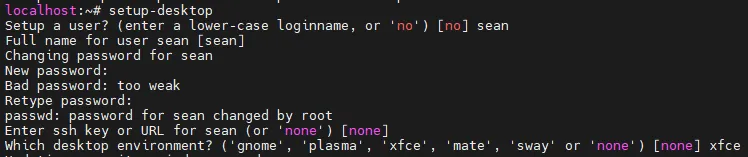
Alpine Linux的官方wiki对于安装图形界面有着挺详细的文档。页面的网址为:https://wiki.alpinelinux.org/wiki/Xfce#Installation_using_setup-desktop
xfce4是一个轻量级的桌面环境,用于基于Linux的操作系统。它以低系统资源消耗和高度可配置性而闻名。
使用 setup-desktop 脚本安装
Alpine Linux有一个快速安装桌面的脚本 setup-desktop
localhost:~# setup-desktopSetup a user? (enter a lower-case loginname, or 'no') [no] seanFull name for user sean [sean]Changing password for seanNew password:Bad password: too weakRetype password:passwd: password for sean changed by rootEnter ssh key or URL for sean (or 'none') [none]Which desktop environment? ('gnome', 'plasma', 'xfce', 'mate', 'sway' or 'none') [none] xfceUpdating repository indexes... done.(1/290) Installing udev-init-scripts (35-r1)…… 略 ……Executing busybox-1.36.1-r29.triggerExecuting eudev-3.2.14-r2.triggerExecuting glib-2.80.5-r0.triggerExecuting fontconfig-2.15.0-r1.triggerExecuting shared-mime-info-2.4-r0.triggerExecuting gdk-pixbuf-2.42.12-r0.triggerExecuting gtk-update-icon-cache-3.24.43-r0.triggerExecuting gtk+3.0-3.24.43-r0.triggerExecuting gvfs-1.52.1-r0.triggerExecuting dbus-1.14.10-r1.triggerExecuting mkfontscale-1.2.2-r6.triggerExecuting desktop-file-utils-0.27-r0.trigger1 error; 1111 MiB in 408 packagesERROR: firefox-131.0.2-r0: package mentioned in index not found (try 'apk update')* service lightdm added to runlevel default
执行后首先会有交互,要求新创建一个桌面使用时登录用的非root用户;该用户的密码、ssh key;以及想要会用的桌面应用的类型,这里我是选择了轻量级的xfce。
Setup a user? (enter a lower-case loginname, or 'no') [no] seanFull name for user sean [sean]Changing password for seanNew password:Bad password: too weakRetype password:passwd: password for sean changed by rootEnter ssh key or URL for sean (or 'none') [none]Which desktop environment? ('gnome', 'plasma', 'xfce', 'mate', 'sway' or 'none') [none] xfce
安装过程中,会有一处报错, 是关于firefox的,可以暂时不用理会。
启动dbus(桌面总线)服务并为其添加系统启动时自启动
localhost:~# rc-service dbus start* /run/dbus: creating directory* /run/dbus: correcting owner* Starting System Message Bus ... [ ok ]localhost:~# rc-update add dbus* service dbus added to runlevel default
使用显示管理器(图形登录)启动xfce且添加其系统启动时自启动。
localhost:~# rc-service lightdm start* /run/lightdm: creating directory* /run/lightdm: correcting owner* Starting Display Manager ... [ ok ]
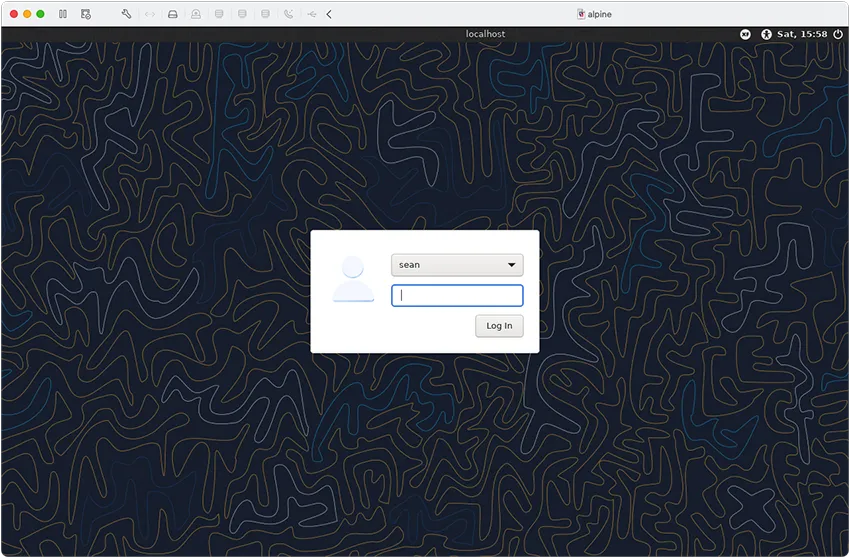
上面的rc-service lightdm start执行完成后,会出现登录的界面
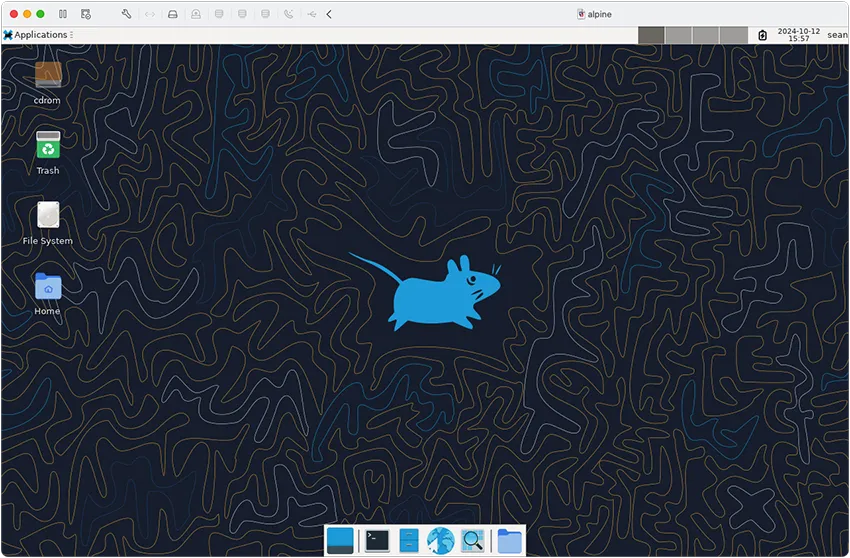
输入正确的用户名和密码后,就可以进入到xfce4的桌面并开始使用桌面版的功能。
可以正常进入到桌面后,执行下面的命令,以便可以在系统启动的时候,自动开启桌面。
localhost:~# rc-update add lightdm* rc-update: lightdm already installed in runlevel `default'; skipping
本文来自网友投稿或网络内容,如有侵犯您的权益请联系我们删除,联系邮箱:596563534@qq.com 。
