当前位置:首页>Linux>Redhat Linux系统LVM磁盘扩容至根目录全流程

Redhat Linux系统LVM磁盘扩容至根目录全流程

  • 2026-09-09 04:16:41
Redhat Linux系统LVM磁盘扩容至根目录全流程

1、文档概述

本文档面向系统管理员与运维人员,旨在提供在RedHat Linux系统中使用LVM(逻辑卷管理)技术对磁盘进行扩容的完整操作流程。

2、适用范围

lRedHat Linux系统

l磁盘分区的类型为 LVM

l在线扩容

3、操作总结与提醒

备份先行:执行任何存储操作前,备份重要数据。

流程核心:牢记扩展链条:磁盘/分区 → PV → VG → LV → 文件系统,顺序不可跳跃。

验证闭环:操作后使用 pvdisplay、vgdisplay、lvdisplay、df -Th命令逐层确认扩展成功。

风险提示:重点注意最后一步扩展文件系统,这是数据可见的关键。

后续建议:建立监控,关注VG剩余空间,为下一次扩容做好准备。

4、扩容前准备

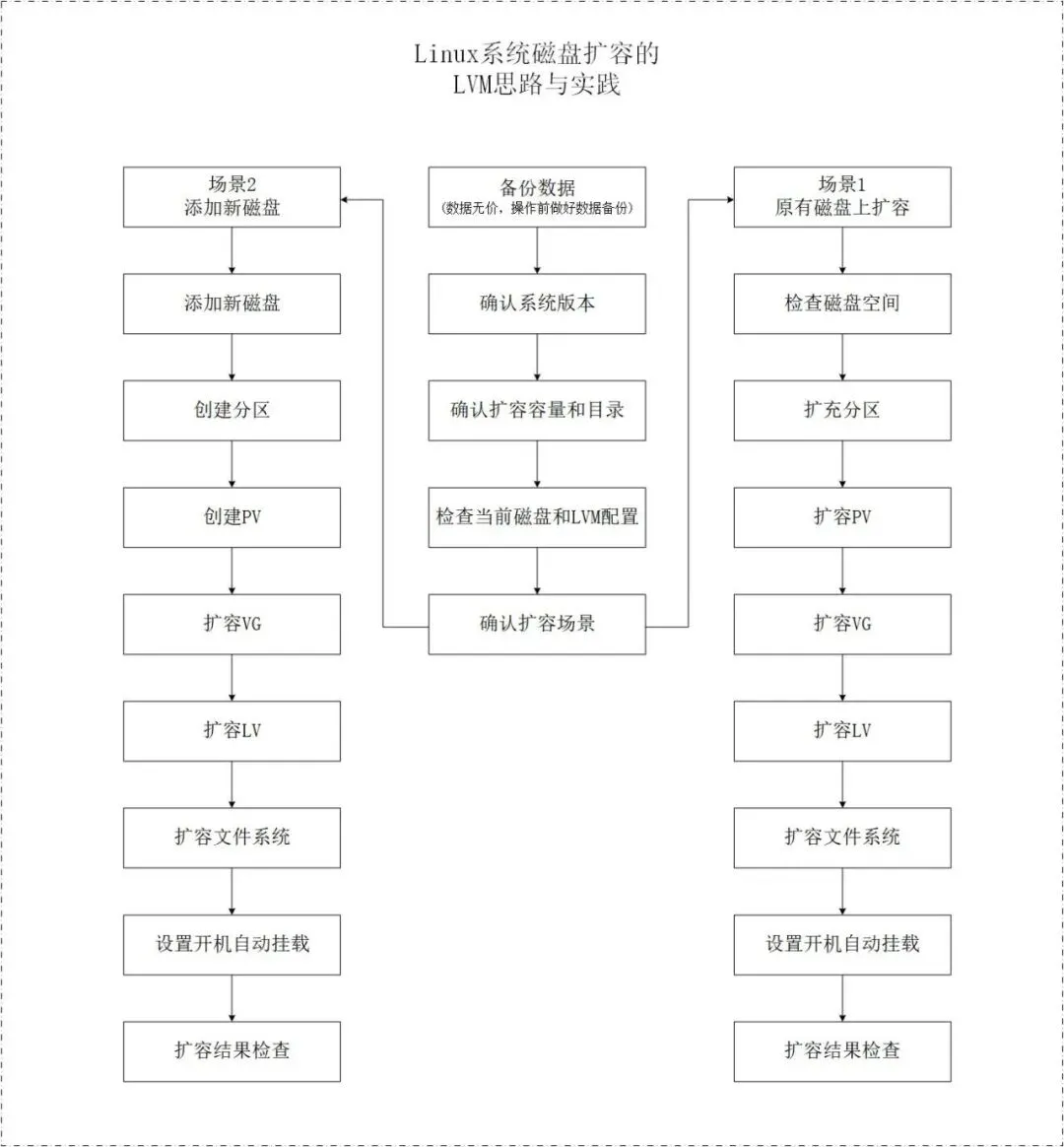
4.1扩容思路

4.2备份数据

操作前务必备份数据,并在测试环境验证。对于生产系统,建议在维护窗口进行操作。

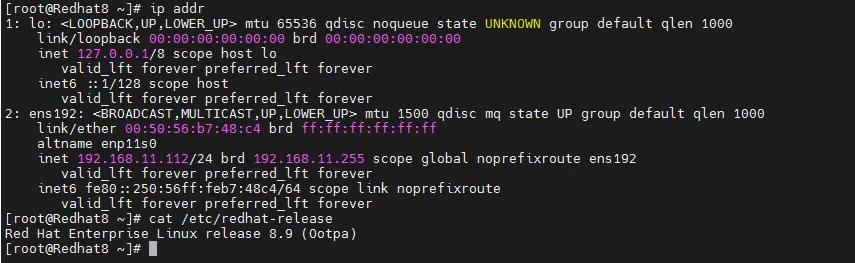
4.3系统信息

系统名称

IP地址

系统版本

Redhat8-192.168.11.112

192.168.11.112

Red Hat Enterprise Linux release 8.9

命令:#ip addr、#cat /etc/redhat-release

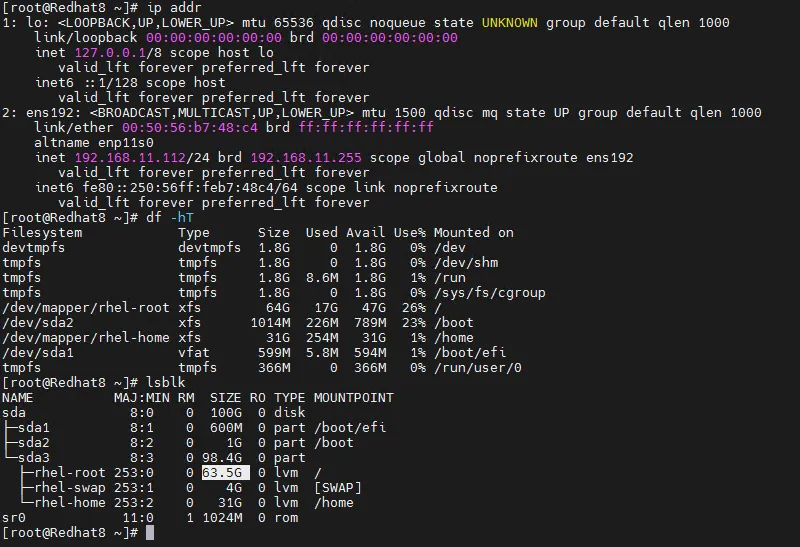
4.4计划扩容的目录和容量

系统IP地址

扩容目录

原容量

扩容

容量

最终

容量

磁盘

分区

192.168.11.112

/dev/mapper/rhel-root

64GB

10GB

74GB

lvm

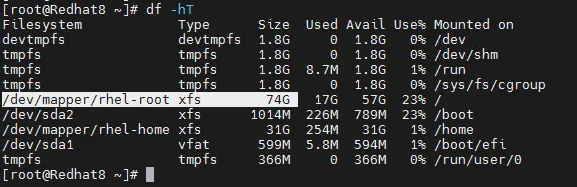
命令:#ip addr、#df -hT、#lsblk

4.5确认扩容场景

扩容场景

原磁盘扩容

新增磁盘扩容

场景1

\

是

场景2

是

\

5、扩容操作过程

5.1场景1新增虚拟磁盘

扩容步骤

说明

添加新磁盘

编辑虚拟机设置,添加新硬盘。

扩充分区

新增加的容量进行分区。

扩容PV

创建物理卷。

扩容VG

扩容至卷组。

扩容LV

扩容至逻辑卷。

扩容文件系统

扩容至目的文件系统。

开机自动挂载

在fstab添加挂载路径。

检查

检查最终扩容扩容容量,并重启验证。

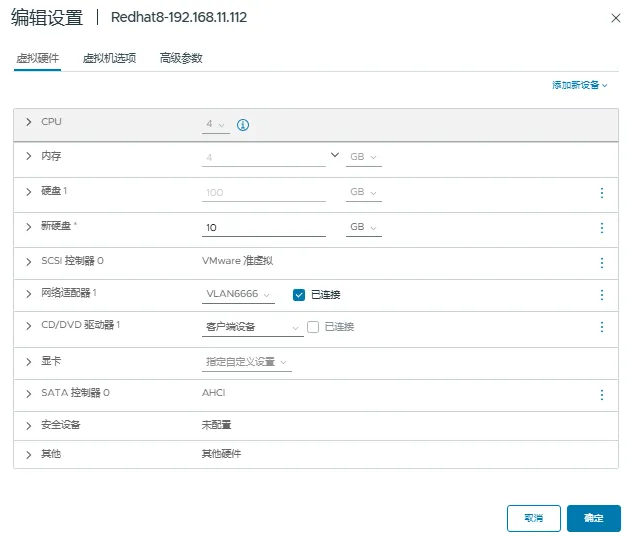
5.1.1新增磁盘

编辑虚拟机设置,添加新硬盘10GB。如图所示:

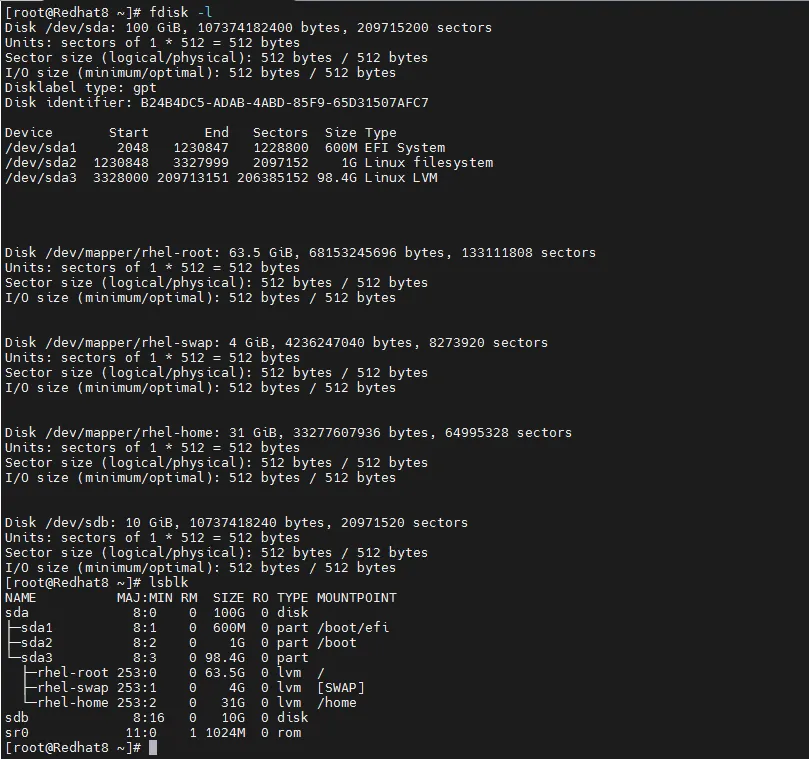
5.1.2系统查看新增加的磁盘

# fdisk -l

或者

#lsblk

如果添加的新硬盘无法识别,可以重新扫描SCSI总线

# 扫描所有host

for host in /sys/class/scsi_host/host*/scan; do echo "- - -" > $host; done

5.1.3创建分区

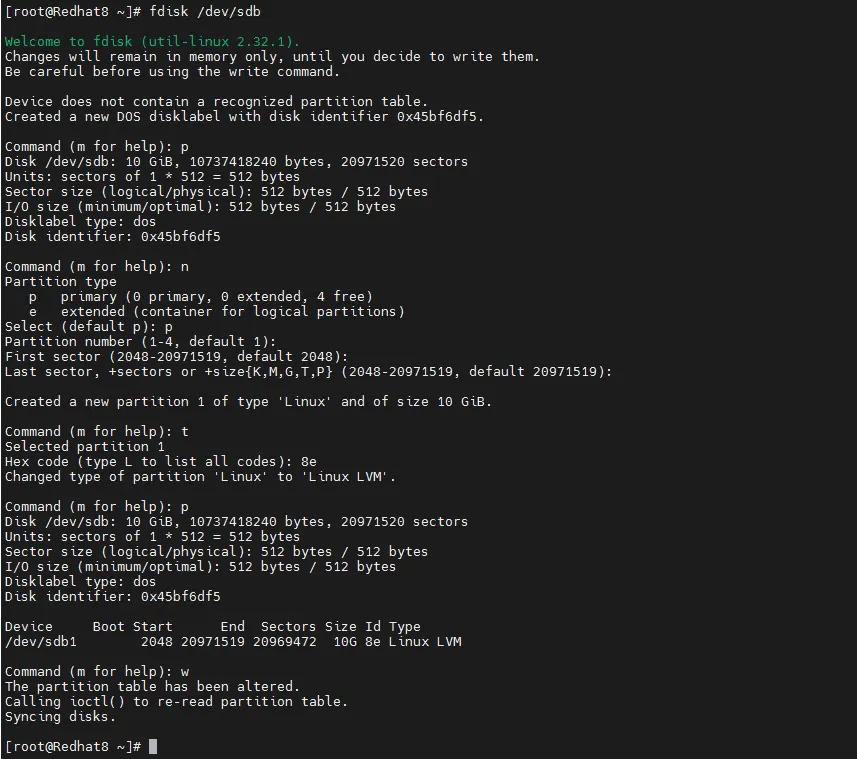
#fdsik /dev/sdb

[root@Redhat8 ~]# fdisk /dev/sdb

Welcome to fdisk (util-linux 2.32.1).

Changes will remain in memory only, until you decide to write them.

Be careful before using the write command.

Device does not contain a recognized partition table.

Created a new DOS disklabel with disk identifier 0x45bf6df5.

Command (m for help): p#查看当前分区表

Disk /dev/sdb: 10 GiB, 10737418240 bytes, 20971520 sectors

Units: sectors of 1 * 512 = 512 bytes

Sector size (logical/physical): 512 bytes / 512 bytes

I/O size (minimum/optimal): 512 bytes / 512 bytes

Disklabel type: dos

Disk identifier: 0x45bf6df5

Command (m for help): n#创建新分区

Partition type

pprimary(0 primary, 0 extended, 4 free)

eextended(container for logical partitions)

Select (default p): p# 选择主分区

Partition number (1-4, default 1):# 分区号,直接回车使用默认值1

First sector (2048-20971519, default 2048):# 起始扇区,直接回车使用默认

Last sector, +sectors or +size{K,M,G,T,P} (2048-20971519, default 20971519):

# 结束扇区,直接回车使用整个硬盘

Created a new partition 1 of type 'Linux' and of size 10 GiB.

Command (m for help): t#更改分区类型

Selected partition 1

Hex code (type L to list all codes): 8e# 设置LVM分区类型

Changed type of partition 'Linux' to 'Linux LVM'.

Command (m for help): p # 验证分区表

Disk /dev/sdb: 10 GiB, 10737418240 bytes, 20971520 sectors

Units: sectors of 1 * 512 = 512 bytes

Sector size (logical/physical): 512 bytes / 512 bytes

I/O size (minimum/optimal): 512 bytes / 512 bytes

Disklabel type: dos

Disk identifier: 0x45bf6df5

DeviceBoot StartEndSectors Size Id Type

/dev/sdb12048 20971519 2096947210G 8e Linux LVM

Command (m for help): w#保存并退出

The partition table has been altered.

Calling ioctl() to re-read partition table.

Syncing disks.

[root@Redhat8 ~]#

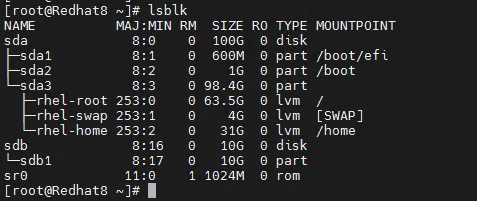
检查新建的分区sdb1:

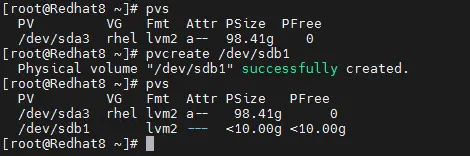
5.1.4创建物理卷(PV)

将新建的分区扩容至物理卷。

物理卷扩容前:

物理卷扩容后(将 sdb1初始化为物理卷):

#pvcreate /dev/sdb1

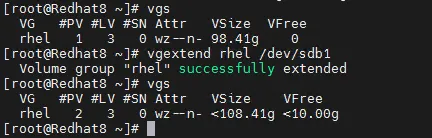
5.1.5扩容卷组(VG)

卷组扩容前:

卷组扩容后(将新物理卷加入卷组 rhel):

#vgextend rhel /dev/sdb1

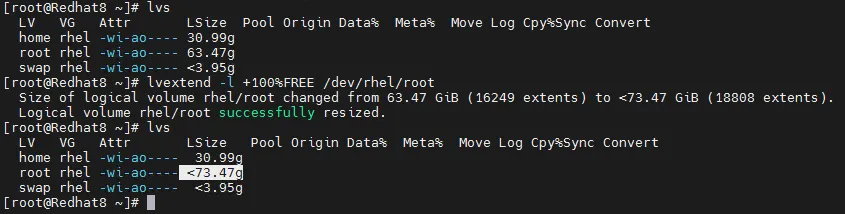
5.1.6扩容逻辑卷(LV)

扩容逻辑卷前:

扩容逻辑卷后【扩展逻辑卷(如根分区)】:

#lvextend -l +100%FREE /dev/rhel/root

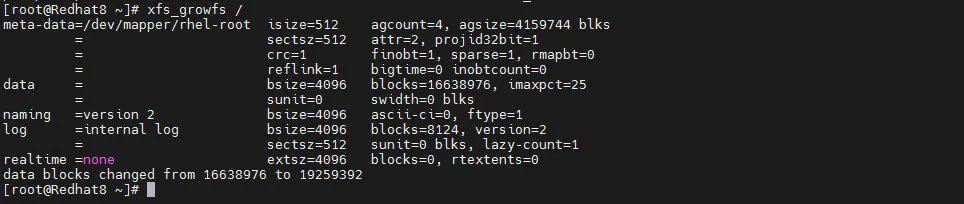
5.1.7扩容文件系统

扩展文件系统。

#如果是 XFS:

xfs_growfs /

#如果是 Ext4:

resize2fs /dev/rhel/root

查看文件系统类型:

#blkid /dev/rhel/root

扩展文件系统:xfs_growfs /

5.1.8开机自动挂载设置

本次扩容是直接扩容至根逻辑卷,不需要 fstab 配置,因为根分区已在初始安装时配置。

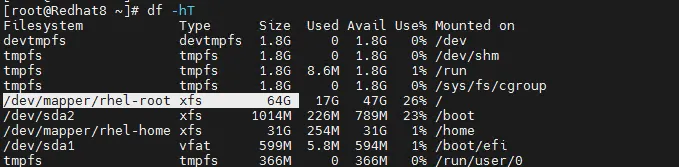
5.1.9检查扩容结果

扩容前:

扩容后:

5.2场景2原磁盘扩容

扩容步骤

说明

虚拟机磁盘扩容

编辑虚拟机设置,修改原磁盘容量。

扩充分区

新增加的容量进行分区。

扩容PV

创建物理卷。

扩容VG

扩容至卷组。

扩容LV

扩容至逻辑卷。

扩容文件系统

扩容至目的文件系统。

开机自动挂载

在fstab添加挂载路径。

检查

检查最终扩容扩容容量,并重启验证。

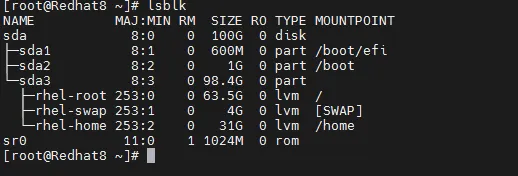
5.2.1查看系统磁盘原容量

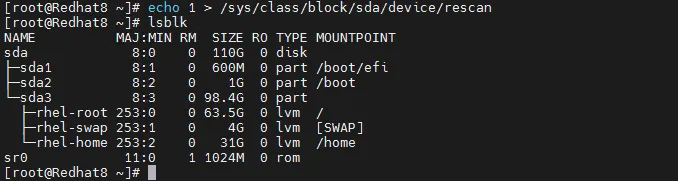
使用命令lsblk,查看系统磁盘原容量为100GB。

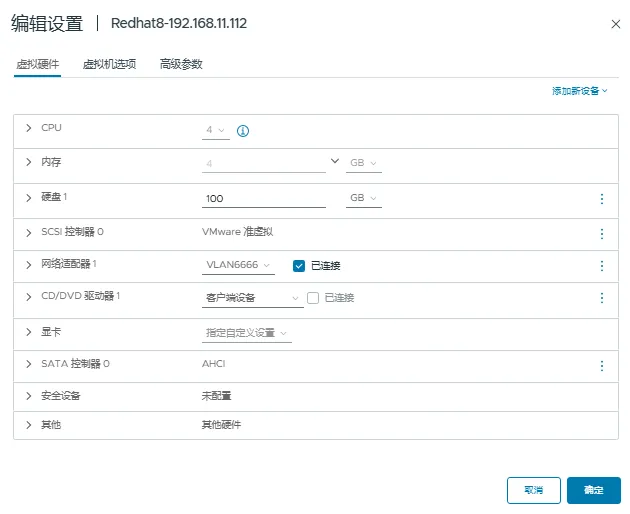
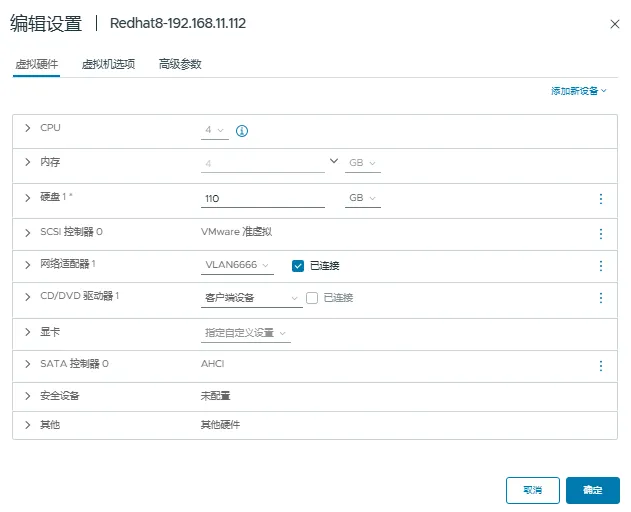
5.2.2系统原磁盘扩容

扩容前,如图所示:

扩容后,如图所示:

5.2.3重新扫描磁盘

# 先查看磁盘设备名(如sda、sdb)

lsblk

# 本次扩容磁盘是sda

echo 1 > /sys/class/block/sda/device/rescan

5.2.4新建分区

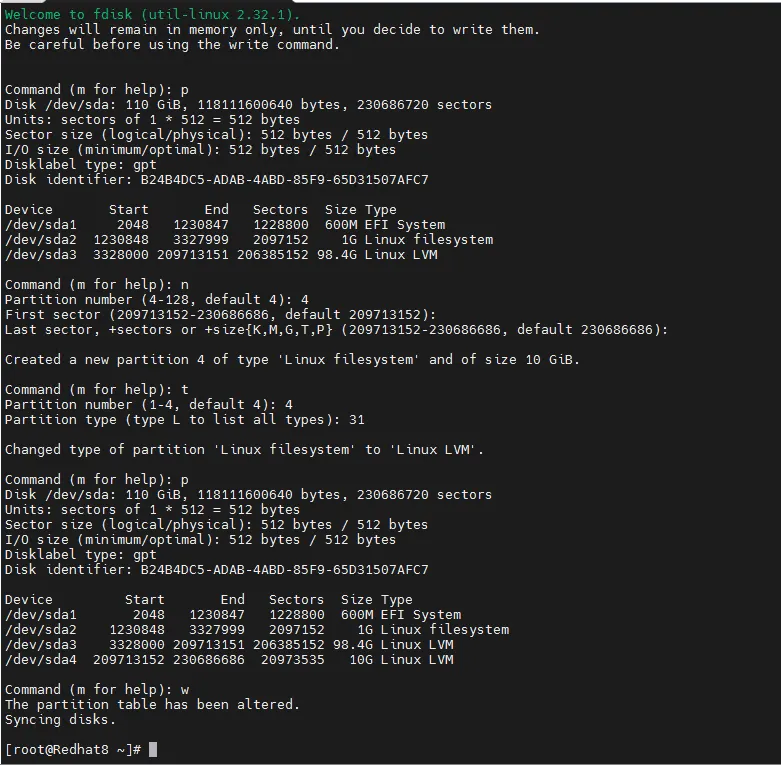
#fdisk /dev/sda

[root@Redhat8 ~]# fdisk /dev/sda

Welcome to fdisk (util-linux 2.32.1).

Changes will remain in memory only, until you decide to write them.

Be careful before using the write command.

Command (m for help): p#查看当前分区表

Disk /dev/sda: 110 GiB, 118111600640 bytes, 230686720 sectors

Units: sectors of 1 * 512 = 512 bytes

Sector size (logical/physical): 512 bytes / 512 bytes

I/O size (minimum/optimal): 512 bytes / 512 bytes

Disklabel type: gpt

Disk identifier: B24B4DC5-ADAB-4ABD-85F9-65D31507AFC7

DeviceStartEndSectorsSize Type

/dev/sda1204812308471228800600M EFI System

/dev/sda21230848332799920971521G Linux filesystem

/dev/sda33328000 209713151 206385152 98.4G Linux LVM

Command (m for help): n#创建新分区

Partition number (4-128, default 4): 4# 分区号,直接回车使用默认值

First sector (209713152-230686686, default 209713152):# 起始扇区,直接回车使用默认

Last sector, +sectors or +size{K,M,G,T,P} (209713152-230686686, default 230686686):

# 结束扇区,直接回车使用整个硬盘

Created a new partition 4 of type 'Linux filesystem' and of size 10 GiB.

Command (m for help): t#更改分区类型

Partition number (1-4, default 4): 4

Partition type (type L to list all types): 31设置LVM分区类型

Changed type of partition 'Linux filesystem' to 'Linux LVM'.

Command (m for help): p# 验证分区表

Disk /dev/sda: 110 GiB, 118111600640 bytes, 230686720 sectors

Units: sectors of 1 * 512 = 512 bytes

Sector size (logical/physical): 512 bytes / 512 bytes

I/O size (minimum/optimal): 512 bytes / 512 bytes

Disklabel type: gpt

Disk identifier: B24B4DC5-ADAB-4ABD-85F9-65D31507AFC7

DeviceStartEndSectorsSize Type

/dev/sda1204812308471228800600M EFI System

/dev/sda21230848332799920971521G Linux filesystem

/dev/sda33328000 209713151 206385152 98.4G Linux LVM

/dev/sda4209713152 2306866862097353510G Linux LVM

Command (m for help): w#保存并退出

The partition table has been altered.

Syncing disks.

[root@Redhat8 ~]#

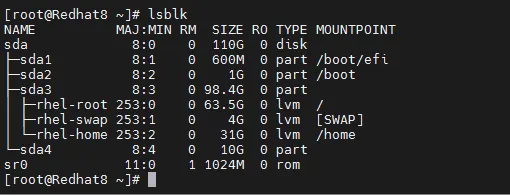
检查新建的分区sda4:

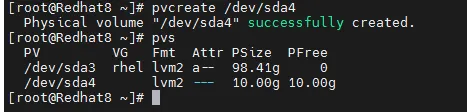
5.2.5创建物理卷(PV)

将新建的分区扩容至物理卷。

物理卷扩容前:

物理卷扩容后(将 sda4 初始化为物理卷):

#pvcreate /dev/sda4

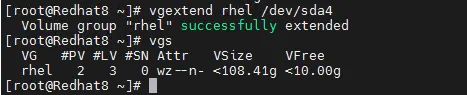
5.2.6扩容卷组(VG)

卷组扩容前:

卷组扩容后(将新物理卷加入卷组 rhel):

#vgextend rhel /dev/sda4

5.2.7扩容逻辑卷(LV)

扩容逻辑卷前:

扩容逻辑卷后【扩展逻辑卷(如根分区)】:

#lvextend -l +100%FREE /dev/rhel/root

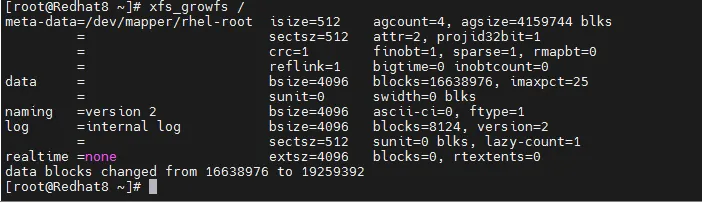
5.2.8扩容文件系统

扩展文件系统。

#如果是 XFS:

xfs_growfs /

#如果是 Ext4:

resize2fs /dev/rhel/root

查看文件系统类型:

#blkid /dev/rhel/root

扩展文件系统:xfs_growfs /

5.2.9开机自动挂载设置

本次扩容是直接扩容至根逻辑卷,不需要 fstab 配置,因为根分区已在初始安装时配置。

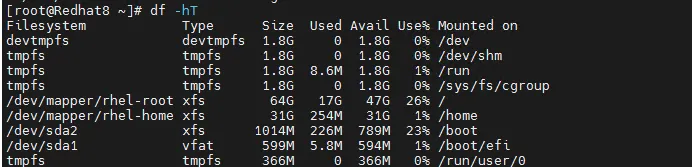
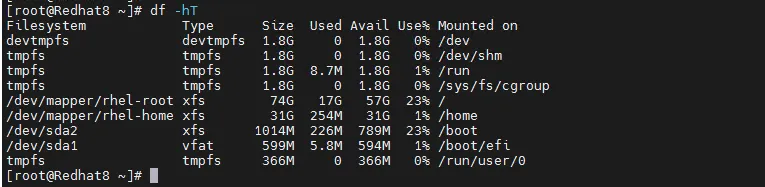
5.2.10检查扩容结果

扩容前:

扩容后:

最新文章

随机文章