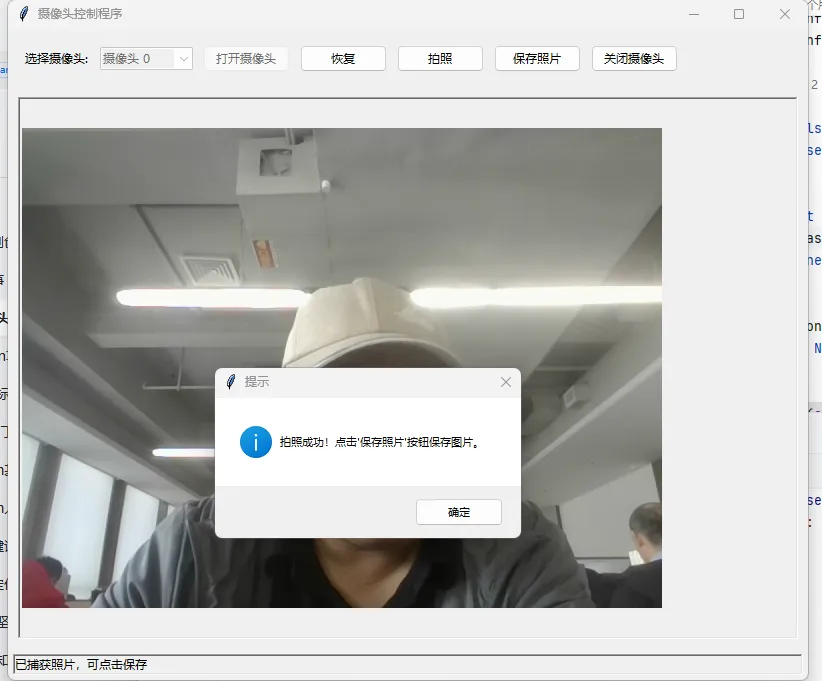
用 tkinter 开发一个具备摄像头设备列表获取、打开、暂停、拍照、保存和预览功能的图形界面程序,这个需求很实用,为你提供一个完整且易于理解的实现方案。
实现思路
- 使用
cv2(OpenCV)来处理摄像头的视频流和图像捕获 - 使用
tkinter 构建图形界面,包含按钮、预览窗口和文件保存功能 - 实现核心功能:枚举摄像头、打开/暂停/关闭、拍照、保存、预览
完整代码实现
首先确保安装必要的依赖:
pip install opencv-python pillow
import tkinter as tkfrom tkinter import ttk, filedialog, messageboximport cv2import threadingimport timefrom PIL import Image, ImageTkimport osclassCameraApp:def__init__(self, root): self.root = root self.root.title("摄像头控制程序") self.root.geometry("800x650")# 初始化变量 self.camera = None# 摄像头对象 self.is_running = False# 摄像头是否运行 self.is_paused = False# 是否暂停 self.current_frame = None# 当前帧 self.camera_list = [] # 摄像头列表# 创建UI界面 self.create_ui()# 枚举摄像头 self.enumerate_cameras()# 确保窗口关闭时释放资源 self.root.protocol("WM_DELETE_WINDOW", self.on_closing)defcreate_ui(self):"""创建用户界面"""# 顶部控制面板 control_frame = ttk.Frame(self.root, padding="10") control_frame.pack(fill=tk.X)# 摄像头选择 ttk.Label(control_frame, text="选择摄像头:").grid(row=0, column=0, padx=5, pady=5) self.camera_var = tk.StringVar() self.camera_combobox = ttk.Combobox( control_frame, textvariable=self.camera_var, state="readonly", width=10 ) self.camera_combobox.grid(row=0, column=1, padx=5, pady=5)# 功能按钮 self.open_btn = ttk.Button( control_frame, text="打开摄像头", command=self.open_camera ) self.open_btn.grid(row=0, column=2, padx=5, pady=5) self.pause_btn = ttk.Button( control_frame, text="暂停", command=self.pause_camera, state=tk.DISABLED ) self.pause_btn.grid(row=0, column=3, padx=5, pady=5) self.capture_btn = ttk.Button( control_frame, text="拍照", command=self.capture_photo, state=tk.DISABLED ) self.capture_btn.grid(row=0, column=4, padx=5, pady=5) self.save_btn = ttk.Button( control_frame, text="保存照片", command=self.save_photo, state=tk.DISABLED ) self.save_btn.grid(row=0, column=5, padx=5, pady=5) self.close_btn = ttk.Button( control_frame, text="关闭摄像头", command=self.close_camera, state=tk.DISABLED ) self.close_btn.grid(row=0, column=6, padx=5, pady=5)# 预览窗口 self.preview_frame = ttk.Frame(self.root, relief=tk.SUNKEN, borderwidth=2) self.preview_frame.pack(fill=tk.BOTH, expand=True, padx=10, pady=10) self.preview_label = ttk.Label(self.preview_frame) self.preview_label.pack(fill=tk.BOTH, expand=True)# 底部状态信息 self.status_var = tk.StringVar(value="就绪 - 未选择摄像头") status_label = ttk.Label( self.root, textvariable=self.status_var, relief=tk.SUNKEN ) status_label.pack(fill=tk.X, side=tk.BOTTOM, padx=5, pady=5)defenumerate_cameras(self):"""枚举可用的摄像头设备""" self.camera_list = []# 尝试检测前10个摄像头设备(通常足够)for i in range(10): cap = cv2.VideoCapture(i, cv2.CAP_DSHOW) # 使用CAP_DSHOW避免Windows警告if cap.isOpened(): self.camera_list.append(i) cap.release()else:breakif self.camera_list: self.camera_combobox["values"] = [f"摄像头 {i}"for i in self.camera_list] self.camera_combobox.current(0) self.status_var.set(f"检测到 {len(self.camera_list)} 个摄像头设备")else: self.status_var.set("未检测到摄像头设备") messagebox.showwarning("警告", "未检测到可用的摄像头设备!")defopen_camera(self):"""打开选中的摄像头"""ifnot self.camera_list: messagebox.showwarning("警告", "没有可用的摄像头!")return# 获取选中的摄像头索引 selected = self.camera_var.get()ifnot selected: messagebox.showwarning("警告", "请选择一个摄像头!")return cam_index = int(selected.split()[1])# 打开摄像头 self.camera = cv2.VideoCapture(cam_index, cv2.CAP_DSHOW)ifnot self.camera.isOpened(): messagebox.showerror("错误", "无法打开选中的摄像头!")return self.is_running = True self.is_paused = False# 更新按钮状态 self.open_btn.config(state=tk.DISABLED) self.pause_btn.config(state=tk.NORMAL) self.capture_btn.config(state=tk.NORMAL) self.close_btn.config(state=tk.NORMAL) self.camera_combobox.config(state="disabled") self.status_var.set(f"已打开摄像头 {cam_index}")# 启动视频流线程 self.video_thread = threading.Thread(target=self.update_frame, daemon=True) self.video_thread.start()defupdate_frame(self):"""更新预览帧(在独立线程中运行)"""while self.is_running andnot self.is_paused: ret, frame = self.camera.read()if ret:# 转换颜色空间 (BGR -> RGB) frame = cv2.cvtColor(frame, cv2.COLOR_BGR2RGB) self.current_frame = frame.copy()# 调整图像大小以适应预览窗口 height, width = frame.shape[:2] preview_width = self.preview_label.winfo_width() preview_height = self.preview_label.winfo_height()if preview_width > 1and preview_height > 1:# 保持宽高比缩放 scale = min(preview_width/width, preview_height/height) new_width = int(width * scale) new_height = int(height * scale) frame = cv2.resize(frame, (new_width, new_height))# 转换为tkinter可用的格式 image = Image.fromarray(frame) photo = ImageTk.PhotoImage(image=image)# 更新预览标签 self.preview_label.config(image=photo) self.preview_label.image = photo# 控制帧率 time.sleep(0.03)defpause_camera(self):"""暂停/恢复摄像头""" self.is_paused = not self.is_pausedif self.is_paused: self.pause_btn.config(text="恢复") self.status_var.set("摄像头已暂停")else: self.pause_btn.config(text="暂停") self.status_var.set("摄像头已恢复")defcapture_photo(self):"""拍照并预览"""if self.current_frame isNone: messagebox.showwarning("警告", "没有可捕获的画面!")return# 保存当前帧用于后续保存 self.captured_photo = self.current_frame.copy()# 显示拍照预览 image = Image.fromarray(self.captured_photo) photo = ImageTk.PhotoImage(image=image) self.preview_label.config(image=photo) self.preview_label.image = photo self.save_btn.config(state=tk.NORMAL) self.status_var.set("已捕获照片,可点击保存") messagebox.showinfo("提示", "拍照成功!点击'保存照片'按钮保存图片。")defsave_photo(self):"""保存捕获的照片"""ifnot hasattr(self, 'captured_photo'): messagebox.showwarning("警告", "没有可保存的照片!")return# 弹出保存对话框 file_path = filedialog.asksaveasfilename( defaultextension=".jpg", filetypes=[("JPEG图片", "*.jpg"), ("PNG图片", "*.png"), ("所有文件", "*.*")], title="保存照片" )if file_path:# 转换颜色空间并保存 img = cv2.cvtColor(self.captured_photo, cv2.COLOR_RGB2BGR) cv2.imwrite(file_path, img) self.status_var.set(f"照片已保存至: {file_path}") messagebox.showinfo("成功", f"照片已保存到:\n{file_path}") self.save_btn.config(state=tk.DISABLED)defclose_camera(self):"""关闭摄像头""" self.is_running = False self.is_paused = False# 释放摄像头资源if self.camera isnotNone: self.camera.release() self.camera = None# 清空预览 self.preview_label.config(image="") self.current_frame = None# 恢复按钮状态 self.open_btn.config(state=tk.NORMAL) self.pause_btn.config(state=tk.DISABLED, text="暂停") self.capture_btn.config(state=tk.DISABLED) self.save_btn.config(state=tk.DISABLED) self.close_btn.config(state=tk.DISABLED) self.camera_combobox.config(state="readonly") self.status_var.set("摄像头已关闭")defon_closing(self):"""窗口关闭时的清理操作""" self.close_camera() self.root.destroy()if __name__ == "__main__": root = tk.Tk() app = CameraApp(root) root.mainloop()
代码关键部分解释
- 摄像头枚举:
enumerate_cameras() 方法尝试打开前10个摄像头设备,检测可用的摄像头并添加到下拉列表中 - 视频流处理:使用独立线程
update_frame() 来刷新视频帧,避免主线程阻塞导致界面卡顿 open_camera():打开选中的摄像头并启动视频流线程capture_photo():捕获当前帧并显示预览save_photo():将捕获的照片保存到指定路径close_camera():释放摄像头资源并重置界面状态
- 资源管理:通过
on_closing() 确保程序退出时正确释放摄像头资源
总结
- 该程序使用
tkinter 构建界面,OpenCV 处理摄像头视频流,实现了完整的摄像头控制功能 - 核心功能包括:自动枚举摄像头、打开/暂停/关闭、拍照、预览、保存,且有完善的错误处理和状态提示
- 使用时需先安装
opencv-python 和 pillow 依赖,程序会自动检测可用摄像头并提供直观的操作界面
你可以直接运行这段代码,程序会自动检测电脑上的摄像头设备,界面操作简单直观,所有功能按钮都有明确的状态提示。
 10个月宝宝每天需要喝多少奶粉?