Python Tkinter 之维护作业自检表编制与录入系统
- 2026-09-06 05:06:51
咱们就用 Python + Tkinter,从零搭一个维护作业自检表编制与录入系统——能自定义检查项、能录入数据、能导出记录,完全本地运行,不依赖任何服务器。读完你会得到:一套完整可运行的代码框架、几个关键的设计思路、以及若干我踩过的坑。
🩺 问题剖析:为什么"随便做个表格"行不通
痛点不只是"麻烦"
很多人觉得,维护自检表不就是个表格嘛,随便弄弄就行。这个想法——危险。
根本问题有三层:
1. 数据结构不统一:纸质或Excel表格因人而异,同一项目不同人填的格式天差地别,后期根本没法做统计分析。 2. 检查项管理混乱:设备更新迭代后,检查项要跟着变,但Excel里的表头改起来牵一发动全身。 3. 录入与归档割裂:现场填完纸质表,回来再录电脑,这个"二次录入"环节是错误的重灾区。
我在项目里统计过:人工二次录入的错误率大约在 3%~8% 之间。听起来不高?一个月1000条记录,就有30~80条是错的。审计的时候,这些数字会把人逼疯。
常见的错误做法
• 用Word做表格,然后打印——完全无法数字化 • 用微信群发照片——数据无法检索,更无法统计 • 用共享Excel——多人同时编辑冲突,版本管理是灾难
🏗️ 系统设计思路:先想清楚,再动手
在写代码之前,我习惯先把系统拆成几个模块想清楚。这个系统核心要解决两件事:编制检查表(定义有哪些检查项)和录入数据(实际执行时填写结果)。
系统架构├── 主界面(Tab 切换)│ ├── 检查表编制模块│ │ ├── 新增/删除检查项│ │ └── 保存为模板(JSON)│ └── 数据录入模块│ ├── 加载模板│ ├── 逐项录入(合格/不合格/备注)│ └── 导出为 CSV└── 数据层(JSON + CSV 文件)为什么用 JSON 存模板、CSV 存记录?因为这两种格式人类可读、Excel 能直接打开、不需要数据库。对于中小规模的维护场景,这个方案足够用,而且部署成本几乎为零。
💻 方案一:检查表编制模块
先搭编制部分。这个模块让用户自由添加检查项,然后保存成 JSON 模板文件。
import tkinter as tkfrom tkinter import ttk, messagebox, filedialogimport jsonimport osclassChecklistEditor(tk.Frame):"""检查表编制模块"""def__init__(self, master):super().__init__(master)self.items = [] # 存储检查项列表self._build_ui()def_build_ui(self):# 顶部:输入区域 input_frame = tk.LabelFrame(self, text="添加检查项", padx=10, pady=8) input_frame.pack(fill="x", padx=10, pady=8) tk.Label(input_frame, text="检查项名称:").grid(row=0, column=0, sticky="w")self.item_name_var = tk.StringVar() tk.Entry(input_frame, textvariable=self.item_name_var, width=30).grid( row=0, column=1, padx=5 ) tk.Label(input_frame, text="检查类型:").grid(row=0, column=2, sticky="w", padx=(10, 0))self.item_type_var = tk.StringVar(value="合格/不合格") type_combo = ttk.Combobox( input_frame, textvariable=self.item_type_var, values=["合格/不合格", "数值录入", "文字描述"], state="readonly", width=15, ) type_combo.grid(row=0, column=3, padx=5) tk.Button( input_frame, text="➕ 添加", command=self._add_item, bg="#4CAF50", fg="white", width=8 ).grid(row=0, column=4, padx=8)# 中部:检查项列表 list_frame = tk.LabelFrame(self, text="当前检查项列表", padx=10, pady=8) list_frame.pack(fill="both", expand=True, padx=10, pady=4) columns = ("序号", "检查项名称", "检查类型")self.tree = ttk.Treeview(list_frame, columns=columns, show="headings", height=12)for col in columns:self.tree.heading(col, text=col)self.tree.column(col, width=180if col != "序号"else60, anchor="center") scrollbar = ttk.Scrollbar(list_frame, orient="vertical", command=self.tree.yview)self.tree.configure(yscrollcommand=scrollbar.set)self.tree.pack(side="left", fill="both", expand=True) scrollbar.pack(side="right", fill="y")# 底部:操作按钮 btn_frame = tk.Frame(self) btn_frame.pack(fill="x", padx=10, pady=8) tk.Button(btn_frame, text="🗑 删除选中", command=self._delete_item, bg="#f44336", fg="white", width=12).pack(side="left", padx=4) tk.Button(btn_frame, text="💾 保存模板", command=self._save_template, bg="#2196F3", fg="white", width=12).pack(side="left", padx=4) tk.Button(btn_frame, text="📂 加载模板", command=self._load_template, bg="#FF9800", fg="white", width=12).pack(side="left", padx=4)def_add_item(self): name = self.item_name_var.get().strip()ifnot name: messagebox.showwarning("提示", "检查项名称不能为空!")return item = {"name": name, "type": self.item_type_var.get()}self.items.append(item)self._refresh_tree()self.item_name_var.set("") # 清空输入框def_delete_item(self): selected = self.tree.selection()ifnot selected:return# 获取序号(从1开始),转为列表索引 idx = int(self.tree.item(selected[0])["values"][0]) - 1self.items.pop(idx)self._refresh_tree()def_refresh_tree(self):for row inself.tree.get_children():self.tree.delete(row)for i, item inenumerate(self.items, start=1):self.tree.insert("", "end", values=(i, item["name"], item["type"]))def_save_template(self):ifnotself.items: messagebox.showwarning("提示", "检查项列表为空,无法保存!")return path = filedialog.asksaveasfilename( defaultextension=".json", filetypes=[("JSON 文件", "*.json")], title="保存检查表模板", )if path:withopen(path, "w", encoding="utf-8") as f: json.dump(self.items, f, ensure_ascii=False, indent=2) messagebox.showinfo("成功", f"模板已保存至:\n{path}")def_load_template(self): path = filedialog.askopenfilename( filetypes=[("JSON 文件", "*.json")], title="加载检查表模板" )if path:withopen(path, "r", encoding="utf-8") as f:self.items = json.load(f)self._refresh_tree() messagebox.showinfo("成功", f"已加载 {len(self.items)} 个检查项")踩坑预警:ttk.Treeview 删除行时,一定要用序号反推列表索引,不能直接用 tree.index()——那个返回的是树节点顺序,删除后会错位。我在这里吃过亏,调了半小时。
📝 方案二:数据录入模块
编制好模板后,录入模块动态加载检查项,根据类型生成不同的输入控件。
import csv from datetime import datetime classDataEntry(tk.Frame): """数据录入模块"""def__init__(self, master): super().__init__(master) self.template_items = [] self.entry_widgets = [] # 存储每行的输入控件引用 self._build_ui() def_build_ui(self): # 顶部工具栏 toolbar = tk.Frame(self, bg="#f0f0f0", pady=6) toolbar.pack(fill="x") # 加载模板按钮 tk.Button(toolbar, text="📂 加载模板", command=self._load_template, bg="#FF9800", fg="white", width=12).pack(side="left", padx=8) # 操作人输入区域 tk.Label(toolbar, text="操作人:", bg="#f0f0f0", font=("微软雅黑", 9)).pack(side="left") self.operator_var = tk.StringVar() self.operator_entry = tk.Entry(toolbar, textvariable=self.operator_var, width=12, font=("微软雅黑", 9)) self.operator_entry.pack(side="left", padx=4) # 设备编号输入区域 tk.Label(toolbar, text="设备编号:", bg="#f0f0f0", font=("微软雅黑", 9)).pack( side="left", padx=(12, 0)) self.device_var = tk.StringVar() self.device_entry = tk.Entry(toolbar, textvariable=self.device_var, width=14, font=("微软雅黑", 9)) self.device_entry.pack(side="left", padx=4) # 状态指示器 self.status_label = tk.Label(toolbar, text="等待输入", bg="#f0f0f0", fg="gray", width=12, font=("微软雅黑", 8)) self.status_label.pack(side="right", padx=(0, 120)) # 提交按钮 tk.Button(toolbar, text="💾 提交记录", command=self._submit, bg="#4CAF50", fg="white", width=12).pack(side="right", padx=8) # 绑定事件 self.operator_var.trace('w', self._validate_inputs) self.device_var.trace('w', self._validate_inputs) self.device_entry.bind('<Return>', lambda e: self._submit()) # 回车键提交 self.operator_entry.bind('<Return>', lambda e: self.device_entry.focus_set()) # 操作人输入后跳到设备编号 # 录入区域(滚动容器) canvas_frame = tk.Frame(self) canvas_frame.pack(fill="both", expand=True, padx=10, pady=6) self.canvas = tk.Canvas(canvas_frame, bg="white") v_scroll = ttk.Scrollbar(canvas_frame, orient="vertical", command=self.canvas.yview) self.canvas.configure(yscrollcommand=v_scroll.set) self.canvas.pack(side="left", fill="both", expand=True) v_scroll.pack(side="right", fill="y") self.entry_frame = tk.Frame(self.canvas, bg="white") self.canvas.create_window((0, 0), window=self.entry_frame, anchor="nw") self.entry_frame.bind( "<Configure>", lambda e: self.canvas.configure(scrollregion=self.canvas.bbox("all")), ) # 绑定鼠标滚轮事件 def_on_mousewheel(event): self.canvas.yview_scroll(int(-1 * (event.delta / 120)), "units") self.canvas.bind("<MouseWheel>", _on_mousewheel) # 加载上次的用户信息(如果存在) self._load_user_info() def_validate_inputs(self, *args): """实时验证输入状态""" operator = self.operator_var.get().strip() device = self.device_var.get().strip() # 检查是否为占位符文本 if operator in ["请输入姓名", ""] or device in ["请输入设备编号", ""]: operator = ""if operator == "请输入姓名"else operator device = ""if device == "请输入设备编号"else device if operator and device andlen(operator) >= 2andlen(device) >= 3: self.status_label.config(text="✓ 信息完整", fg="green") elif operator or device: self.status_label.config(text="⚠ 信息不完整", fg="orange") else: self.status_label.config(text="等待输入", fg="gray") def_load_user_info(self): """加载上次保存的用户信息"""try: if os.path.exists("user_config.json"): withopen("user_config.json", "r", encoding="utf-8") as f: config = json.load(f) last_operator = config.get("last_operator", "") last_device = config.get("last_device", "") if last_operator: self.operator_var.set(last_operator) if last_device: self.device_var.set(last_device) except (FileNotFoundError, json.JSONDecodeError): pass# 如果文件不存在或格式错误,忽略 def_save_user_info(self): """保存用户信息到配置文件""" operator = self.operator_var.get().strip() device = self.device_var.get().strip() if operator and device: config = { "last_operator": operator, "last_device": device, "last_save_time": datetime.now().strftime("%Y-%m-%d %H:%M:%S") } try: withopen("user_config.json", "w", encoding="utf-8") as f: json.dump(config, f, ensure_ascii=False, indent=2) except Exception as e: print(f"保存用户配置失败: {e}") def_load_template(self): path = filedialog.askopenfilename( filetypes=[("JSON 文件", "*.json")], title="加载检查表模板" ) ifnot path: returnwithopen(path, "r", encoding="utf-8") as f: self.template_items = json.load(f) self._render_form() def_render_form(self): # 清空旧控件 for widget inself.entry_frame.winfo_children(): widget.destroy() self.entry_widgets.clear() # 表头 headers = ["序号", "检查项", "结果", "备注"] widths = [5, 28, 15, 22] for col, (h, w) inenumerate(zip(headers, widths)): tk.Label( self.entry_frame, text=h, bg="#2196F3", fg="white", width=w, anchor="center", pady=4, font=("微软雅黑", 9, "bold") ).grid(row=0, column=col, padx=1, pady=1, sticky="nsew") # 动态生成每行控件 for i, item inenumerate(self.template_items, start=1): row_bg = "#ffffff"if i % 2 == 0else"#f9f9f9" tk.Label(self.entry_frame, text=str(i), bg=row_bg, width=5, anchor="center").grid(row=i, column=0, padx=1, pady=2, sticky="nsew") tk.Label(self.entry_frame, text=item["name"], bg=row_bg, width=28, anchor="w", padx=6).grid(row=i, column=1, padx=1, pady=2, sticky="nsew") # 根据类型生成不同控件 result_var = tk.StringVar() if item["type"] == "合格/不合格": widget = ttk.Combobox( self.entry_frame, textvariable=result_var, values=["✅ 合格", "❌ 不合格", "⚠️ 待确认"], state="readonly", width=13 ) widget.current(0) else: widget = tk.Entry(self.entry_frame, textvariable=result_var, width=15) widget.grid(row=i, column=2, padx=4, pady=2) remark_var = tk.StringVar() tk.Entry(self.entry_frame, textvariable=remark_var, width=22).grid( row=i, column=3, padx=4, pady=2 ) self.entry_widgets.append((result_var, remark_var)) def_submit(self): ifnotself.template_items: messagebox.showwarning("提示", "请先加载检查表模板!") return# 获取输入值并去除首尾空格 operator = self.operator_var.get().strip() device = self.device_var.get().strip() # 详细的输入验证 ifnot operator or operator == "请输入姓名": messagebox.showwarning("输入错误", "请输入操作人姓名!") self.operator_entry.focus_set() self.operator_entry.select_range(0, tk.END) # 选中所有文本 returnifnot device or device == "请输入设备编号": messagebox.showwarning("输入错误", "请输入设备编号!") self.device_entry.focus_set() self.device_entry.select_range(0, tk.END) returniflen(operator) < 2: messagebox.showwarning("输入错误", "操作人姓名至少需要2个字符!") self.operator_entry.focus_set() self.operator_entry.select_range(0, tk.END) returniflen(device) < 3: messagebox.showwarning("输入错误", "设备编号至少需要3个字符!") self.device_entry.focus_set() self.device_entry.select_range(0, tk.END) return# 检查是否有未填写的检查项 empty_items = [] for i, (result_var, remark_var) inenumerate(self.entry_widgets, 1): result = result_var.get().strip() ifnot result: empty_items.append(str(i)) if empty_items: iflen(empty_items) <= 5: items_text = "、".join(empty_items) else: items_text = "、".join(empty_items[:5]) + f"等{len(empty_items)}项"ifnot messagebox.askyesno("确认提交", f"检查项 {items_text} 未填写结果,是否继续提交?"): return timestamp = datetime.now().strftime("%Y-%m-%d %H:%M:%S") records = [] for item, (result_var, remark_var) inzip(self.template_items, self.entry_widgets): records.append({ "时间": timestamp, "操作人": operator, "设备编号": device, "检查项": item["name"], "检查类型": item["type"], "结果": result_var.get() or"未填写", "备注": remark_var.get(), }) # 保存用户信息 self._save_user_info() # 追加写入 CSV output_file = f"维护记录_{datetime.now().strftime('%Y%m')}.csv" file_exists = os.path.exists(output_file) try: withopen(output_file, "a", newline="", encoding="utf-8-sig") as f: writer = csv.DictWriter(f, fieldnames=records[0].keys()) ifnot file_exists: writer.writeheader() writer.writerows(records) messagebox.showinfo("提交成功", f"✅ 已记录 {len(records)} 条数据\n"f"📁 文件:{output_file}\n"f"👤 操作人:{operator}\n"f"🔧 设备:{device}") # 询问是否清空表单 if messagebox.askyesno("继续操作", "是否清空表单以便录入下一份记录?"): self._clear_form() except Exception as e: messagebox.showerror("保存失败", f"保存文件时发生错误:\n{str(e)}") def_clear_form(self): """清空表单数据"""for result_var, remark_var inself.entry_widgets: ifhasattr(result_var, 'set'): # 如果是 Combobox,重置为第一个选项 widget = Nonefor widget inself.entry_frame.winfo_children(): ifisinstance(widget, ttk.Combobox) and widget['textvariable'] == str(result_var): widget.current(0) breakifnot widget: result_var.set("") remark_var.set("")注意: CSV 写入用 utf-8-sig 而不是 utf-8——这个 BOM 头是专门给 Excel 准备的,不加的话用 Excel 直接打开中文会乱码。这个细节坑过很多人,包括我自己。
🚀 方案三:整合主程序
把两个模块用 ttk.Notebook 整合到一起,加上窗口图标和基础样式。
defmain(): root = tk.Tk() root.title("维护作业自检表系统 v1.0") root.geometry("860x620") root.resizable(True, True)# 设置全局字体(Windows 下微软雅黑更好看) default_font = ("微软雅黑", 9) root.option_add("*Font", default_font) style = ttk.Style() style.theme_use("clam") style.configure("TNotebook.Tab", padding=[12, 6], font=("微软雅黑", 10)) notebook = ttk.Notebook(root) notebook.pack(fill="both", expand=True, padx=8, pady=8) editor = ChecklistEditor(notebook) notebook.add(editor, text="📋 检查表编制") entry = DataEntry(notebook) notebook.add(entry, text="✍️ 数据录入") root.mainloop()if __name__ == "__main__": main()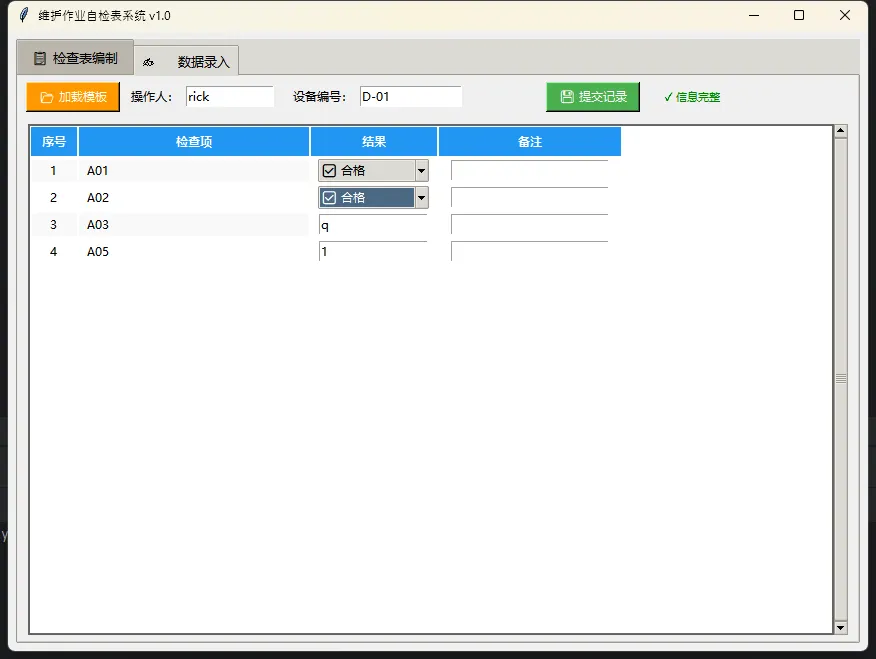
直接运行,两个 Tab 切换,编制完保存模板,录入时加载模板,提交后自动生成按月归档的 CSV 文件。整个系统零依赖,只用 Python 标准库。
⚠️ 关键踩坑总结
Canvas 滚动不生效? 一定要绑定 <Configure> 事件并更新 scrollregion,不然内容多了根本滚不动。
Combobox 在高分屏下字体模糊? 加一行 root.tk.call('tk', 'scaling', 1.5) 解决 DPI 适配问题,Windows 下尤其常见。
CSV 文件被占用无法写入? 建议用 try/except 包裹文件操作,给用户友好提示,别让程序直接崩。
多人同时使用同一个 CSV? 这个架构本身不支持并发写入。如果真有多人同时录入的需求,要么改用 SQLite,要么按人员拆分文件。
🎯 三句话技术洞察
"模板与数据分离,是这套系统最核心的设计决策。"
"动态渲染表单,让系统适应业务,而不是让业务将就系统。"
"
utf-8-sig这四个字,能帮你省掉一半的'为什么乱码'问题。"
💬 互动话题
你们团队现在用什么方式管理维护记录?有没有遇到过数据丢失或者格式混乱的情况?欢迎在留言区聊聊,说不定咱们可以一起优化这套方案。
另外抛个小挑战:能不能给这个系统加一个"历史记录查询"Tab,支持按设备编号和日期范围筛选 CSV 数据并展示? 实现思路并不复杂,用 pandas 或者纯 csv 模块都行——试试看?
📌 结尾:这套系统能带走什么
回头看这篇文章,咱们其实做了三件事:用 JSON 管检查项模板(灵活、可维护);用动态控件渲染表单(适应不同检查类型);用 CSV 做轻量级持久化(零部署、Excel 直接打开)。
进阶方向的话,可以考虑:接入 SQLite 支持多用户并发、用 matplotlib 做简单的统计图表、或者用 pyinstaller 打包成 exe 分发给不懂 Python 的同事。每一步都不难,但每一步都能让这个工具更"生产级"。
代码可以直接复制运行,模板可以按你的业务场景自定义。收藏这篇,下次有类似需求直接翻出来改改就能用。
随机文章
-
 10个月宝宝每天需要喝多少奶粉?
- Python代码|斯皮尔曼相关性气泡图+指标筛选
- Python策略模式实战,告别if/elif嵌套
- 用python一天计算一个量化因子(第二期)
- AI日报 0319|OpenAI收购Python核心工具,字节短剧Agent一键成片
- OpenAI重磅收购Astral:Python开发者的"瑞士军刀"为何值得被买下?
- 从 Python 到大模型:一套完整的 AI 学习路线与资源分享
- python-ds,一个专注的 Python 库
- 一款轻量级、纯粹的 Linux 服务器监控工具
- 一文讲清“Linux脚本编写”!——2026新版VASP基础教程
- 千呼万唤,Trae 的 Linux 版本终于来了