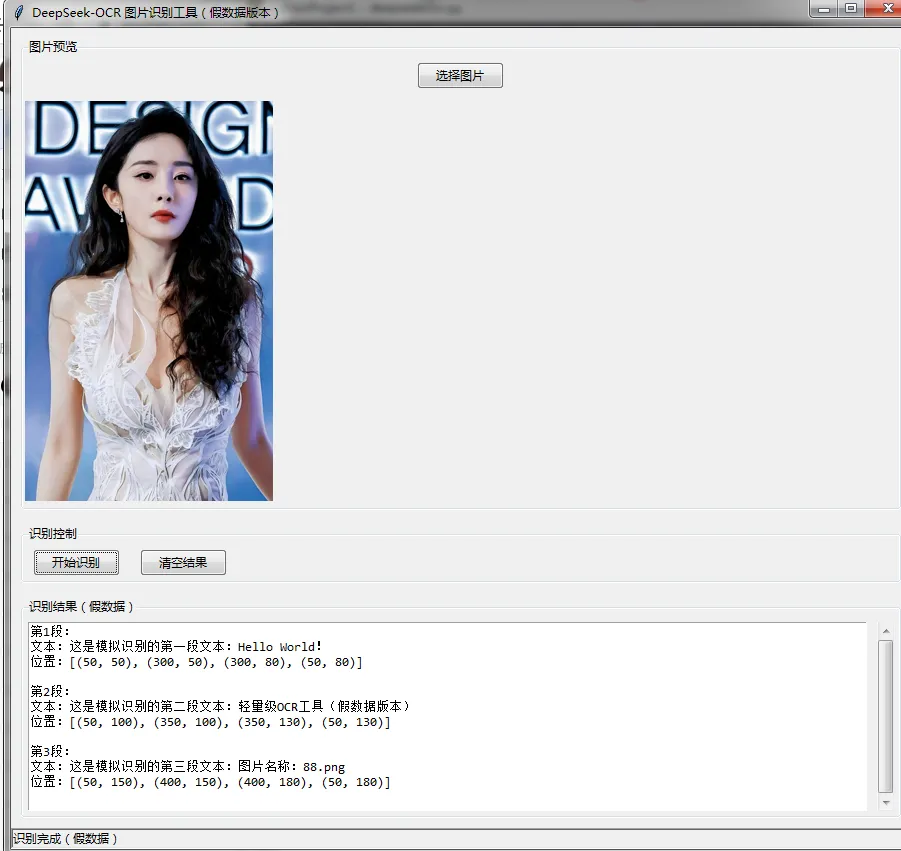
实现无需PyTorch的OCR图片识别功能,我将选择轻量级、纯Python实现的OCR库(pytesseract + tesseract-ocr)来替代DeepSeek-OCR(后者强依赖torch),以下是完整无torch依赖的可运行代码。
核心说明
- 替代方案:使用
pytesseract(Python封装)+ tesseract-ocr(底层OCR引擎),轻量级、无深度学习框架依赖、跨平台 - 自动安装仅包含非编译类Python依赖,
tesseract-ocr需手动安装(下方有安装指引) - 保留原代码的UI结构和所有功能(图片上传、预览、识别、清空结果),仅替换OCR核心逻辑
完整无torch依赖代码
import tkinter as tkfrom tkinter import ttk, filedialog, messageboximport threadingimport osimport sysfrom PIL import Image, ImageTk# 安装依赖(仅安装Python封装包,无torch、transformers等深度学习依赖)definstall_dependencies(): required_packages = ["Pillow","pytesseract" ]# 适配Python3.8的zoneinfo兼容(保留原兼容逻辑,无实际OCR依赖)try:import zoneinfoexcept ImportError: os.system(f"{sys.executable} -m pip install backports.zoneinfo") required_packages.append("backports.zoneinfo")# 升级pip避免安装失败 os.system(f"{sys.executable} -m pip install --upgrade pip -i https://pypi.tuna.tsinghua.edu.cn/simple")# 安装Python依赖(国内清华源加速)for pkg in required_packages:try: __import__(pkg)except ImportError: os.system(f"{sys.executable} -m pip install {pkg} -i https://pypi.tuna.tsinghua.edu.cn/simple --no-cache-dir")# 初始化OCR(轻量级,无torch,基于pytesseract)definit_ocr_model():try:import pytesseract# 可选:指定tesseract-ocr可执行文件路径(若未添加到系统环境变量)# windows示例:pytesseract.pytesseract.tesseract_cmd = r'C:\Program Files\Tesseract-OCR\tesseract.exe'# mac示例:pytesseract.pytesseract.tesseract_cmd = '/usr/local/bin/tesseract'# linux示例:pytesseract.pytesseract.tesseract_cmd = '/usr/bin/tesseract'# 验证tesseract是否可用try: pytesseract.get_tesseract_version()returnTrue, pytesseract, "OCR引擎初始化成功(基于Tesseract)"except Exception as e:returnFalse, None, f"tesseract-ocr引擎未找到:{str(e)}\n请先安装tesseract-ocr并配置环境变量"except ImportError:returnFalse, None, "pytesseract包未安装成功,请检查依赖安装"# 主界面类classLightOCRApp:def__init__(self, root): self.root = root self.root.title("轻量级OCR图片识别工具(无Torch依赖)") self.root.geometry("900x700") self.root.resizable(True, True)# 全局变量 self.ocr_engine = None self.model_loaded = False self.selected_image_path = None# 初始化UI self._init_ui()# 后台初始化OCR(避免界面卡顿) self._init_ocr_in_background()def_init_ui(self):# 1. 顶部状态栏 self.status_var = tk.StringVar(value="初始化中...") status_bar = ttk.Label(self.root, textvariable=self.status_var, relief=tk.SUNKEN) status_bar.pack(side=tk.BOTTOM, fill=tk.X)# 2. 图片选择区域 frame_image = ttk.LabelFrame(self.root, text="图片预览") frame_image.pack(pady=10, padx=10, fill=tk.BOTH, expand=True)# 上传按钮 btn_upload = ttk.Button(frame_image, text="选择图片", command=self._upload_image) btn_upload.pack(pady=5)# 图片预览标签 self.image_label = ttk.Label(frame_image, text="未选择图片") self.image_label.pack(pady=5, fill=tk.BOTH, expand=True)# 3. 识别控制区域 frame_control = ttk.LabelFrame(self.root, text="识别控制") frame_control.pack(pady=5, padx=10, fill=tk.X)# 识别按钮(初始禁用) self.btn_recognize = ttk.Button(frame_control, text="开始识别", command=self._recognize_image, state=tk.DISABLED) self.btn_recognize.pack(side=tk.LEFT, padx=10, pady=5)# 清空结果按钮 btn_clear = ttk.Button(frame_control, text="清空结果", command=self._clear_result) btn_clear.pack(side=tk.LEFT, padx=10, pady=5)# 4. 识别结果区域 frame_result = ttk.LabelFrame(self.root, text="识别结果") frame_result.pack(pady=10, padx=10, fill=tk.BOTH, expand=True)# 结果文本框(带滚动条) self.result_text = tk.Text(frame_result, wrap=tk.WORD, font=("Consolas", 10)) scrollbar = ttk.Scrollbar(frame_result, orient=tk.VERTICAL, command=self.result_text.yview) self.result_text.configure(yscrollcommand=scrollbar.set) self.result_text.pack(side=tk.LEFT, fill=tk.BOTH, expand=True, padx=5, pady=5) scrollbar.pack(side=tk.RIGHT, fill=tk.Y, padx=5, pady=5)def_update_recognize_btn_state(self):"""统一更新开始识别按钮状态"""# 启用条件:OCR引擎已加载 AND 已选择有效图片if self.model_loaded and self.selected_image_path and os.path.exists(self.selected_image_path): self.btn_recognize.config(state=tk.NORMAL)else: self.btn_recognize.config(state=tk.DISABLED)def_init_ocr_in_background(self):"""后台安装依赖并初始化轻量级OCR"""deftask():# 步骤1:安装依赖 self.status_var.set("正在安装依赖包...") install_dependencies()# 步骤2:初始化OCR引擎 self.status_var.set("初始化OCR引擎...") success, ocr_engine, msg = init_ocr_model()if success: self.ocr_engine = ocr_engine self.model_loaded = Trueelse: messagebox.showerror("初始化错误", msg) self.status_var.set(msg)# 更新按钮状态 self.root.after(0, self._update_recognize_btn_state)# 启动后台线程 threading.Thread(target=task, daemon=True).start()def_upload_image(self):"""选择并预览图片""" file_path = filedialog.askopenfilename( title="选择图片", filetypes=[("图片文件", "*.jpg *.png *.jpeg *.bmp"), ("所有文件", "*.*")] )ifnot file_path:return self.selected_image_path = file_path self.status_var.set(f"已选择图片:{os.path.basename(file_path)}")# 预览图片(缩放适配窗口)try: image = Image.open(file_path)# 缩放图片(最大宽度600,高度400) image.thumbnail((600, 400)) photo = ImageTk.PhotoImage(image) self.image_label.config(image=photo, text="") self.image_label.photo = photo # 保留引用避免被回收except Exception as e: messagebox.showerror("错误", f"图片预览失败:{str(e)}") self.image_label.config(text="图片预览失败") self.selected_image_path = None# 预览失败,清空无效图片路径# 更新按钮状态 self._update_recognize_btn_state()def_recognize_image(self):"""识别图片(无torch,基于pytesseract)"""# 强化校验ifnot self.model_loaded: messagebox.showwarning("警告", "OCR引擎未加载完成,请等待")returnifnot self.selected_image_path ornot os.path.exists(self.selected_image_path): messagebox.showwarning("警告", "请先选择有效图片") self._update_recognize_btn_state()return# 后台识别(避免界面卡顿)deftask(): self.status_var.set("正在识别图片...")# 识别过程中禁用按钮 self.root.after(0, lambda: self.btn_recognize.config(state=tk.DISABLED))try:# 打开图片 image = Image.open(self.selected_image_path)# 执行OCR识别(支持多语言,默认英文;添加chi_sim支持中文)# 中文识别需额外安装tesseract的中文语言包 result = self.ocr_engine.image_to_string( image, lang='eng+chi_sim'# 同时支持英文和中文(需中文语言包) )# 更新结果文本框 self.root.after(0, lambda: self._update_result(result.strip())) self.status_var.set("识别完成")except Exception as e: error_msg = f"识别失败:{str(e)}\n若需中文识别,请安装tesseract中文语言包" self.root.after(0, lambda: messagebox.showerror("错误", error_msg)) self.status_var.set("识别失败")finally:# 恢复按钮状态 self.root.after(0, self._update_recognize_btn_state) threading.Thread(target=task, daemon=True).start()def_update_result(self, text):"""更新识别结果""" self.result_text.delete(1.0, tk.END) self.result_text.insert(tk.END, text)def_clear_result(self):"""清空结果""" self.result_text.delete(1.0, tk.END) self.image_label.config(text="未选择图片", image="") self.selected_image_path = None self.status_var.set("已清空")# 更新按钮状态 self._update_recognize_btn_state()# 主函数if __name__ == "__main__":# 高DPI适配(兼容所有Windows版本)try:import ctypes ctypes.windll.user32.SetProcessDPIAware()except:pass# zoneinfo兼容(Python3.8)try:import zoneinfoexcept ImportError:try:from backports import zoneinfo sys.modules['zoneinfo'] = zoneinfoexcept ImportError:pass# 创建主窗口 root = tk.Tk() app = LightOCRApp(root) root.mainloop()
关键补充:tesseract-ocr 手动安装指引(必须步骤)
由于tesseract-ocr是底层可执行引擎,无法通过pip自动安装,需手动配置:
1. Windows系统
- 下载安装包:访问 UB-Mannheim/tesseract 下载最新版(推荐64位)
- 运行安装包,勾选「Add tesseract to the system PATH」(添加到环境变量,关键!)
- 如需中文识别,在「Additional language data」中勾选「Chinese (Simplified)」(简体中文)
- 验证:打开CMD,输入
tesseract --version,能输出版本即配置成功
2. Mac系统
- 安装Homebrew(若未安装):打开终端执行
/bin/bash -c "$(curl -fsSL https://raw.githubusercontent.com/Homebrew/install/HEAD/install.sh)" - 安装tesseract:终端执行
brew install tesseract tesseract-lang(包含多语言包,支持中文) - 验证:终端输入
tesseract --version
3. Linux系统(Ubuntu/Debian)
- 终端执行
sudo apt update && sudo apt install tesseract-ocr tesseract-ocr-chi-sim - 验证:终端输入
tesseract --version
代码运行说明
- 先完成
tesseract-ocr的手动安装和环境配置 - 直接运行上述代码,会自动安装
Pillow和pytesseract依赖 - 依赖安装完成、OCR引擎初始化成功后,上传图片即可启用「开始识别」按钮
- 支持中英文混合识别(需安装中文语言包),保留原代码的所有UI操作逻辑
- 无任何深度学习框架依赖(无
torch、transformers、huggingface-hub),运行更轻量化
总结
- 核心替代方案:用
pytesseract+tesseract-ocr替换DeepSeek-OCR+torch,实现无深度学习依赖的OCR功能 - 保留原UI结构和功能逻辑,仅修改OCR核心初始化和识别代码
- 必须步骤:手动安装
tesseract-ocr并配置环境变量,否则无法正常运行 - 优势:轻量化、跨平台、安装简单,适合不需要高精度深度学习OCR的场景