编程:城阳区公文格式处理|卫东老师一键排版工具|从代码到可执行文件的完整指南
- 2026-10-22 18:48:55
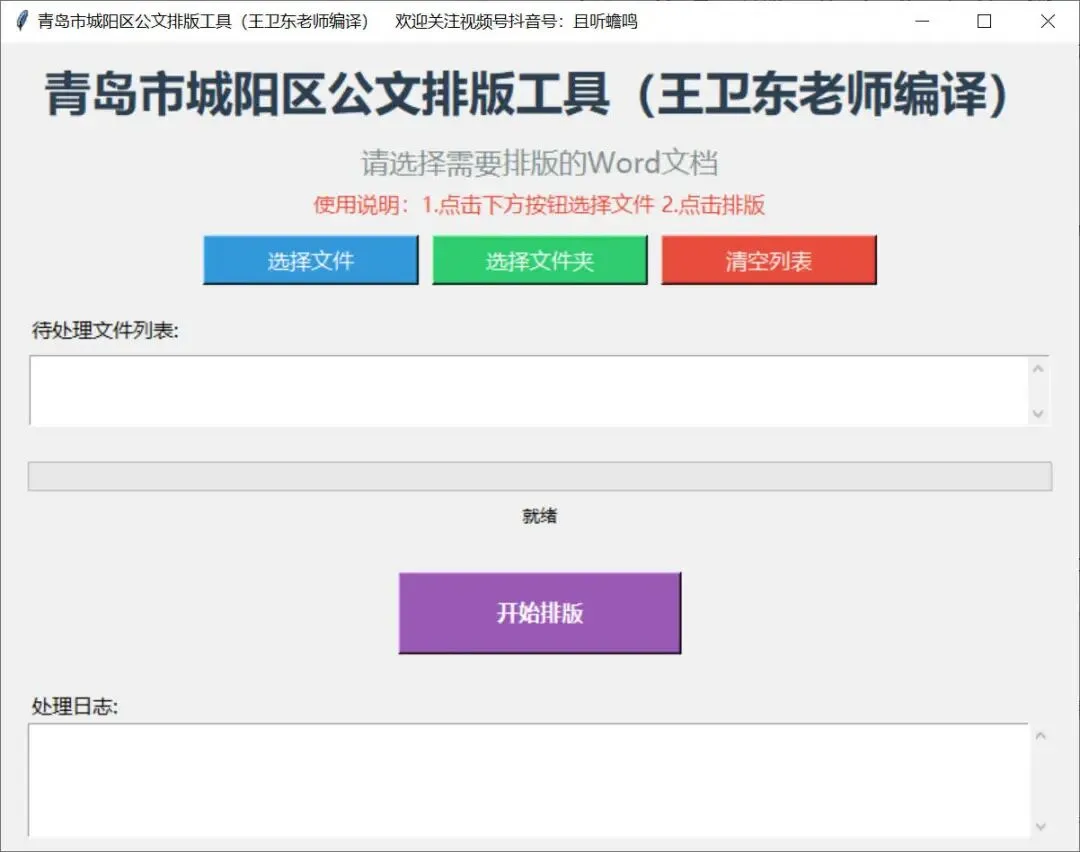
作为教育工作者/办公人员,你是否经常需要处理大量Word文档,手动调整标题格式、段落间距、表格样式、图片排版?重复的操作不仅耗时,还容易出错。今天给大家分享一款基于Python开发的「Word一键排版工具」,支持拖拽批量处理doc/docx文件,自动识别标题层级(一、/(一)/1.),一键格式化表格、图片,排版后自动另存为新文件,彻底解放双手!
工具核心功能
1.批量处理:支持选择单个/多个文件、整个文件夹的Word文档,也可直接拖拽文件到工具上;
2.智能格式识别:自动识别一级标题(一、)、二级标题((一))、三级标题(1.),并应用预设样式;
3.标准化排版:
○自定义「题目」样式(方正小标宋、22号、居中);
○标题1/2/3分别应用黑体/楷体/仿宋样式,统一行距和间距;
○正文自动首行缩进2字符,仿宋16号字体;
4.表格/图片格式化:表格居中、表头黑体加粗,图片自动缩放并居中显示;
5.安全保留原文件:排版后另存为新文件(后缀带「卫东老师一键排版完成」),不修改原文件。
核心技术解析(零基础也能懂)
这款工具主要依赖两个核心库:
•tkinter:Python自带的图形界面库,用于制作可视化操作窗口(选择文件、显示进度、日志);
•pywin32:Windows平台下操作Office的库,用于读取、修改Word文档格式。
下面分模块解析核心逻辑:
1. 标题识别逻辑
通过简单的字符判断,精准识别不同层级标题:
Pythondef is_heading1(text):"""判断是否为一级标题(格式:'一、')"""return len(text) >= 2 and text[1] == '、'def is_heading2(text):"""判断是否为二级标题(格式:'(一)')"""return len(text) >= 3 and text[0] == '(' and text[2] == ')'def is_heading3(text):"""判断是否为三级标题(格式:'1.')"""if 2 <= len(text) <= 16:return text[0].isdigit() and text[1] == '.'return False |
2. 样式定义逻辑
预设「题目、标题1/2/3、正文」的字体、字号、行距、对齐方式,统一文档格式:
•题目:方正小标宋_GBK、22号、居中、固定行距32;
•标题1:黑体、16号、左对齐、固定行距28;
•正文:仿宋、16号、首行缩进2字符、固定行距28。
3. Word文档操作逻辑
通过win32com连接Word应用,打开文档后逐段落应用样式,再格式化表格/图片,最后另存为新文件:
Python# 核心流程:打开文档→清除原有格式→定义样式→应用样式→格式化表格/图片→另存为doc = word_app.Documents.Open(file_path, ReadOnly=False, Visible=False)self.clear_document_formatting(doc) # 清除原有格式define_styles(doc) # 定义样式apply_styles_to_document(doc) # 应用样式到段落format_tables(doc) # 格式化表格format_pictures(doc) # 格式化图片doc.SaveAs2(new_file_path) # 另存为新文件 |
4. 图形界面(GUI)逻辑
通过tkinter制作可视化窗口,包含「选择文件/文件夹、进度条、日志显示、右键菜单」等功能,让非程序员也能轻松操作。
环境搭建与使用教程
第一步:安装Python(如果未安装)
1.下载Python安装包:https://www.python.org/downloads/windows/(选择3.8+版本,建议3.9/3.10);
2.安装时勾选「Add Python to PATH」,然后点击「Install Now」。
第二步:安装依赖库
打开「命令提示符(CMD)」,执行以下命令:
Bash# 安装操作Word的核心库pip install pywin32# (可选)安装打包工具(后续打包exe用)pip install pyinstaller |
第三步:运行代码
1.将上述完整代码复制到记事本,保存为「[word_format_tool.py](word_format_tool.py)」(注意后缀是.py);
2.双击该文件,即可打开工具窗口;
3.使用方式:
○点击「选择文件」/「选择文件夹」添加需要排版的Word文档;
○点击「开始排版」,等待处理完成;
○排版后的文件会保存在原文件同目录,后缀带「_卫东老师一键排版完成」。
打包为EXE可执行文件(无需安装Python)
为了方便非编程人员使用,可将Python代码打包为.exe文件,步骤如下:
第一步:安装打包工具
Bashpip install pyinstaller |
第二步:执行打包命令
1.打开CMD,切换到代码所在目录(比如代码保存在「D:\工具」,执行:cd D:\工具);
2.执行打包命令:
Bash# 核心打包命令(单文件、无控制台、指定图标,可根据需要调整)pyinstaller -F -w -i icon.ico word_format_tool.py |
•参数说明:
○-F:打包为单个EXE文件(方便分发);
○-w:无控制台窗口(运行时不弹出黑框);
○-i icon.ico:指定工具图标(可选,需提前准备.ico格式图标);
○word_format_tool.py:你的代码文件名。
第三步:获取EXE文件
打包完成后,会在代码目录生成「dist」文件夹,里面的「word_format_tool.exe」就是可执行文件,可直接复制到任何Windows电脑运行(无需安装Python)。
打包常见问题解决
1.打包后运行提示「找不到win32com」:
解决方案:打包时指定包含win32com库,命令调整为:
Bashpyinstaller -F -w --hidden-import=win32com --hidden-import=pythoncom word_format_tool.py |
2.EXE文件过大:
解决方案:使用虚拟环境打包(仅安装必要依赖),或使用UPX压缩(需下载UPX工具):
Bashpyinstaller -F -w --upx-dir=upx工具目录 word_format_tool.py |
3.运行EXE提示「Word无法打开文档」:
解决方案:确保目标电脑安装了Microsoft Word(WPS可能兼容,但建议用Office Word),且有文件读写权限。
注意事项
1.工具仅支持Windows系统(pywin32依赖Windows COM组件);
2.运行时需确保Word未被占用,且有文件读写权限;
3.若排版后格式不符合预期,可修改代码中「define_styles」函数的样式参数(如字号、行距、字体);
4.支持doc和docx格式,旧版doc文件可能需要先转换为docx再处理。
三、总结
关键点回顾
1.工具核心:基于Python的tkinter(界面)+ pywin32(Word操作),实现Word文档批量自动排版,支持标题识别、表格/图片格式化;
2.使用步骤:安装Python→安装pywin32→运行代码/打包为EXE→选择文件一键排版;
3.打包命令:核心命令为pyinstaller -F -w word_format_tool.py,可选参数-i指定图标、--hidden-import补全依赖。
这款工具完美解决了Word文档手动排版的痛点,尤其适合教育、政务等需要标准化排版的场景,代码可根据自身需求修改样式参数,打包后可分发给同事直接使用,大幅提升办公效率!
以下是完整代码
Python"""城阳区卫东老师一键排版Word文档(支持拖拽多个doc/docx文件)作者:王卫东老师制作Python版本转换注意:需要安装win32com库,命令:pip install pywin32需要安装tkinter库(Python自带,无需安装)"""import sysimport osimport threadingimport win32com.clientfrom win32com.client import constantsimport pythoncom# 尝试导入tkintertry:import tkinter as tkfrom tkinter import ttk, filedialog, messagebox, scrolledtextTKINTER_AVAILABLE = Trueexcept ImportError:TKINTER_AVAILABLE = False# 如果没有tkinter,显示错误信息if not TKINTER_AVAILABLE:print("错误:未找到tkinter库,请确保已安装Python标准库。")input("按任意键退出...")sys.exit(1)def is_heading1(text):"""判断是否为一级标题(格式:'一、')"""return len(text) >= 2 and text[1] == '、'def is_heading2(text):"""判断是否为二级标题(格式:'(一)')"""return len(text) >= 3 and text[0] == '(' and text[2] == ')'def is_heading3(text):"""判断是否为三级标题(格式:'1.')"""if 2 <= len(text) <= 16:return text[0].isdigit() and text[1] == '.'return Falsedef define_styles(doc):"""定义样式"""try:# 自定义"题目"样式try:# 尝试获取现有样式title_style = doc.Styles("题目")except:# 如果不存在则创建title_style = doc.Styles.Add(Name="题目", Type=constants.wdStyleTypeParagraph)# 设置题目样式title_style.AutomaticallyUpdate = Falsetitle_style.Font.Name = "方正小标宋_GBK"title_style.Font.Size = 22title_style.Font.Bold = Truetitle_style.Font.Color = win32com.client.constants.RGB(0, 0, 0) # 黑色title_style.ParagraphFormat.Alignment = constants.wdAlignParagraphCenter # 居中title_style.ParagraphFormat.SpaceBefore = 10title_style.ParagraphFormat.SpaceAfter = 10title_style.ParagraphFormat.LineSpacingRule = constants.wdLineSpaceExactly # 固定值行距title_style.ParagraphFormat.LineSpacing = 32 # 主标题行距# 设置标题1样式heading1 = doc.Styles("标题 1")heading1.Font.Name = "黑体"heading1.Font.Size = 16 # 三号对应16磅heading1.Font.Bold = Trueheading1.Font.Color = win32com.client.constants.RGB(0, 0, 0)heading1.ParagraphFormat.SpaceBefore = 7heading1.ParagraphFormat.SpaceAfter = 7heading1.ParagraphFormat.Alignment = constants.wdAlignParagraphLeft # 左对齐heading1.ParagraphFormat.OutlineLevel = constants.wdOutlineLevel1heading1.ParagraphFormat.LineSpacingRule = constants.wdLineSpaceExactlyheading1.ParagraphFormat.LineSpacing = 28# 设置标题2样式heading2 = doc.Styles("标题 2")heading2.Font.Name = "楷体"heading2.Font.Size = 16heading2.Font.Bold = Falseheading2.Font.Color = win32com.client.constants.RGB(0, 0, 0)heading2.ParagraphFormat.SpaceBefore = 5heading2.ParagraphFormat.SpaceAfter = 5heading2.ParagraphFormat.Alignment = constants.wdAlignParagraphLeftheading2.ParagraphFormat.OutlineLevel = constants.wdOutlineLevel2heading2.ParagraphFormat.LineSpacingRule = constants.wdLineSpaceExactlyheading2.ParagraphFormat.LineSpacing = 28# 设置标题3样式heading3 = doc.Styles("标题 3")heading3.Font.Name = "仿宋"heading3.Font.Size = 16heading3.Font.Bold = Trueheading3.Font.Color = win32com.client.constants.RGB(0, 0, 0)heading3.ParagraphFormat.SpaceBefore = 5heading3.ParagraphFormat.SpaceAfter = 5heading3.ParagraphFormat.Alignment = constants.wdAlignParagraphLeftheading3.ParagraphFormat.OutlineLevel = constants.wdOutlineLevel3heading3.ParagraphFormat.LineSpacingRule = constants.wdLineSpaceExactlyheading3.ParagraphFormat.LineSpacing = 28# 设置正文样式normal_style = doc.Styles("正文")normal_style.Font.Name = "仿宋"normal_style.Font.Size = 16normal_style.Font.Bold = Falsenormal_style.Font.Color = win32com.client.constants.RGB(0, 0, 0)normal_style.ParagraphFormat.SpaceBefore = 0normal_style.ParagraphFormat.SpaceAfter = 0normal_style.ParagraphFormat.Alignment = constants.wdAlignParagraphLeftnormal_style.ParagraphFormat.FirstLineIndent = doc.Application.CentimetersToPoints(0.74) # 首行缩进2字符normal_style.ParagraphFormat.LineSpacingRule = constants.wdLineSpaceExactlynormal_style.ParagraphFormat.LineSpacing = 28return Trueexcept Exception as e:print(f"定义样式失败: {str(e)}")return Falsedef apply_styles_to_document(doc):"""应用样式到段落"""try:index = 1for para in doc.Paragraphs:text = para.Range.Text.strip()if len(text) > 1: # 排除空段落if index == 1: # 第一个段落作为题目try:para.Style = doc.Styles("题目")except:# 如果题目样式不存在,使用标题1样式para.Style = doc.Styles("标题 1")elif is_heading1(text):para.Style = doc.Styles("标题 1")elif is_heading2(text):para.Style = doc.Styles("标题 2")elif is_heading3(text):para.Style = doc.Styles("标题 3")else:para.Style = doc.Styles("正文")index += 1return Trueexcept Exception as e:print(f"应用样式失败: {str(e)}")return Falsedef format_tables(doc):"""格式化表格"""try:header_font_size = 12 # 表头字号body_font_size = 11 # 正文字号for table in doc.Tables:# 表格整体设置table.Alignment = constants.wdAlignTableCenter # 表格居中table.AllowAutoFit = True # 允许自动调整table.Rows.HeightRule = constants.wdRowHeightAuto # 自动行高# 设置表格正文(第2行及以后)if table.Rows.Count > 1:for row_index in range(2, table.Rows.Count + 1):row = table.Rows(row_index)for cell in row.Cells:cell.Range.Font.Name = "仿宋"cell.Range.Font.Size = body_font_sizecell.Range.Font.Bold = Falsecell.Range.ParagraphFormat.Alignment = constants.wdAlignParagraphCenter # 水平居中cell.VerticalAlignment = constants.wdCellAlignVerticalCenter # 垂直居中# 设置表头(第一行)if table.Rows.Count >= 1:table.Rows(1).HeadingFormat = True # 标记为表头for cell in table.Rows(1).Cells:cell.Range.Font.Name = "黑体"cell.Range.Font.Size = header_font_sizecell.Range.Font.Bold = Truecell.Range.ParagraphFormat.Alignment = constants.wdAlignParagraphCenter # 水平居中cell.VerticalAlignment = constants.wdCellAlignVerticalCenter # 垂直居中return Trueexcept Exception as e:print(f"格式化表格失败: {str(e)}")return Falsedef format_pictures(doc):"""格式化图片(将行内图片转换为浮动型并居中)"""try:target_height = doc.Application.CentimetersToPoints(6) # 高度6cmmax_width = doc.Application.CentimetersToPoints(15) # 最大宽度15cm# 遍历所有行内图片for inline_shape in doc.InlineShapes:if inline_shape.Type == constants.wdInlineShapePicture: # 只处理图片try:# 转换为浮动型Shapeshape = inline_shape.ConvertToShape()# 设置环绕方式为四周型shape.WrapFormat.Type = constants.wdWrapSquare# 居中页面shape.Left = constants.wdShapeCenter # 水平居中shape.Top = constants.wdShapeTop # 垂直顶部对齐# 按比例缩放shape.LockAspectRatio = Trueshape.Height = target_heightif shape.Width > max_width:shape.Width = max_widthexcept Exception as e:# 如果转换失败,跳过该图片print(f"处理图片失败: {str(e)}")passreturn Trueexcept Exception as e:print(f"格式化图片失败: {str(e)}")return Falseclass WordFormatterApp:"""Word文档一键排版应用程序"""def __init__(self, root):self.root = rootself.root.title("城阳区卫东老师一键排版Word文档工具")self.root.geometry("800x600")# 文件列表self.file_list = []# 创建界面self.create_widgets()# 处理命令行参数(如果存在)self.process_command_line_args()def create_widgets(self):"""创建界面控件"""# 标题标签title_label = tk.Label(self.root, text="城阳区卫东老师一键排版Word文档工具", font=("微软雅黑", 16, "bold"), fg="#2c3e50")title_label.pack(pady=10)# 说明标签desc_label = tk.Label(self.root, text="请选择需要排版的Word文档,支持拖拽文件到脚本文件上", font=("微软雅黑", 10), fg="#7f8c8d")desc_label.pack()# 使用说明标签instruction_label = tk.Label(self.root, text="使用说明:1.点击下方按钮选择文件 2.或直接将Word文件拖到本脚本文件上", font=("微软雅黑", 9), fg="#e74c3c")instruction_label.pack()# 按钮框架button_frame = tk.Frame(self.root)button_frame.pack(pady=10)# 选择文件按钮select_file_btn = tk.Button(button_frame, text="选择文件", command=self.select_files,font=("微软雅黑", 10), bg="#3498db", fg="white",width=15, height=1)select_file_btn.grid(row=0, column=0, padx=5)# 选择文件夹按钮select_folder_btn = tk.Button(button_frame, text="选择文件夹", command=self.select_folder,font=("微软雅黑", 10), bg="#2ecc71", fg="white",width=15, height=1)select_folder_btn.grid(row=0, column=1, padx=5)# 清空列表按钮clear_list_btn = tk.Button(button_frame, text="清空列表", command=self.clear_list,font=("微软雅黑", 10), bg="#e74c3c", fg="white",width=15, height=1)clear_list_btn.grid(row=0, column=2, padx=5)# 文件列表框架list_frame = tk.Frame(self.root)list_frame.pack(fill=tk.BOTH, expand=True, padx=20, pady=10)# 文件列表标签list_label = tk.Label(list_frame, text="待处理文件列表:", font=("微软雅黑", 11))list_label.pack(anchor=tk.W)# 文件列表框self.listbox = tk.Listbox(list_frame, font=("微软雅黑", 10), height=10)self.listbox.pack(fill=tk.BOTH, expand=True, pady=5)# 添加滚动条scrollbar = tk.Scrollbar(self.listbox)scrollbar.pack(side=tk.RIGHT, fill=tk.Y)self.listbox.config(yscrollcommand=scrollbar.set)scrollbar.config(command=self.listbox.yview)# 进度条框架progress_frame = tk.Frame(self.root)progress_frame.pack(fill=tk.X, padx=20, pady=10)# 进度条self.progress = ttk.Progressbar(progress_frame, length=300, mode='determinate')self.progress.pack(fill=tk.X)# 进度标签self.progress_label = tk.Label(progress_frame, text="就绪", font=("微软雅黑", 10))self.progress_label.pack(pady=5)# 按钮框架action_frame = tk.Frame(self.root)action_frame.pack(pady=10)# 开始排版按钮start_btn = tk.Button(action_frame, text="开始排版", command=self.start_formatting,font=("微软雅黑", 12, "bold"), bg="#9b59b6", fg="white",width=20, height=2)start_btn.pack(pady=5)# 日志框架log_frame = tk.Frame(self.root)log_frame.pack(fill=tk.BOTH, expand=True, padx=20, pady=10)# 日志标签log_label = tk.Label(log_frame, text="处理日志:", font=("微软雅黑", 11))log_label.pack(anchor=tk.W)# 日志文本框self.log_text = scrolledtext.ScrolledText(log_frame, font=("微软雅黑", 9), height=8)self.log_text.pack(fill=tk.BOTH, expand=True)# 状态栏self.status_bar = tk.Label(self.root, text="就绪", bd=1, relief=tk.SUNKEN, anchor=tk.W)self.status_bar.pack(side=tk.BOTTOM, fill=tk.X)# 添加右键菜单到列表框self.create_context_menu()def create_context_menu(self):"""为列表框创建右键菜单"""self.context_menu = tk.Menu(self.root, tearoff=0)self.context_menu.add_command(label="删除选中项", command=self.delete_selected)self.context_menu.add_command(label="清空列表", command=self.clear_list)# 绑定右键事件self.listbox.bind("<Button-3>", self.show_context_menu)def show_context_menu(self, event):"""显示右键菜单"""try:self.context_menu.tk_popup(event.x_root, event.y_root)finally:self.context_menu.grab_release()def delete_selected(self):"""删除选中的文件"""selection = self.listbox.curselection()if selection:# 从后往前删除,避免索引变化for index in reversed(selection):if index < len(self.file_list):file_path = self.file_list[index]self.file_list.pop(index)self.listbox.delete(index)self.log_message(f"已删除: {os.path.basename(file_path)}")def process_command_line_args(self):"""处理命令行参数"""if len(sys.argv) > 1:for arg in sys.argv[1:]:if os.path.exists(arg):file_ext = os.path.splitext(arg)[1].lower()if file_ext in ['.doc', '.docx']:self.add_file(arg)else:self.log_message(f"跳过非Word文件: {arg}")else:self.log_message(f"文件不存在: {arg}")def select_files(self):"""选择文件"""files = filedialog.askopenfilenames(title="选择Word文档",filetypes=[("Word文档", "*.doc;*.docx"), ("所有文件", "*.*")])if files:for file_path in files:self.add_file(file_path)def select_folder(self):"""选择文件夹"""folder = filedialog.askdirectory(title="选择文件夹")if folder:# 扫描文件夹中的Word文档word_files = []for root_dir, dirs, files in os.walk(folder):for file in files:file_ext = os.path.splitext(file)[1].lower()if file_ext in ['.doc', '.docx']:file_path = os.path.join(root_dir, file)word_files.append(file_path)if word_files:for file_path in word_files:self.add_file(file_path)self.log_message(f"从文件夹中添加了 {len(word_files)} 个Word文件")else:self.log_message(f"文件夹中没有找到Word文档")def add_file(self, file_path):"""添加文件到列表"""if file_path not in self.file_list:self.file_list.append(file_path)display_name = os.path.basename(file_path)# 如果路径太长,显示简略形式if len(display_name) > 40:display_name = "..." + display_name[-37:]self.listbox.insert(tk.END, display_name)self.log_message(f"已添加: {os.path.basename(file_path)}")def clear_list(self):"""清空文件列表"""self.file_list.clear()self.listbox.delete(0, tk.END)self.log_message("已清空文件列表")def log_message(self, message):"""记录日志信息"""self.log_text.insert(tk.END, f"{message}\n")self.log_text.see(tk.END)self.root.update()def update_progress(self, current, total):"""更新进度条"""percentage = int((current / total) * 100) if total > 0 else 0self.progress['value'] = percentageself.progress_label.config(text=f"处理中: {current}/{total} ({percentage}%)")self.root.update()def update_status(self, message):"""更新状态栏"""self.status_bar.config(text=message)self.root.update()def clear_document_formatting(self, doc):"""清除文档格式(更安全的方法)"""try:# 方法1:尝试选择整个文档并清除格式doc.Content.Select()selection = doc.Application.Selectionif selection:selection.ClearFormatting()return Trueexcept Exception as e1:try:# 方法2:如果第一种方法失败,尝试使用Range对象doc.Range().ClearFormatting()return Trueexcept Exception as e2:try:# 方法3:如果前两种方法都失败,尝试逐段清除格式for para in doc.Paragraphs:para.Range.ClearFormatting()return Trueexcept Exception as e3:self.log_message(f"清除格式失败,将跳过此步骤: {str(e3)}")return Falsedef format_document(self, file_path, word_app, index, total):"""格式化单个文档"""try:# 获取文件信息folder_path = os.path.dirname(file_path)base_name = os.path.splitext(os.path.basename(file_path))[0]ext = os.path.splitext(file_path)[1]new_file_path = os.path.join(folder_path, f"{base_name}_卫东老师一键排版完成{ext}")# 检查目标文件是否已存在if os.path.exists(new_file_path):# 如果已存在,询问是否覆盖response = messagebox.askyesno("文件已存在", f"文件 {os.path.basename(new_file_path)} 已存在,是否覆盖?")if not response:# 生成一个新的文件名counter = 1while os.path.exists(new_file_path):new_file_path = os.path.join(folder_path, f"{base_name}_卫东老师一键排版完成_{counter}{ext}")counter += 1# 打开文档self.log_message(f"正在处理: {os.path.basename(file_path)}")self.update_status(f"处理中: {os.path.basename(file_path)}")# 打开文档时指定参数,确保完全访问doc = word_app.Documents.Open(file_path, ReadOnly=False, Visible=False)if doc is None:self.log_message(f"无法打开文件: {file_path}")return False# 1. 清除格式if not self.clear_document_formatting(doc):self.log_message(f"警告: 清除格式失败,将继续其他操作")# 2. 定义样式if not define_styles(doc):self.log_message(f"警告: 定义样式失败,将继续其他操作")# 3. 应用样式if not apply_styles_to_document(doc):self.log_message(f"警告: 应用样式失败,将继续其他操作")# 4. 格式化表格if not format_tables(doc):self.log_message(f"警告: 格式化表格失败,将继续其他操作")# 5. 格式化图片if not format_pictures(doc):self.log_message(f"警告: 格式化图片失败,将继续其他操作")# 6. 另存为新文件try:doc.SaveAs2(new_file_path)self.log_message(f"✓ 已完成: {os.path.basename(new_file_path)}")except Exception as e:# 如果保存失败,尝试使用其他方法try:doc.SaveAs(new_file_path)self.log_message(f"✓ 已完成: {os.path.basename(new_file_path)}")except Exception as e2:self.log_message(f"✗ 保存文件失败: {os.path.basename(file_path)} - {str(e2)}")doc.Close(SaveChanges=False)return Falsedoc.Close(SaveChanges=False)return Trueexcept Exception as e:self.log_message(f"✗ 处理失败: {os.path.basename(file_path)} - {str(e)}")# 尝试关闭文档(如果打开)try:doc.Close(SaveChanges=False)except:passreturn Falsefinally:self.update_progress(index + 1, total)def start_formatting(self):"""开始排版"""if not self.file_list:messagebox.showwarning("提示", "请先选择要排版的Word文档!")return# 确认开始if len(self.file_list) > 1:response = messagebox.askyesno("确认", f"确定要开始排版 {len(self.file_list)} 个文件吗?")if not response:return# 禁用按钮,防止重复点击self.root.title("城阳区卫东老师一键排版Word文档工具 (处理中...)")self.update_status("正在处理,请稍候...")# 在新线程中处理,避免界面卡顿threading.Thread(target=self.process_files, daemon=True).start()def process_files(self):"""处理文件列表"""total_files = len(self.file_list)successful_files = 0try:# 初始化COM库pythoncom.CoInitialize()# 创建Word应用word_app = win32com.client.Dispatch("Word.Application")word_app.Visible = False # 不显示Word窗口# 处理每个文件for i, file_path in enumerate(self.file_list):if self.format_document(file_path, word_app, i, total_files):successful_files += 1# 关闭Word应用word_app.Quit()word_app = None# 显示完成消息self.root.title("城阳区卫东老师一键排版Word文档工具")self.update_status("处理完成")self.progress_label.config(text=f"完成: {successful_files}/{total_files} 个文件")self.progress['value'] = 100if successful_files == total_files:messagebox.showinfo("完成", f"所有文档排版完成!\n成功: {successful_files}/{total_files} 个文件")else:messagebox.showwarning("部分完成", f"文档排版完成,但有部分文件处理失败。\n成功: {successful_files}/{total_files} 个文件")except Exception as e:self.log_message(f"程序执行出错: {str(e)}")messagebox.showerror("错误", f"程序执行出错:\n{str(e)}")finally:# 清理COM库try:pythoncom.CoUninitialize()except:passdef main():"""主函数"""# 创建主窗口root = tk.Tk()# 创建应用程序app = WordFormatterApp(root)# 运行主循环root.mainloop()if __name__ == "__main__":main() |
随机文章
-
 10个月宝宝每天需要喝多少奶粉?
- 用Python构建实时黄金投资追踪工具:基于Tkinter和API的GUI应用详解
- deepseek给的代码怎么使用
- 2025年AI开发新王炸:Coze+Python,两小时搞定一周活?
- 使用百度秒哒快速搭建个人网站(零代码实操教程)
- Python基础语法之文件处理相关
- java和python到底怎么选?(来自学习的建议
- Python 3.14.0 安装包下载及安装教程!
- Python 网络请求终于迎来最强替代:100% 兼容 requests,性能竟提升数倍
- 美国空军F-35A在日本发出紧急代码后失踪,飞行员估计凶多吉少了
- Cursor一夜翻车,AI 300万代码写浏览器被打假!全网群嘲「AI泔水」