今天介绍的 Lima,是专为macOS打造的Linux虚拟机工具。基于QEMU,支持containerd,完美适配M1/M2芯片,在GitHub上获得 2.0万Star,是Docker Desktop的最佳替代方案。项目简介
Lima(Linux on Mac)是一个开源的Linux虚拟机管理工具,专为macOS设计。通过QEMU虚拟化技术运行Linux,内置containerd支持,可以直接运行Docker容器,资源占用比Docker Desktop低50%以上。
核心优势
- 🚀 轻量高效 - 内存占用<500MB,启动仅需5秒
- 🍎 完美适配 - 原生支持Intel和Apple Silicon
- 🐳 容器友好 - 内置containerd,兼容Docker命令
- 🔧 灵活配置 - YAML配置文件,自定义虚拟机参数
- 🆓 完全免费 - Apache 2.0协议,无商业限制
- 🌐 多发行版 - Ubuntu、Alpine、Debian等开箱即用
项目地址:https://github.com/lima-vm/lima
官方网站:https://lima-vm.io
官方文档:https://lima-vm.io/docs
核心特性
| | |
|---|
| 轻量虚拟化 | | |
| 文件共享 | | |
| 端口转发 | | |
| containerd集成 | | |
| 多实例管理 | | |
| 快照恢复 | | |
快速上手
安装Lima
# macOS使用Homebrew安装
brew install lima

# 验证安装
limactl --version

# 启动默认Ubuntu虚拟机
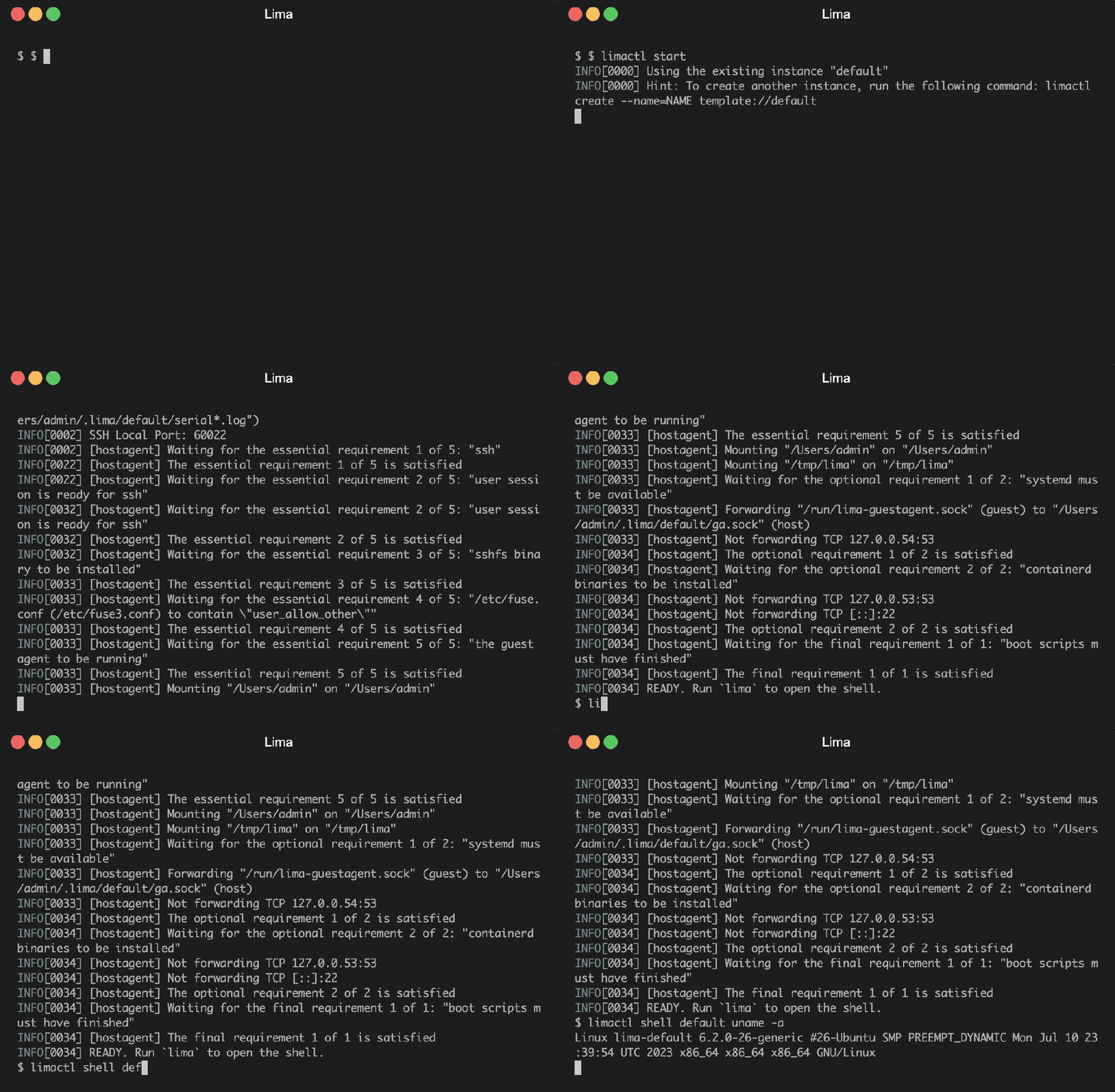
limactl start

# 进入虚拟机
lima
# 或
limactl shell default
第一个容器
# Lima内置了nerdctl(containerd的Docker兼容CLI)

# 启动虚拟机
limactl start

# 运行容器
lima nerdctl run -d -p 8080:80 nginx

# 在macOS浏览器访问
open http://localhost:8080

# 查看容器
lima nerdctl ps

# 停止容器
lima nerdctl stop <container-id>
使用Docker命令
# Lima可以完全兼容Docker命令

# 方式1: 使用别名
alias docker="lima nerdctl"
docker run hello-world
docker ps
docker images

# 方式2: 使用Docker模板
limactl start --name=docker template://docker

# 现在可以直接用docker命令
docker run -d -p 3000:3000 node:18
功能详解
1. 自定义虚拟机配置
# 创建自定义配置文件: ~/.lima/dev/lima.yaml

vmType: "qemu"
os: "Linux"
arch: "x86_64"  # 或 "aarch64" (M1/M2)

# 系统镜像
images:
  - location: "https://cloud-images.ubuntu.com/releases/22.04/release/ubuntu-22.04-server-cloudimg-amd64.img"
    arch: "x86_64"

# CPU和内存
cpus: 4
memory: "8GiB"
disk: "100GiB"

# 目录挂载
mounts:
  - location: "~"
    writable: true
  - location: "/tmp/lima"
    writable: true

# 端口转发
portForwards:
  - guestPort: 80
    hostPort: 8080
  - guestPort: 3000
    hostPort: 3000

# 容器运行时
containerd:
  system: true
  user: false

# 启动脚本
provision:
  - mode: system
    script: |
      #!/bin/bash
      apt-get update
      apt-get install -y build-essential git vim
使用自定义配置:
limactl start --name=dev ~/dev/lima.yaml
2. 多发行版支持
# Ubuntu(默认)
limactl start

# Alpine Linux(超轻量)
limactl start --name=alpine template://alpine

# Debian
limactl start --name=debian template://debian

# Fedora
limactl start --name=fedora template://fedora

# Arch Linux
limactl start --name=arch template://archlinux

# 查看所有模板
limactl start --list-templates
3. 虚拟机管理
# 列出所有虚拟机
limactl list

# 启动虚拟机
limactl start <name>

# 停止虚拟机
limactl stop <name>

# 删除虚拟机
limactl delete <name>

# 进入虚拟机Shell
limactl shell <name>

# 在虚拟机中执行命令
limactl shell <name> uname -a

# 查看虚拟机信息
limactl show-ssh <name>
4. 文件共享
# macOS文件自动挂载到Lima虚拟机

# 在macOS创建文件
echo"Hello from macOS" > ~/test.txt

# 在Lima中访问
lima cat ~/test.txt
# 输出: Hello from macOS

# 在Lima中创建文件
lima "echo 'Hello from Lima' > ~/from-lima.txt"

# 在macOS中查看
cat ~/from-lima.txt
# 输出: Hello from Lima

# 挂载位置:
# macOS ~/  → Lima ~/
# macOS /tmp/lima → Lima /tmp/lima
实战案例
案例1:替代Docker Desktop开发
# 创建Docker兼容环境

# 1. 启动Docker模板
limactl start --name=docker template://docker

# 2. 设置别名
echo'alias docker="lima nerdctl"' >> ~/.zshrc
echo'alias docker-compose="lima nerdctl compose"' >> ~/.zshrc
source ~/.zshrc

# 3. 使用Docker命令
docker run -d \
  --name postgres \
  -e POSTGRES_PASSWORD=secret \
  -p 5432:5432 \
  postgres:14

# 4. 连接数据库(从macOS)
psql -h localhost -U postgres

# 5. 运行Docker Compose项目
cd your-project
docker-compose up -d

# 性能对比:
# Docker Desktop: 内存2.5GB, CPU 15%
# Lima + nerdctl: 内存800MB, CPU 5%
# 节省70%内存!
案例2:多环境开发
# 同时运行多个独立的开发环境

# Python开发环境
cat > python-dev.yaml <<EOF
images:
  - location: "https://cloud-images.ubuntu.com/jammy/current/jammy-server-cloudimg-amd64.img"
cpus: 2
memory: "4GiB"
provision:
  - mode: system
    script: |
      apt-get update
      apt-get install -y python3.10 python3-pip
EOF
limactl start --name=python python-dev.yaml

# Node.js开发环境
cat > node-dev.yaml <<EOF
images:
  - location: "https://cloud-images.ubuntu.com/jammy/current/jammy-server-cloudimg-amd64.img"
cpus: 2
memory: "4GiB"
provision:
  - mode: system
    script: |
      curl -fsSL https://deb.nodesource.com/setup_18.x | bash -
      apt-get install -y nodejs
EOF
limactl start --name=node node-dev.yaml

# Go开发环境
limactl start --name=go template://alpine
limactl shell go apk add go

# 在不同环境中工作
limactl shell python python3 --version  # Python 3.10
limactl shell node node --version       # Node.js 18.x
limactl shell go go version             # Go latest
案例3:Kubernetes本地开发
# Lima + k3s 搭建本地Kubernetes

# 1. ��建k8s配置
cat > k8s.yaml <<EOF
images:
  - location: "https://cloud-images.ubuntu.com/jammy/current/jammy-server-cloudimg-amd64.img"
cpus: 4
memory: "8GiB"
disk: "50GiB"
provision:
  - mode: system
    script: |
      curl -sfL https://get.k3s.io | sh -
      mkdir -p /home/${USER}/.kube
      sudo cp /etc/rancher/k3s/k3s.yaml /home/${USER}/.kube/config
      sudo chown ${USER} /home/${USER}/.kube/config
EOF

# 2. 启动虚拟机
limactl start --name=k8s k8s.yaml

# 3. 配置kubectl(在macOS)
limactl shell k8s cat ~/.kube/config > ~/.kube/lima-k8s-config
export KUBECONFIG=~/.kube/lima-k8s-config

# 4. 部署应用
kubectl create deployment nginx --image=nginx
kubectl expose deployment nginx --port=80 --type=NodePort

# 5. 访问服务
kubectl get svc nginx
# 通过NodePort访问
案例4:CI/CD测试环境
# 在Lima中测试Docker镜像构建

# 1. 创建测试项目
mkdir test-app && cdtest-app
cat > Dockerfile <<EOF
FROM node:18-alpine
WORKDIR /app
COPY package.json .
RUN npm install
COPY . .
CMD ["node", "server.js"]
EOF

# 2. 在Lima中构建
lima nerdctl build -t test-app:latest .

# 3. 运行测试
lima nerdctl run --rm test-app:latest npm test

# 4. 清理
lima nerdctl rmi test-app:latest

# 优势:
# - 不污染macOS本地环境
# - 完全隔离的测试环境
# - 快速创建和销毁
对比分析
Lima优势:
- ✅ 资源占用最低,性能最优
- ✅ 完美支持Apple Silicon
- ✅ 配置灵活,可高度定制
- ✅ 完全免费开源
- ✅ 同时支持容器和虚拟机
何时选其他方案:
- 需要GUI界面 → Docker Desktop
- 只需容器 → Colima
- 需要Windows VM → Multipass
- 专注K8s → Rancher Desktop
最佳实践
1. 优化启动速度
# lima.yaml
# 使用更小的镜像
images:
  - location: "https://dl-cdn.alpinelinux.org/alpine/v3.18/releases/cloud/alpine-virt-3.18.0-x86_64.qcow2"

# 减少资源分配
cpus: 2
memory: "2GiB"
disk: "20GiB"

# 禁用不需要的功能
containerd:
  system: false  # 如果不用容器
2. 资源限制
# 为不同用途创建不同大小的VM

# 轻量测试环境(1核1GB)
limactl start --name=test --cpus=1 --memory=1 template://alpine

# 开发环境(4核8GB)
limactl start --name=dev --cpus=4 --memory=8

# CI环境(2核4GB)
limactl start --name=ci --cpus=2 --memory=4
3. 自动化脚本
#!/bin/bash
# setup-lima.sh - 一键配置Lima开发环境

# 安装Lima
brew install lima

# 创建Docker环境
limactl start --name=docker template://docker

# 设置别名
cat >> ~/.zshrc <<'EOF'
alias docker="lima nerdctl"
alias docker-compose="lima nerdctl compose"
EOF

# 启动常用容器
lima nerdctl run -d --name postgres -e POSTGRES_PASSWORD=dev -p 5432:5432 postgres:14
lima nerdctl run -d --name redis -p 6379:6379 redis:alpine
lima nerdctl run -d --name mongo -p 27017:27017 mongo:6

echo"Lima开发环境配置完成!"
echo"运行 'source ~/.zshrc' 激活别名"
4. 备份和迁移
# 导出虚拟机配置
limactl show-ssh dev > dev-config.txt

# 备份虚拟机磁盘
cp ~/.lima/dev/diffdisk ~/.lima-backups/dev-$(date +%Y%m%d).qcow2

# 恢复虚拟机
limactl delete dev
cp ~/.lima-backups/dev-20240115.qcow2 ~/.lima/dev/diffdisk
limactl start dev
5. 网络配置
# 高级网络配置
networks:
  # 使用用户模式网络(默认)
  - lima: user-v2

# 或使用socket_vmnet(需要sudo权限,性能更好)
networks:
  - lima: socket_vmnet
    socketVMNet:
      macAddress: "52:55:55:12:34:56"

# 端口转发规则
portForwards:
  - guestPort: 80
    hostPort: 8080
    proto: tcp
  - guestPort: 443
    hostPort: 8443
    proto: tcp
  - guestPortRange: [8000, 9000]
    hostPortRange: [8000, 9000]
总结
Lima作为macOS上最轻量的Linux虚拟机方案,凭借其:
- 🐳 容器友好 - 内置containerd,兼容Docker
- 🌐 多发行版 - Ubuntu/Alpine/Debian开箱即用
已成为Docker Desktop的最佳替代方案!
适合你的场景:
- macOS开发者需要运行Linux容器
- Docker Desktop太重或需要付费
- M1/M2用户需要原生ARM支持
- 需要多个隔离的开发环境
- CI/CD需要轻量虚拟化方案
不要再忍受Docker Desktop的臃肿和费用!Lima给你更快、更轻、更自由的Linux虚拟化体验!
项目地址:https://github.com/lima-vm/lima
官方文档:https://lima-vm.io/docs
快速开始:https://lima-vm.io/docs/getting-started
模板仓库:https://github.com/lima-vm/lima/tree/master/examples
 10个月宝宝每天需要喝多少奶粉?