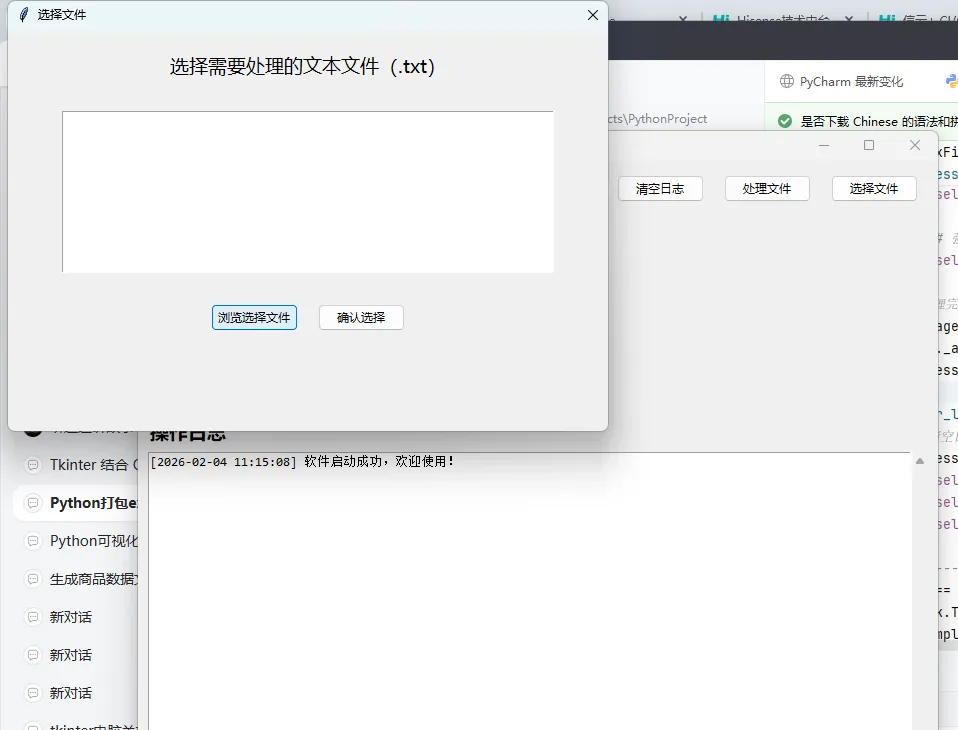
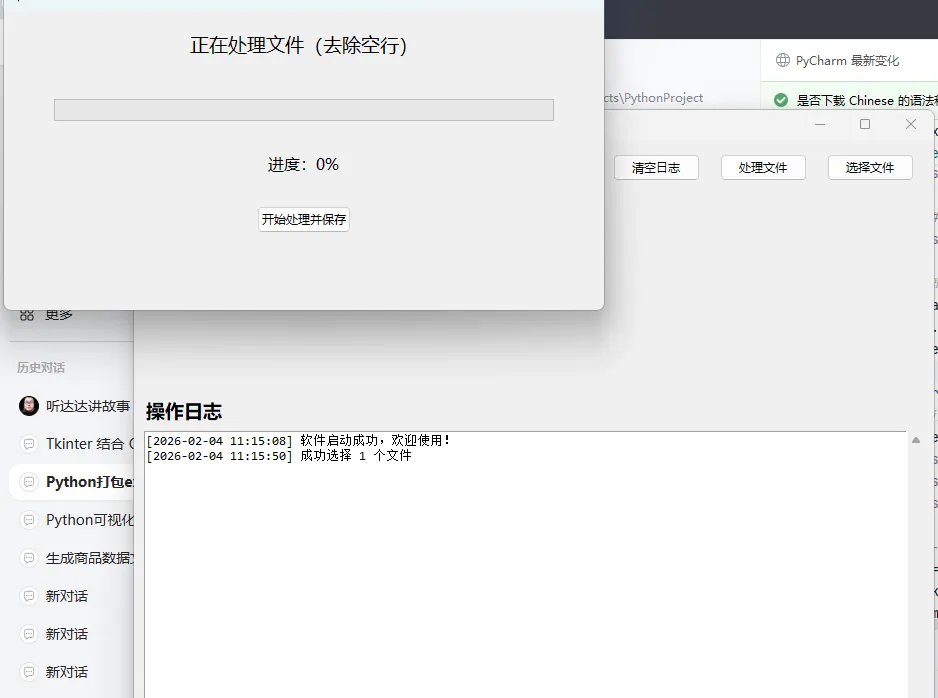
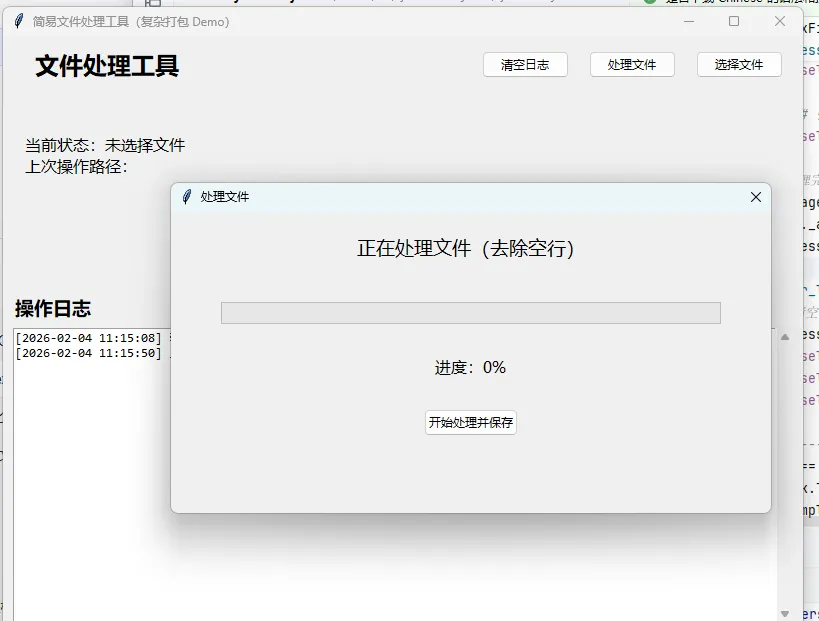
要实现一个功能更复杂、接近实际项目场景的 Python 程序(适合打包演示),我下面回提供一个包含「多窗口、文件操作、数据保存、进度条」的 Tkinter 程序(相比之前的简单 demo,功能更全面、场景更真实),同时搭配完整的打包方案和优化技巧,让你能打包出一个「可用的复杂软件」。
一、复杂程序需求说明
这个程序是一个「简易文件处理工具」,包含以下核心功能(覆盖复杂程序的常见场景):
- 子窗口1:文件选择(支持单个/多个文件)、文件格式过滤
- 子窗口2:文件内容读取、简单处理(去除空行)、保存到新文件
- 配置保存:记住上次操作的文件路径(保存到本地
config.ini)
二、完整复杂程序代码(complex_file_tool.py)
这个程序无第三方依赖(仅使用 Python 内置库),可直接运行,适合打包,代码包含详细注释:
import tkinter as tk
from tkinter import ttk, filedialog, messagebox, scrolledtext
import os
import configparser
from datetime import datetime

# ---------------------- 全局配置与工具类 ----------------------
classAppConfig:
"""配置管理类:负责读取/保存配置文件"""
def__init__(self):
# 配置文件路径(和脚本同目录)
        self.config_path = "config.ini"
        self.config = configparser.ConfigParser()
# 初始化配置(如果配置文件不存在)
        self._init_config()

def_init_config(self):
"""初始化配置文件"""
ifnot os.path.exists(self.config_path):
            self.config["LAST_OPERATION"] = {
"last_file_path": "",
"save_dir": os.path.expanduser("~")  # 默认保存到用户桌面
            }
# 写入配置文件
with open(self.config_path, "w", encoding="utf-8") as f:
                self.config.write(f)
else:
# 读取已存在的配置文件
            self.config.read(self.config_path, encoding="utf-8")

defget_config(self, section, option):
"""获取配置值"""
try:
return self.config.get(section, option)
except:
return""

defset_config(self, section, option, value):
"""修改配置值并保存"""
if section notin self.config.sections():
            self.config[section] = {}
        self.config[section][option] = str(value)
with open(self.config_path, "w", encoding="utf-8") as f:
            self.config.write(f)

# 初始化全局配置
app_config = AppConfig()

# ---------------------- 主窗口与核心功能 ----------------------
classComplexFileTool:
def__init__(self, root):
        self.root = root
        self.root.title("简易文件处理工具(复杂打包 Demo)")
        self.root.geometry("800x600")
        self.root.resizable(True, True)

# 全局变量
        self.selected_files = []  # 选中的文件列表
        self.log_content = []  # 日志内容

# 1. 创建主界面布局(顶部导航、中间内容、底部日志)
        self._create_main_layout()

# 2. 初始化日志(读取上次配置)
        self._init_log()
        self._add_log("软件启动成功,欢迎使用!")

def_create_main_layout(self):
"""创建主界面布局"""
# ---------------------- 顶部导航栏 ----------------------
        top_frame = ttk.Frame(self.root, padding=10)
        top_frame.pack(fill=tk.X, side=tk.TOP)

        ttk.Label(top_frame, text="文件处理工具", font=("微软雅黑", 18, "bold")).pack(side=tk.LEFT, padx=20)

# 功能按钮
        ttk.Button(top_frame, text="选择文件", command=self.open_file_select_window).pack(side=tk.RIGHT, padx=10)
        ttk.Button(top_frame, text="处理文件", command=self.open_file_process_window).pack(side=tk.RIGHT, padx=10)
        ttk.Button(top_frame, text="清空日志", command=self.clear_log).pack(side=tk.RIGHT, padx=10)

# ---------------------- 中间内容区 ----------------------
        middle_frame = ttk.Frame(self.root, padding=20)
        middle_frame.pack(fill=tk.BOTH, expand=True, side=tk.TOP)

# 软件信息与当前状态
        self.status_label = ttk.Label(
            middle_frame,
            text=f"当前状态:未选择文件\n上次操作路径:{app_config.get_config('LAST_OPERATION', 'last_file_path')}",
            font=("微软雅黑", 12),
            wraplength=700
        )
        self.status_label.pack(anchor=tk.W, pady=20)

# ---------------------- 底部日志区 ----------------------
        bottom_frame = ttk.Frame(self.root, padding=10)
        bottom_frame.pack(fill=tk.BOTH, expand=True, side=tk.BOTTOM)

        ttk.Label(bottom_frame, text="操作日志", font=("微软雅黑", 14, "bold")).pack(anchor=tk.W)

# 滚动文本框(展示日志)
        self.log_text = scrolledtext.ScrolledText(
            bottom_frame,
            width=100,
            height=15,
            font=("Consolas", 10),
            state=tk.DISABLED  # 禁止手动编辑
        )
        self.log_text.pack(fill=tk.BOTH, expand=True, pady=5)

def_init_log(self):
"""初始化日志框"""
        self.log_text.config(state=tk.NORMAL)
        self.log_text.delete(1.0, tk.END)
        self.log_text.config(state=tk.DISABLED)

def_add_log(self, content):
"""添加日志内容"""
        log_item = f"[{datetime.now().strftime('%Y-%m-%d %H:%M:%S')}] {content}\n"
        self.log_content.append(log_item)

# 更新日志文本框
        self.log_text.config(state=tk.NORMAL)
        self.log_text.insert(tk.END, log_item)
        self.log_text.see(tk.END)  # 自动滚动到最后一行
        self.log_text.config(state=tk.DISABLED)

# ---------------------- 子窗口1:文件选择窗口 ----------------------
defopen_file_select_window(self):
"""打开文件选择窗口"""
# 创建子窗口(顶级窗口,不依赖主窗口关闭)
        file_window = tk.Toplevel(self.root)
        file_window.title("选择文件")
        file_window.geometry("600x400")
        file_window.resizable(False, False)
# 让子窗口居中(优化体验)
        file_window.transient(self.root)
        file_window.grab_set()

# 子窗口布局
        ttk.Label(file_window, text="选择需要处理的文本文件(.txt)", font=("微软雅黑", 14)).pack(pady=20)

# 选中文件列表展示
        file_listbox = tk.Listbox(file_window, width=70, height=10, font=("Consolas", 10))
        file_listbox.pack(pady=10, padx=20)

# 按钮区域
        btn_frame = ttk.Frame(file_window)
        btn_frame.pack(pady=20)

# 选择文件按钮
defselect_files():
"""选择多个txt文件"""
            last_path = app_config.get_config("LAST_OPERATION", "last_file_path")
# 如果上次路径不存在,使用用户桌面
            initial_dir = last_path if os.path.exists(last_path) else os.path.expanduser("~")

# 打开文件选择对话框
            files = filedialog.askopenfilenames(
                title="选择文本文件",
                initialdir=initial_dir,
                filetypes=(("文本文件", "*.txt"), ("所有文件", "*.*"))
            )

if files:
# 清空列表框,添加新选中的文件
                file_listbox.delete(0, tk.END)
                self.selected_files = list(files)
for file in self.selected_files:
                    file_listbox.insert(tk.END, os.path.basename(file))

# 更新配置(保存上次选择的路径)
                app_config.set_config("LAST_OPERATION", "last_file_path", os.path.dirname(self.selected_files[0]))
                self._add_log(f"成功选择 {len(self.selected_files)} 个文件")

# 确认按钮
defconfirm_select():
ifnot self.selected_files:
                messagebox.showwarning("提示", "请先选择文件!")
return
            messagebox.showinfo("提示", f"已确认选择 {len(self.selected_files)} 个文件")
            file_window.destroy()

        ttk.Button(btn_frame, text="浏览选择文件", command=select_files).pack(side=tk.LEFT, padx=10)
        ttk.Button(btn_frame, text="确认选择", command=confirm_select).pack(side=tk.LEFT, padx=10)

# ---------------------- 子窗口2:文件处理窗口 ----------------------
defopen_file_process_window(self):
"""打开文件处理窗口"""
ifnot self.selected_files:
            messagebox.showwarning("提示", "请先选择需要处理的文件!")
return

# 创建子窗口
        process_window = tk.Toplevel(self.root)
        process_window.title("处理文件")
        process_window.geometry("600x300")
        process_window.resizable(False, False)
        process_window.transient(self.root)
        process_window.grab_set()

# 子窗口布局
        ttk.Label(process_window, text="正在处理文件(去除空行)", font=("微软雅黑", 14)).pack(pady=20)

# 进度条
        self.progress_bar = ttk.Progressbar(
            process_window,
            orient=tk.HORIZONTAL,
            length=500,
            mode="determinate"
        )
        self.progress_bar.pack(pady=20, padx=20)

# 进度标签
        self.progress_label = ttk.Label(process_window, text="进度:0%", font=("微软雅黑", 12))
        self.progress_label.pack(pady=10)

# 开始处理按钮
        ttk.Button(process_window, text="开始处理并保存", command=lambda: self.process_files(process_window)).pack(pady=20)

defprocess_files(self, process_window):
"""处理文件(去除空行)并保存"""
        total_files = len(self.selected_files)
        success_count = 0

# 获取保存目录
        save_dir = filedialog.askdirectory(
            title="选择保存处理后文件的目录",
            initialdir=app_config.get_config("LAST_OPERATION", "save_dir")
        )

ifnot save_dir:
            messagebox.showwarning("提示", "未选择保存目录,取消处理!")
return

# 更新保存目录配置
        app_config.set_config("LAST_OPERATION", "save_dir", save_dir)
        self._add_log(f"选择保存目录:{save_dir}")

# 处理每个文件
for index, file_path in enumerate(self.selected_files):
try:
# 读取文件内容
with open(file_path, "r", encoding="utf-8") as f:
                    lines = f.readlines()

# 去除空行(保留有效内容)
                processed_lines = [line for line in lines if line.strip()]

# 构建新文件名(原文件名+_processed)
                file_name = os.path.basename(file_path)
                file_name_no_ext, ext = os.path.splitext(file_name)
                new_file_name = f"{file_name_no_ext}_processed{ext}"
                new_file_path = os.path.join(save_dir, new_file_name)

# 写入处理后的内容
with open(new_file_path, "w", encoding="utf-8") as f:
                    f.writelines(processed_lines)

                success_count += 1
                self._add_log(f"处理成功:{new_file_name}")

except Exception as e:
                self._add_log(f"处理失败:{os.path.basename(file_path)} - 错误信息:{str(e)}")

# 更新进度条
            progress_percent = (index + 1) / total_files * 100
            self.progress_bar["value"] = progress_percent
            self.progress_label.config(text=f"进度:{int(progress_percent)}%")

# 强制刷新界面(避免进度条卡顿)
            self.root.update_idletasks()

# 处理完成
        messagebox.showinfo("提示", f"文件处理完成!\n成功:{success_count} 个\n失败:{total_files - success_count} 个")
        self._add_log(f"文件处理任务结束,总计处理 {total_files} 个文件,成功 {success_count} 个")
        process_window.destroy()

defclear_log(self):
"""清空日志"""
if messagebox.askyesno("确认", "是否确定清空所有操作日志?"):
            self.log_content = []
            self._init_log()
            self._add_log("日志已清空")

# ---------------------- 程序入口 ----------------------
if __name__ == "__main__":
    root = tk.Tk()
    app = ComplexFileTool(root)
    root.mainloop()
三、程序功能验证(打包前必做)
- 把代码保存为
complex_file_tool.py,直接运行:python complex_file_tool.py
- 点击「选择文件」:选择 1-2 个
.txt 测试文件 - 点击「处理文件」:选择保存目录,查看进度条和处理结果
- 查看配置:运行后会自动生成
config.ini,记录上次操作路径
- 确保所有功能无报错(打包前有报错,打包后 exe 必然无法正常运行)。
四、复杂程序打包方案(重点:处理资源文件)
这个程序会生成 config.ini 配置文件,打包时需要考虑「资源文件携带」和「路径问题」,推荐两种打包方案:
方案1:基础打包(适合快速测试,手动携带资源)
- 安装 PyInstaller(未安装的话):
pip install pyinstaller -i https://pypi.tuna.tsinghua.edu.cn/simple
- 打包命令(单个文件+隐藏黑窗口):
pyinstaller -F -w complex_file_tool.py
- 找到
dist 目录下的 complex_file_tool.exe - 把
exe 文件单独复制到一个文件夹,**首次运行会自动生成 config.ini**(后续操作会自动更新配置) - 注意:处理
.txt 文件时,确保文件编码为 utf-8(避免中文乱码)
方案2:高级打包(自动携带资源,无需手动复制)
复杂项目推荐修改 .spec 文件,实现「一键打包所有资源」,步骤如下:
- 先生成
.spec 配置文件:pyinstaller -F -w complex_file_tool.py
生成 complex_file_tool.spec 文件(和脚本同目录)。 - 编辑
complex_file_tool.spec 文件,修改 datas 参数(添加资源文件):# 找到 datas=[],修改为(把 config.ini 打包进 exe,运行时自动提取)
datas=[('config.ini', '.')], # 格式:(源文件路径, 目标提取路径),'.' 表示和 exe 同目录
完整修改后的 spec 文件核心部分(其他内容不变):a = Analysis(
['complex_file_tool.py'],
pathex=[],
binaries=[],
datas=[('config.ini', '.')], # 新增:携带 config.ini
hiddenimports=[],
hookspath=[],
hooksconfig={},
runtime_hooks=[],
excludes=[],
noarchive=False,
)
- 用
.spec 文件重新打包(这是高级打包的核心命令):pyinstaller complex_file_tool.spec
- 打包结果:
dist 目录下的 complex_file_tool.exe 可独立运行,运行时会自动提取 config.ini 到 exe 同目录。
方案3:自定义图标+优化体积(最终发布版)
- 准备
.ico 格式图标文件(命名为 tool_icon.ico,和脚本同目录) - 打包命令(带图标+单个文件+隐藏黑窗口+自定义名称):
pyinstaller -F -w -i tool_icon.ico --name 简易文件处理工具 complex_file_tool.py
- 体积优化:使用虚拟环境(仅安装
pyinstaller,无其他多余依赖),步骤:# 1. 创建虚拟环境
python -m venv file_tool_venv
# 2. 激活虚拟环境(Windows CMD)
file_tool_venv\Scripts\activate.bat
# 3. 仅安装 pyinstaller
pip install pyinstaller -i https://pypi.tuna.tsinghua.edu.cn/simple
# 4. 执行打包命令
pyinstaller -F -w -i tool_icon.ico --name 简易文件处理工具 complex_file_tool.py
优化后,exe 体积可从 30+ MB 减小到 15+ MB。
五、复杂程序打包常见问题排查
- 文件编码不是
utf-8(修改脚本中的 open 编码为 gbk 试试:encoding="gbk") - 虚拟环境缺少 Tkinter 组件(重新创建虚拟环境,确保 Python 自带 Tkinter)
- 解决方案:去掉
-w 参数重新打包(pyinstaller -F complex_file_tool.py),运行 exe 查看黑窗口报错信息。
- 原因:exe 所在目录没有写入权限(如 C 盘根目录、Program Files 文件夹)
- 解决方案:把 exe 复制到桌面、我的文档等有写入权限的目录运行。
- 原因:源
.txt 文件编码与脚本中的 open 编码不一致 - 解决方案:统一编码为
utf-8(推荐),或修改脚本中的 encoding 参数匹配源文件编码。
六、复杂程序打包总结
- 这个复杂程序包含「多窗口、文件操作、配置保存、进度条」,覆盖实际项目的常见场景,可直接打包运行。
- 核心打包工具仍是
PyInstaller,基础命令 pyinstaller -F -w 脚本名.py 满足快速测试,高级打包需修改 .spec 文件携带资源。 - 复杂程序打包关键:打包前确保脚本无报错、处理好资源文件路径、选择有写入权限的运行目录,体积优化优先使用虚拟环境。
总结
- 该复杂程序基于 Tkinter 实现,包含多窗口、文件处理、配置持久化等实用功能,无第三方依赖,可直接打包。
- 基础打包使用
pyinstaller -F -w complex_file_tool.py,高级打包需修改 .spec 文件的 datas 配置携带 config.ini。 - 打包后闪退可去掉
-w 查看报错,中文乱码需统一文件编码,体积过大优先使用虚拟环境优化。